

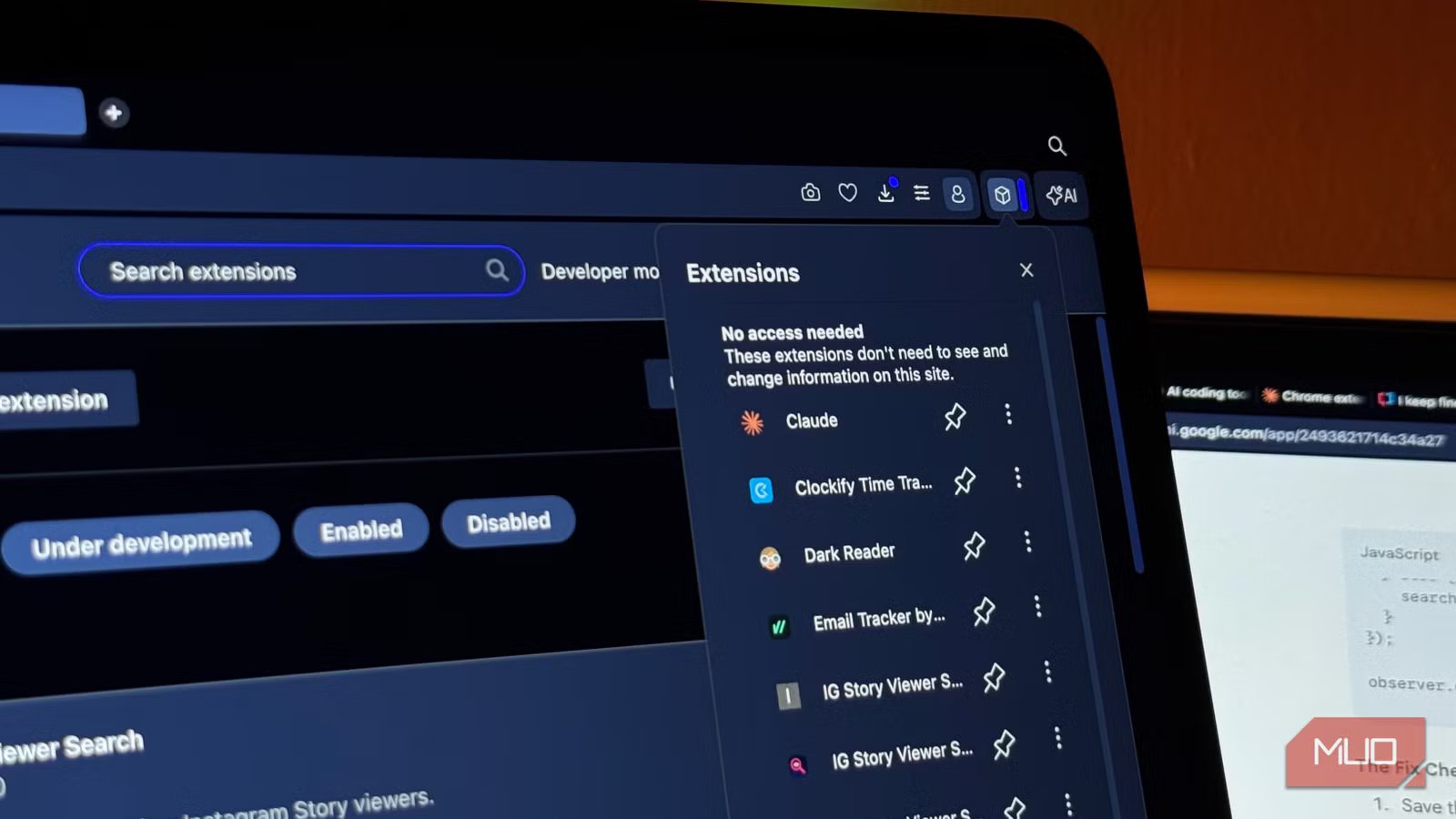
Most folks treat Chrome extensions as harmless productivity boosters. After all, they help you add features that Chrome doesn’t offer by default. There are several Chrome extensions that can block ads, summarize articles, save your passwords, and promise to improve productivity. That being said, this convenience also comes with a problem. Many Chrome extensions ask for far more permissions than they actually need. And most of us grant these permissions without thinking twice. If you also have a habit of clicking “Add Extension” and moving on, you might already be giving away far more access than you realize.
Related
Your browser extensions can see every password you type
Your trusted extension/add-on with over 100k review might be spying on you.
Many extensions ask for more permissions than they need
One of the biggest issues is permission creep
Screenshot by Kanika Gogia
When you install an extension, you’ll see a permission prompt. Of course, an extension might genuinely need some permissions to work properly. For instance, a tab manager might need to access your tabs, and a grammar checker may want to access the text that you type. However, many extensions go beyond just that.
Even basic tools like a color picker might ask permission to read and change website data. Now, that includes every website you visit, everything you type, and even your sensitive information like login details or payment data. Some developers ask for broad permissions to avoid compatibility issues. While others do it because it’s easier than restricting access properly. Either way, users hand over broad permissions that aren’t even necessary for the extension to work properly.
Once you approve an extension, it can continue operating in the background. Frankly speaking, most users never revisit permissions after installing an extension.
“Read and Change All Your Data” is more powerful than you think
One of the most common and dangerous permissions
We are all familiar with the “Read and change all your data on all websites” permissions. However, not everyone understands its impact. Most folks assume that this warning just means the extension can interact with the pages they visit. In reality, it’s like giving complete control of your browsing experience.
When you grant this access, an extension can read the contents of the websites you visit, modify them, inject ads, monitor what you type in forms and emails, and capture data before it’s encrypted or submitted. When an extension asks for this permission, it doesn’t automatically mean that the particular extension is malicious. For instance, a password manager extension might need broader permissions. And that’s not the problem. Many users can’t tell which extensions need these permissions and which are being greedy.
The problem gets worse when extensions are sold. Extensions can be updated in the background quietly and start collecting more data. When you’ve already granted permissions, the extension can continue to work in the background without any alerts.
Free extensions often make money from your data
How does a free extension generate revenue
If an extension is free, how is it generating revenue? After all, developers also need money for hosting, update cycles, support requests, and other work. Some legitimate extensions rely on donations and premium subscriptions to make money. However, that’s not the case for all extensions. In fact, many free extensions make money from your data.
Some extensions collect anonymized browsing data. This data is sold to third parties for analytics or advertising purposes. Some extensions even track user behavior across websites so that they can build detailed profiles. After all, your browsing habits can help them with your interests, shopping preferences, location patterns, and more.
Of course, extensions have privacy policies. But they are often vague or difficult to read. As a result, many users may allow data collection without a second thought. What makes this even worse is the fact that everything is invisible. Unlike apps on your phone, Chrome extensions run quietly in the background without showing any pop-ups or dashboards.
AI Chrome extensions raise even bigger privacy concerns
They can see more than you expect
Screenshot by Jayric Maning –no attributions required
We see AI everywhere. From chatbots and writing assistants to productivity apps and photo editors. Today, there are dozens of AI Chrome extensions that summarize webpages or draft emails for you. For this, an extension requires access to a massive amount of information. And that’s where privacy concerns get more serious.
Many AI-powered extensions ask for broader permissions, like the ability to read page contents and access clipboard data. Depending on the extension, it might use your data for training purposes or send it to third-party AI services for processing. Also, many AI extensions do not tell you what’s happening behind the scenes. Some creepy extensions might have vague privacy policies, and users rarely dig into them before installing.
The risk depends on how sensitive your data is. In workplaces, employees might accidentally expose confidential company data through AI browser assistants. Now, this doesn’t mean all AI extensions are unsafe. However, we have to know about the broader access and cloud processing risks.
You must review your extensions more often
Let’s face it. After installing browser extensions, most users forget about them entirely. Over time, your browser might be cluttered with dozens of extensions that you don’t even use or remember installing. Honestly, I have been there too. But that’s a risky habit.
You must treat your browser extensions like smartphone apps. Just like you review your app permissions, you must regularly audit your extensions as well. It’s very simple to do so. Start by asking yourself: Do I still use or need this extension? If you haven’t used an extension in months now, simply remove it. Also, if you don’t remember installing an extension, uninstall it.
Once you know which extensions you actually need, the next step is to review their permissions. Go to Extensions -> Manage Extensions -> Permissions. Here, you have to double-check that an extension only has permissions it genuinely needs. You can also restrict extensions to specific sites instead of granting full access.
