

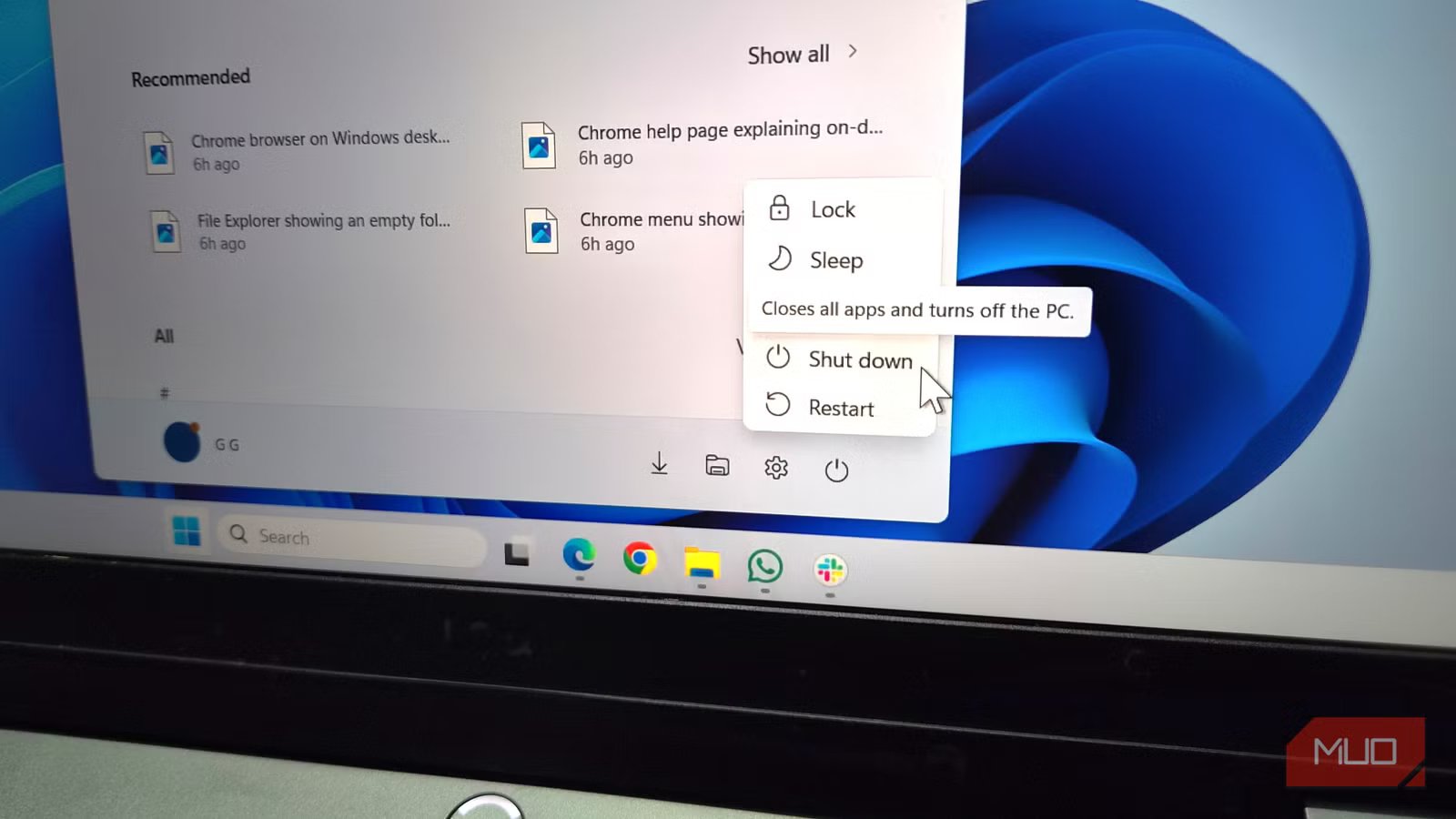
For the last couple of years, I’ve been hibernating my PC almost every single day. And honestly, I love the convenience of it. Closing everything down across all my virtual desktops only to reopen it all the next morning never really made much sense to me. So yes, for the longest time, I rarely ever shut down or rebooted my PC apart from Windows updates.
But then I had to stop doing it because of what daily hibernating was doing to my PC. And honestly, I’m glad I did because shutting down my PC every night has ended up being a much bigger improvement than I expected.
Related
You’re probably closing Windows apps wrong, and it may be slowing your PC
That little X button may be doing a lot less than you think.
Hibernating is convenient, but there are downsides
It saved time but caused other problems
Pankil Shah / MakeUseOfCredit: Pankil Shah / MakeUseOf
Hibernation used to feel like one of those perfect features to me. It gave me the best of both worlds: no battery drain like a full shutdown, while still letting me resume work exactly where I left off, like sleep mode.
For a while, hibernating my PC worked great. But then, I started noticing a pattern. Every 7 to 10 days, my PC would gradually start feeling slower and less responsive. Then eventually, things would get bad enough that the entire system would freeze out of nowhere and I’d have to do a hard reset. Unfortunately, that also meant losing unsaved work at times.
This wasn’t the only issue, though. The hibernation file itself can be pretty large because Windows essentially saves your entire system state to storage. In my case, it was close to 10GB when I checked the storage usage. That may not sound massive, but it’s still space that can be used for something else.
More importantly though, modern SSDs have made hibernation far less essential than it used to be. Earlier, PCs used to easily take a minute or more to boot up. But that’s not the case anymore. In my case, my PC boots incredibly fast anyway, so I’m barely saving any meaningful time by hibernating. Sure, reopening apps takes some extra time, but I feel it’s worth it if it’s helping my PC run smoothly.
Regular shutdowns solved a lot of little problems
It wasn’t as bad as I thought
Credit: Zarif Ali / MakeUseOf
Once I started shutting down my PC every night, those random slowdowns that used to creep in completely disappeared. I can confidently credit regular shutdowns for this improvement because I didn’t really change anything else about my setup. More importantly, my PC also felt cleaner and a bit faster than before. It’s hard to describe exactly, but Windows just felt “fresh” every morning.
The reason for this is pretty simple. With hibernation, a PC never really gets the chance to fully shut down and reset itself. Everything from background processes to temporary glitches and memory usage just keeps carrying over day after day. Regularly shutting down the PC fixes that.
Another side benefit is that Windows updates became much less annoying once I started doing this. When I relied on hibernation, there were times when Windows would suddenly decide to force an update in the morning or even in the middle of the day while I was busy working. Now, updates usually install during shutdown instead, so they’re far less disruptive.
Of course, I still rely on hibernation from time to time. It’s not a bad feature by any means. Any time I know I’ll need to jump back into a project and want everything as I left off, hibernation is still handy. But yes, I no longer treat it as the default option every single day.
Fast Startup can make shut down less effective
It blurs the line between shutdown and hibernation
Shutting down your PC doesn’t always mean Windows is doing a full shutdown. That’s because Windows has a feature called Fast Startup enabled by default. During a shutdown, this feature saves part of the system state to disk, so Windows can quickly reload it during the next boot. In a way, it’s almost like a lighter version of hibernation.
While faster boot times sound great, it also prevents your PC from fully shutting down and clearing bugs or memory issues. It simply reduces the effectiveness of a shutdown. Since parts of Windows kernel sessions are still being preserved, some underlying issues simply carry over between sessions.
So to avoid this, I’ve also disabled Fast Startup on my PC, and it’s something I recommend to most people. Instead of relying on that, I’ve done other optimizations, like managing startup apps and disabling unnecessary background services.
Windows restarts most of my apps after a shutdown
One of the things that made shutting down my PC regularly much more convenient for me is Windows’ restartable apps feature. It basically allows Windows to restore supported apps as soon as you sign in after a shutdown or reboot. To enable it, head to Settings > Accounts > Sign-in options and turn on Automatically save my restartable apps and restart them when I sign back in.
Not every app supports it, unfortunately, but the ones that do work great. For me, it restores my Edge tabs, File Explorer folders, Notepad, and other supported apps exactly as I left them.
