

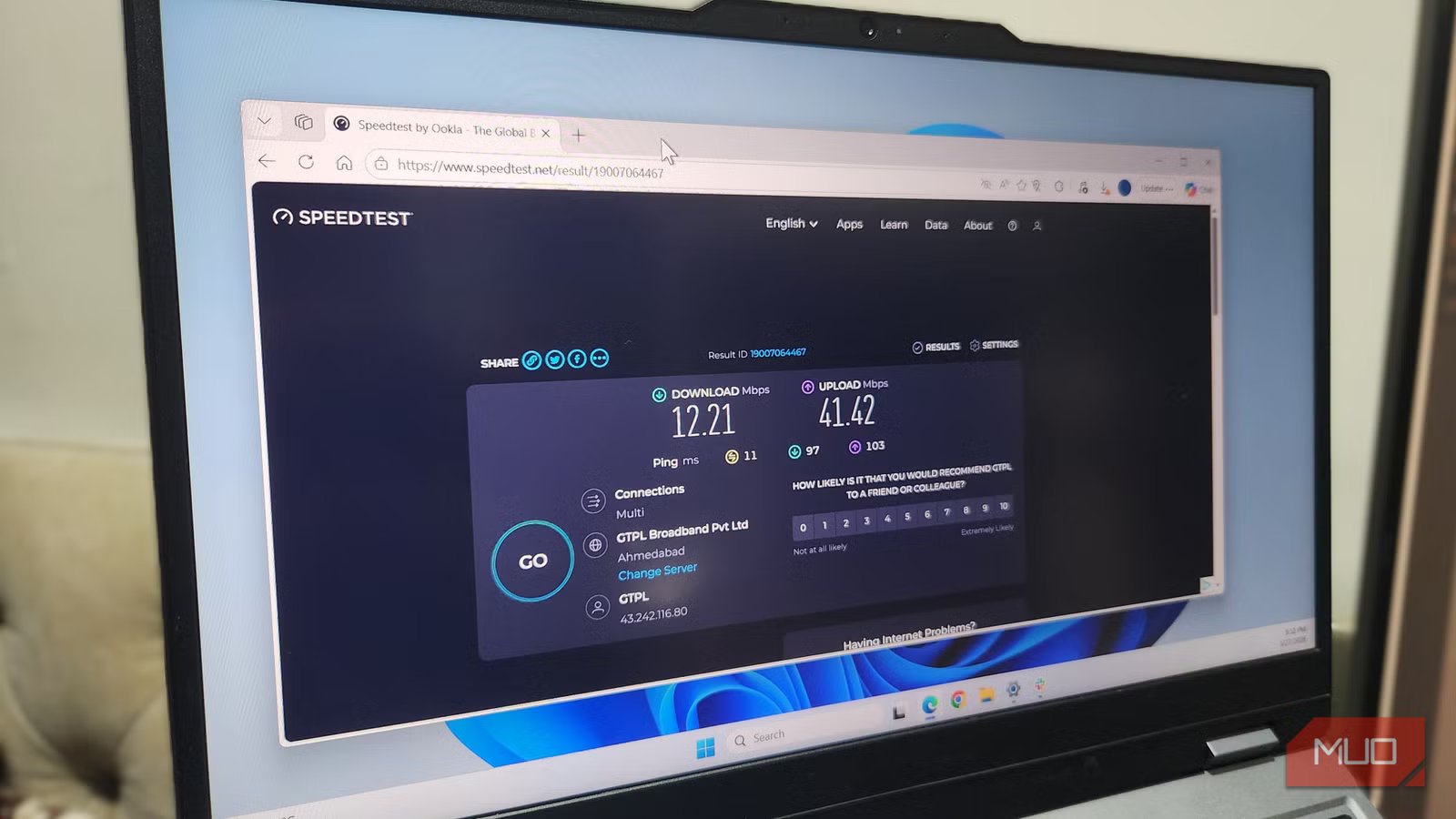
I had a problem where large downloads kept slowing down halfway through. I tried most of the usual troubleshooting steps — restarting my router and computer, checking for outages, running speed tests, and switching browsers (Chrome, Edge, Brave) — but nothing worked. This problem never occurred with smaller downloads, making it trickier to diagnose.
In the end, using the Resource Monitor tool, I traced the problem to Microsoft Defender. It was shocking that this security tool was ruining my large downloads, and even more surprising was how it was doing so.
Large downloads trigger Defender differently
Small files usually finish before the slowdown becomes obvious
Afam Onyimadu / MUO
The most confusing part of this issue was the inconsistency. Downloading a 60MB installer was a breeze, but a large ISO or ZIP of several gigabytes would cause extreme fluctuations. This unpredictability was consistent across all the browsers I use — even my favorite, Brave — so it wasn’t a browser issue.
As data arrives, browsers instantly stream chunks of it to disk; they don’t wait for the complete file. However, Microsoft Defender includes a mini-filter driver, a real-time protection mechanism that intercepts writes, and it treats every chunk downloaded from the browser as a new inspection event.
In essence, if you are downloading a 6GB file, it isn’t scanned only after completion; Defender scans chunks as the file grows. The scrutiny is typically highest for ZIP, ISO, EXE, and MSI files because they are common malware conduits. While your internet connection may be fine, the issue occurs on the disk, where Microsoft Defender and the browser simultaneously compete for write access.
When you think it’s the internet connection dropping, it could just be the disk write queue backing up. What may feel like a browser struggling is often the Antimalware Service Executable (MsMpEng.exe) running. What seems like a slow server can be real-time file system scanning, causing the disk write queue to back up.
This problem is magnified if you use mechanical hard drives or budget SATA SSDs, or if your laptop is on the Balanced power plan.
Resource Monitor showed what Task Manager missed
Watching both windows simultaneously changed everything
Afam Onyimadu / MUO
If you encounter the same issue, Task Manager will offer little help. It will still show normal CPU usage and the expected network speeds. But Resource Monitor surfaces more details.
I navigated to the Resource Monitor’s Disk tab, sorted by Total (B/sec), and then started downloading a large Linux file from my browser. When the download slowed, MsMpEng.exe rose to the top of the Disk tab; its Active Time approached 100%, disk response time increased, and read/write operations queued.
The synchronization of events confirmed Defender was the cause: each collapse matched a Defender spike, and downloads recovered as spikes eased; the pattern held across browsers. You could try replicating this test; it becomes hard to unsee once you notice the pattern.
Related
Windows was throttling my internet until I found these 5 settings
Your internet might already be fast, Windows just isn’t letting it feel that way.
Edge adds another security check near the finish line
The “stuck at 99%” problem usually isn’t network-related
Afam Onyimadu / MUO
Edge had one pattern that stood out. Downloads often run until about 99% and then pause for a while before completing. SmartScreen is often the main reason for this, though Defender completing its final scan pass on the finished file can contribute too.
Microsoft Defender works during writes, but before Edge allows the download to complete fully, SmartScreen checks the file’s reputation. If an app or executable has little reputation history, it faces greater friction during SmartScreen checks, and the same goes for downloads from less-trafficked sources.
In Edge, the timing of SmartScreen checks and Microsoft Defender scans can align closely enough, and when this happens, the final parts of the download become disproportionately slow.
A folder exclusion fixed the slowdown
The targeted approach worked better than disabling protection entirely
Disabling real-time protection globally would fix the problem, but it removes an essential defense layer, leaving you completely exposed to all forms of malware. It should never be considered.
The solution I applied was creating a dedicated downloads folder. I excluded this folder from Microsoft Defender scanning. The steps are simple:
- Launch the Windows Security app.
- Navigate to Virus & threat protection -> Manage settings.
- Under Exclusions, select Add or remove exclusions.
- Click the Add an Exclusion button, then select Folder, and add the downloads folder you created.
This folder was strictly for large downloads and trusted archives, and it was isolated from my general Downloads folder. Once it was added, the problems with large downloads disappeared. I observed stable SSD activity during transfers in Resource Monitor.
If you adopt this solution, your exclusions must be narrow. Excluding the entire drive or your general Downloads folder would put the system at risk because several unverified files often end up in these locations, and there wouldn’t be any real-time scanning for them.
Predictability of large file downloads
One of the worst parts of large downloads is not knowing how long they’ll take or having no consistent way to estimate it. The fix I adopted removed the unpredictability. The problem was never my browser; it was just Windows acting as it was designed to and carrying out its normal security checks.
