

Of course I’m a Pro Windows user. Duh. So are you, so is everyone. We are all on that “Pro” license because we’re not just regular home users, right?
But what’s the actual difference, aside from the name and the price tag? There are plenty of feature differences between Home and Pro. There’s even a hardware limit — Windows Home doesn’t let you have more than 128GB of RAM. Thankfully, we’re on Pro so we can use our 2TB of RAM.
There are plenty of differences, but when it comes to actual daily use, I haven’t felt much of them. BitLocker is fine, but it’s not something I reach for every day. I don’t care much for Group Policy Editor either. However, not too long ago, I came across a feature that’s exclusive to Windows 11 Pro — and for the first time, I’m genuinely glad I’m on it.
Related
The difference between Windows Home, Pro, Education, and Enterprise
Windows editions are built for very different priorities once you look past the names.
I’m talking about Hyper-V
A built-in hypervisor
I wanted to run Linux Mint for a very specific task. Dual-booting wouldn’t work because the scope was limited and I needed both OSes running at the same time. I thought about VirtualBox, but I’ve been using WSL so heavily in Windows that I figured there might be a better way. There is. Windows 11 Pro ships with a proper hypervisor built right in. It’s called Hyper-V.
You can enable it two ways: through Windows Settings or via PowerShell. Go to Settings > Apps > Optional Features, scroll to the bottom, and click More Windows features. This opens the legacy Windows Features dialog box where you check the box for Hyper-V.
Image by Amir M. Bohlooli; NAN.
If you’d rather skip the terrible Windows Settings app, open an elevated PowerShell terminal and run:
Enable-WindowsOptionalFeature -Online -FeatureName Microsoft-Hyper-V -All
Give your computer a reboot, and once you’re back, search for Hyper-V Manager in the Start menu.
Hyper-V is not just a built-in VirtualBox
It sits closer to the hardware
Image by Amir M. Bohlooli; NAN.
A hypervisor is software that creates and manages virtual machines. It abstracts physical hardware so multiple operating systems can share it. The name comes from where it sits in the stack: the OS is the supervisor. If we were to oversimplify, Hyper-V is a VM manager like VirtualBox, built right into Windows 11. No third-party install needed.
But there’s more to it than convenience. VirtualBox is a Type 2 hypervisor, meaning it runs as a regular application inside Windows. Windows manages the hardware, VirtualBox gets resources through Windows, and then it parcels those resources out to whatever VMs you’re running. There’s a chain of middlemen.
Hyper-V is a Type 1 hypervisor. It doesn’t run on top of Windows — Windows runs on top of it. Hyper-V sits directly on the hardware, and the OS itself is just another privileged guest on top of it. In practice, this means noticeably better performance compared to VirtualBox, especially for resource-heavy workloads. So… not only it’s built-in and you don’t need to install a separate program, but, it’s also better. Hyper-V is good.
Amir Bohlooli / MUO
Hyper-V’s enhanced session mode — which enables clipboard sharing and drag-and-drop between host and VM — works seamlessly with Windows guests. For Linux, it’s a different story. You need to install and configure XRDP inside the VM to get it working. It’s doable, and I did get it running, but it’s not the plug-and-play experience you’d hope for.
VirtualBox handles this better. Guest Additions, which you install inside the VM, gets you clipboard integration and file sharing out of the box on Linux.
Hyper-V Manager (the UI to create VMs) is exclusive to Pro/Enterprise/Education, but the underlying Hyper-V technology exists in Windows Home to power WSL2 (Windows Subsystem for Linux). You just can’t use the management tools to make your own custom VMs on the Home edition without third-party scripts.
What good is a virtual machine?
More than you’d think
Amir Bohlooli / MUO
My initial use case was specific: secure web browsing. There were some things I wanted to look into, and I already use a separate router and gateway for privacy-sensitive sessions — but switching between them constantly on my main Windows setup isn’t practical. Running a clean Linux installation inside a VM, with none of my Windows baggage attached to it, was the cleaner solution. I could’ve gone with a privacy-focused distro like Tails or Whonix, but I settled on Linux Mint for the familiarity.
That’s a fairly niche use case though. There’s plenty more you can do with a VM.
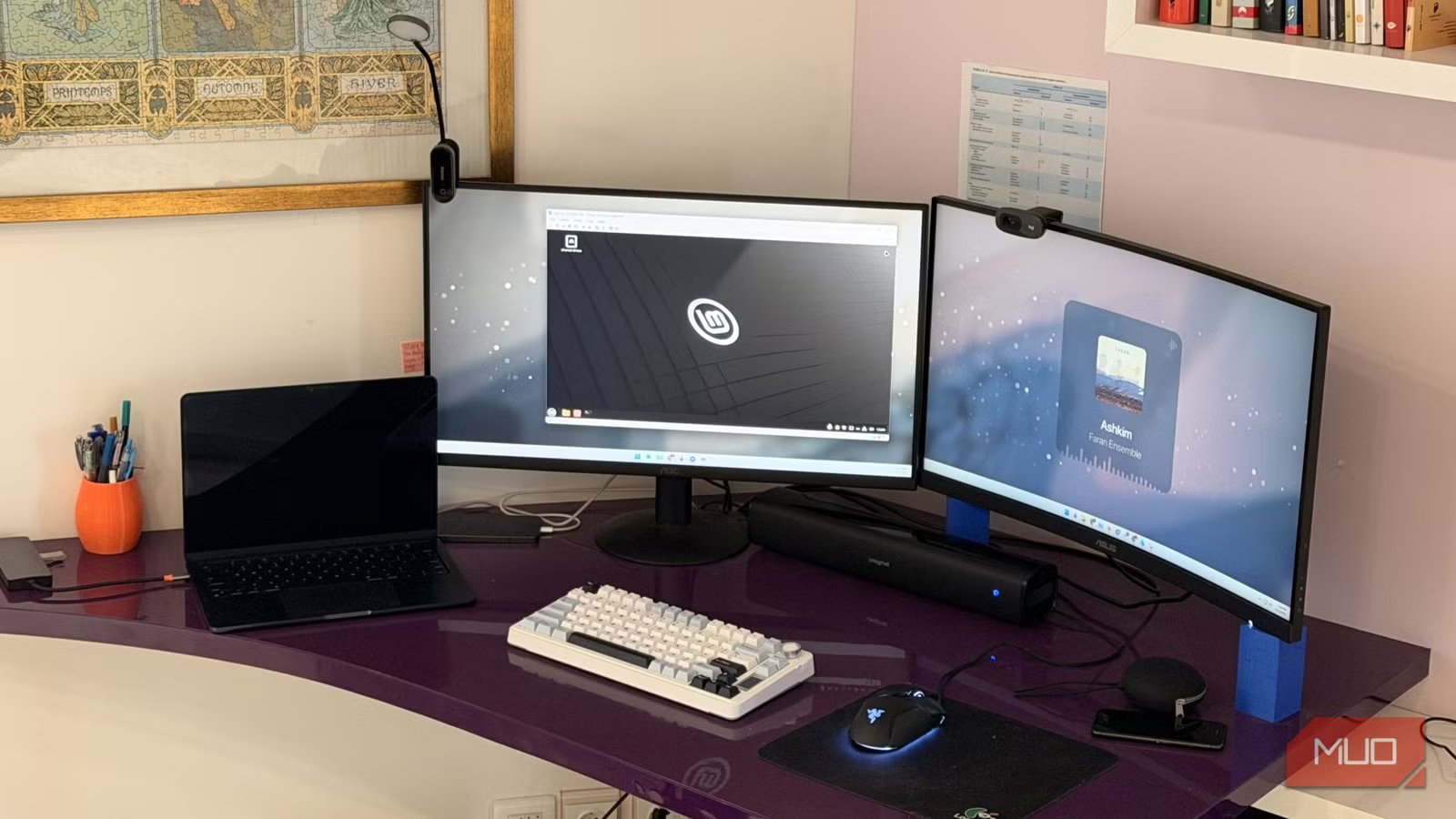
You can set up a sandbox for testing sketchy downloads or experimental software without touching your main system. You can run Linux alongside Windows without dual-booting, split-screen it across two monitors if you want, Linux on one side, Windows on the other. You can try out the endless parade of tempting Linux distros without committing to anything. And if there’s a Linux-specific workflow you rely on, you can keep it isolated and clean in its own environment.
None of that is unique to Hyper-V — VirtualBox handles all of it too. The difference is that Hyper-V Manager is already there.
Hyper-V is a rare Windows win
As is the case with a lot of Microsoft software in 2026 — if the interface looks like it was designed in the Windows 95 era, it’s probably rock-solid underneath. Hyper-V Manager is exactly that. Sparse, functional, and completely unfussy.
I’d been on Windows 11 Pro this whole time without knowing this was here. If you’re in the same boat, it’s worth trying. There’s no reason to install VirtualBox anymore, at least not for me.
