

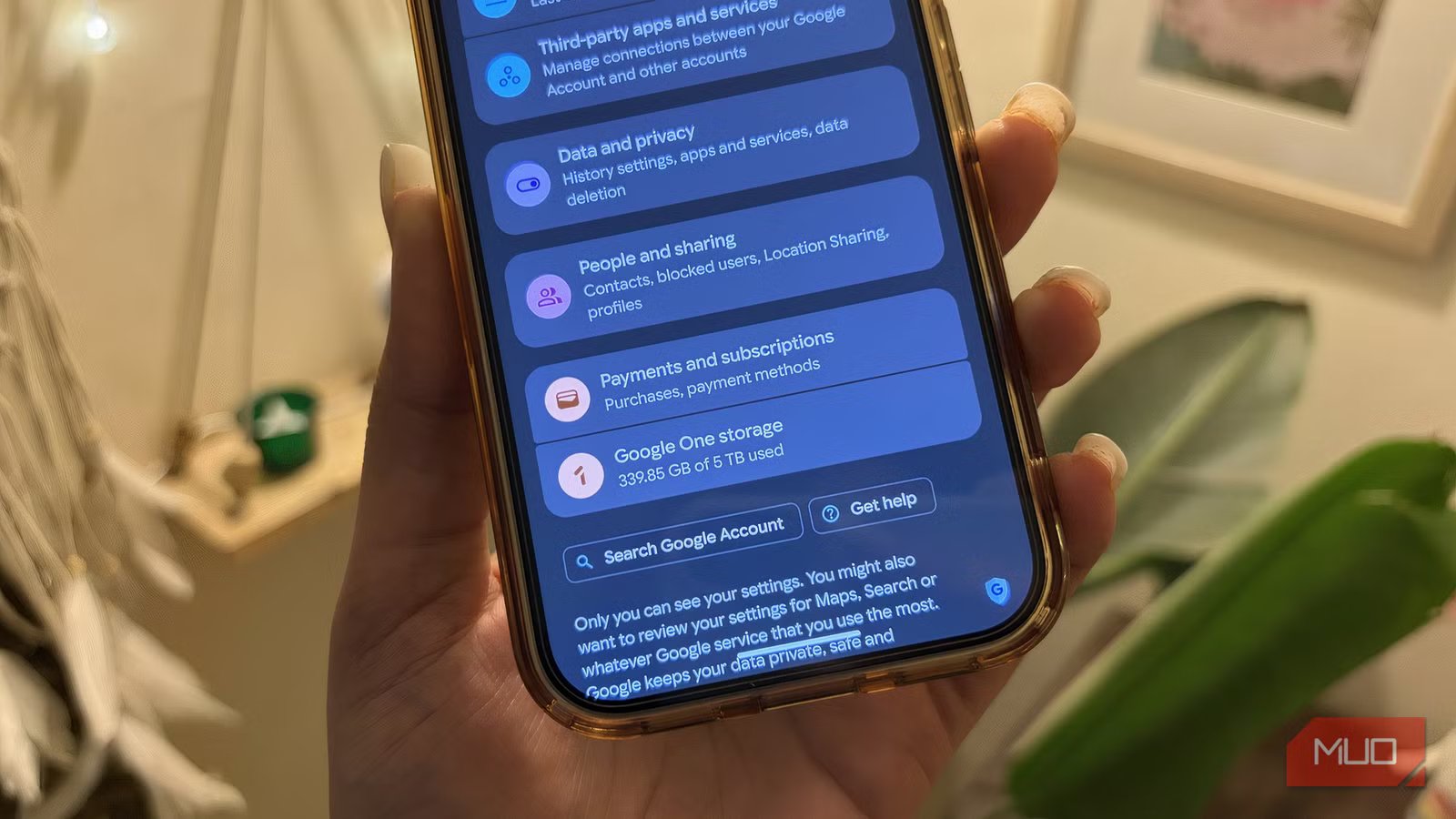
I’ve always been a bit cautious about how I use my devices and apps, and all that comes down to one thing: my data. Privacy matters to me, so I try to stay aware of what I’m sharing. That constant awareness keeps me from using my phone on autopilot. I tend to question what’s running in the background and where my information might be going.
That habit led me down a bit of a rabbit hole. I started digging through settings, reading up on what different permissions actually mean, and understanding what’s essential versus what’s just collecting data. That’s when I realized just how much tracking was happening through Google services. After researching and testing, I’ve narrowed it down to a few settings that, in my opinion, are worth turning off, especially if you care about privacy the way I do.
Related
The creepy targeted ads on my phone vanished after I changed one setting
Turn off this ID and ads stop following you.
The diary you never meant to keep
Turns out, Google remembers everything about you
Credit: Shimul Sood / MakeUseOf
Web & App Activity is the Google setting that saves your searches and activity from Google services to your account. This includes your searches, the videos you watch on YouTube, places you look up on Maps, and even how you interact with apps. All of this gets saved to your Google account to make things feel more personal. This setting, in turn, gives you faster search results, smarter recommendations, and a Google Assistant that learns your habits over time. It sounds convenient, and sometimes it genuinely is. But there’s a flip side that’s hard to ignore.
Over time, this setting builds a detailed record of your online life. What you search for, what you watch, where you go, and what catches your interest. It all adds up to a pretty clear picture of you. If you’re even slightly conscious about privacy, that can feel like a bit too much. Since all this information is stored together, it becomes sensitive data. If someone ever gets access to your account, they’re not just getting your email; they’re getting a timeline of your habits. And because this runs in the background all the time, it keeps collecting data without you really noticing. Fortunately, you’re in control here — you can pause this tracking or wipe it entirely. Here’s how:
- Open a browser on your laptop and go to your Google account.
- Click on Data & Privacy from the menu.
- Scroll to Web & App Activity under Activity Controls.
- Tap Turn off.
You’ll see two options:
- Turn off (stops future tracking)
- Turn off and delete activity (stops tracking and clears past data)
I went with the second option because I preferred starting fresh, with nothing lingering in the background. But you can pick whatever feels right for your usage.
Google’s memory is impressive…but it doesn’t need to be
A few toggles between you and less tracking
Credit: Shimul Sood / MakeUseOf
Personalized ads on Google are built on your data. Every search you make, every video you watch, and even the apps you use feed into your ad profile. Since your Google account stays signed in on your phone, laptop, and even your TV, this tracking follows you wherever you go. Switching off personalized ads is a good move if you value a bit more privacy.
This doesn’t mean ads disappear into thin air. You’ll still see them, just not the ones you specifically searched for.
If you’re ready to dial things down, here’s how you can do it:
- Open your Google account on any device.
- Head to Data & Privacy.
- Scroll to the Personalized ads section and tap on My Ad Center.
- You’ll see your complete ad profile here.
Under Activity used to personalize ads, you’ll find options like: Activity on sites and apps, YouTube History, and Places you’ve used Google services. From here, you can switch off whatever you’re not comfortable sharing. For instance, I’ve turned off activity tracking for sites, maps, and YouTube history. But this isn’t a one-size-fits-all setting. Your comfort level is your call, so tweak it however works best for you.
The apps you forgot still remember you
A quick audit of who gets your data
Credit: Shimul Sood / MakeUseOf
It’s easy to lose track of how many apps you’ve signed in to using your Google account. That quick Continue with Google click feels convenient at the moment, but it also means you’ve likely shared bits of your data with more apps and services than you realize.
The good news is that Google keeps a record of connected apps and services you’ve allowed to access your account. You can see exactly which third-party apps have access to your data, what kind of information they’re using, and most importantly, take that access away if it no longer feels right. If something feels off or simply unnecessary, here’s how you can take back control:
- Open your Google account on any device.
- Go to Data & Privacy.
- Scroll down to third-party apps & services.
- You’ll see a list of apps connected to your account.
- Tap on the app you want to review or remove.
- Select Delete all connections with that app.
- Confirm your choice
That’s it. The app loses access. It’s worth doing this every once in a while. Some apps you stopped using ages ago might still be holding onto access they no longer need.
Related
I had no idea how much Google Maps was tracking me until I found these settings
Create a boundary and protect your data
You don’t need to share everything
You don’t have to overhaul your entire digital life to feel more in control of your data. Sometimes, it’s just about knowing where to look and making a few changes. These settings aren’t hidden because they’re unimportant; they’re just easy to ignore. And that’s exactly why they matter.
The idea isn’t to stop using Google or any of the services you enjoy. It’s to use them on your terms. Turn off what feels excessive, keep what adds value, and revisit these settings every once in a while. Because the more aware you are of what data Google collects on you, the easier it becomes to decide what’s actually worth sharing.
