

If you read my Find X9 Ultra review, you’ll know that I really like the phone. It has the best cameras of any flagship right now, I really like the camera-focused design, and the massive battery easily lasts two days. The software is also among the best on Android, and ColorOS 16 has plenty of useful features.
One feature I enjoy using is Mind Space; it basically collates an assortment of data and makes it actionable. You press the dedicated key on the left to add an item to Mind Space, and then the feature leverages AI to extract relevant information in that page. So if you bought movie tickets, you can just save the details to Mind Space, and it will create a calendar event easily. I used the feature to automatically add an upcoming flight to my Google Calendar, and it’s pretty great to use.
Article continues below
You may like
What is AI Bill Manager in ColorOS 16?
(Image credit: Apoorva Bhardwaj / Android Central)
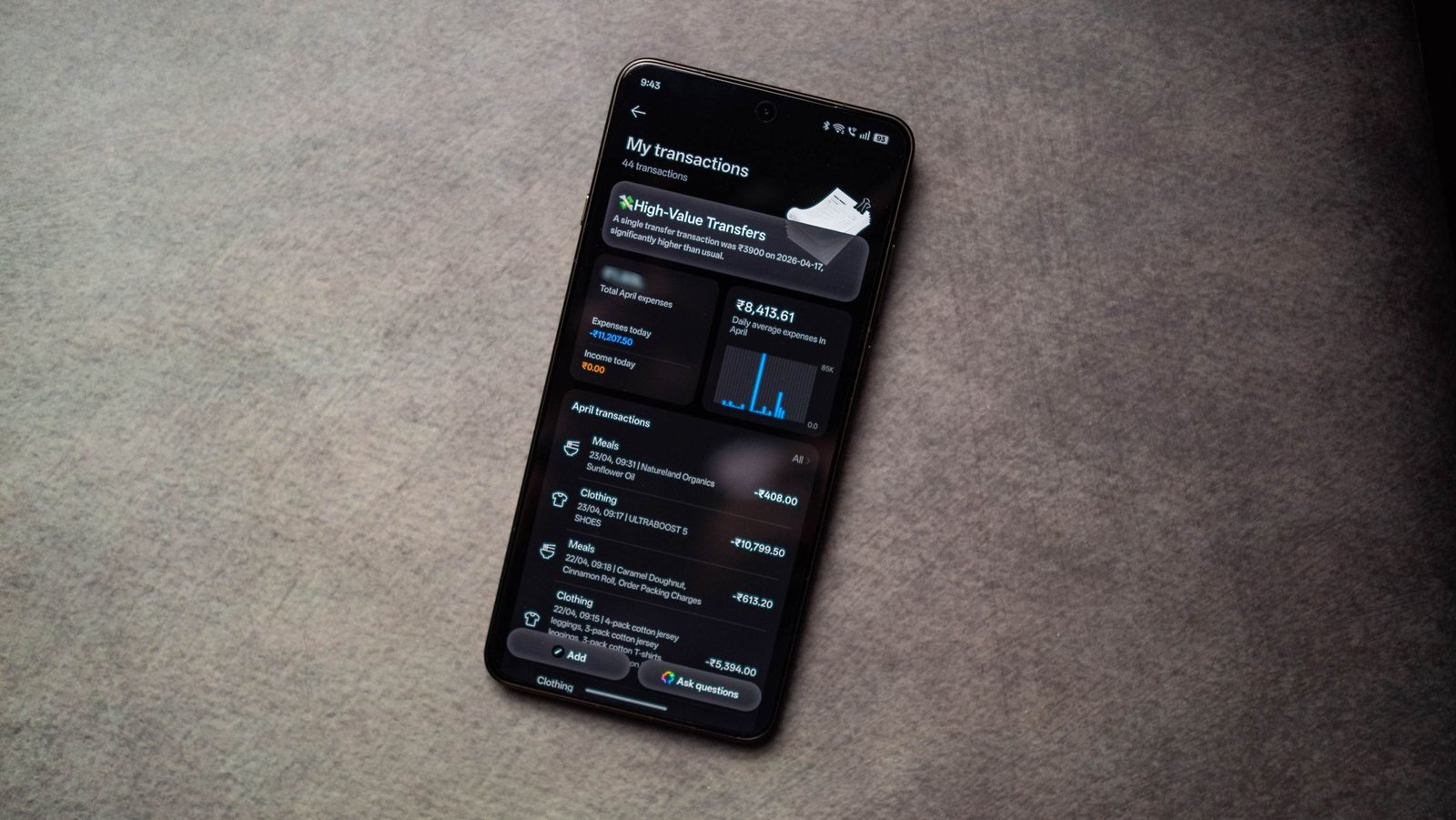
As the name suggests, AI Bill Manager lets you easily manage your finances. You’ll need to enter individual transactions, but it isn’t as onerous as other budgeting apps that ask you to log amounts, what kind of transaction it is, and so on. With this feature, all you do is press the shortcut key on the left of the phone at an order confirmation page, and it does the rest.
It uses AI to analyze the contents of the mail or message and add the details. Where it stands out is its ability to categorizes expenses into categories, and I found this to be highly useful. I bought a pair of shoes this week, and I just took a screenshot of the Adidas confirmation mail, and it added the bill amount, tagged it under Clothing, and even noted the kind of shoes bought (Ultraboost 5).
(Image credit: Apoorva Bhardwaj / Android Central)
Basically, the feature gives you a decent understanding of where your money is going, and there are useful metrics. It shows a breakdown of how much you’ve spent in each category, overall monthly expenses, and you can see daily or weekly spending habits.
Another positive is that the feature doesn’t send any data to the cloud; it is entirely on-device, so you don’t need to worry about your details sitting on an OPPO server somewhere. While it is debuting on the Find X9 Ultra, the feature will make its way to all other OPPO phones with the latest ColorOS 16.1 build.
How to set up and use AI Bill Manager
(Image credit: Apoorva Bhardwaj / Android Central)
You don’t have to do much to use AI Bill Manager. Just launch Mind Space and join the beta, and you can start adding transactions. This is how to do it:
- Double press the shortcut key on the left to pull up Mind Space. If you didn’t set it up, you can do so in the settings by going to the Snap Key menu.
- Within Mind Space, go to the action menu (three vertical dots on the right).
- Select Settings.
- Toggle Beta version to On.
AI Bill Manager is just one of those features that makes sense. I’m using it as it’s entirely on-device, and I like that it gives detailed metrics. It’s an easy way to see where I’m spending my money (it’s mostly shoes), and this is an AI-related use case I can actually get behind.
