

Last week, my Windows laptop started acting up. During an intense gaming session, out of nowhere, my entire PC restarted. When I started looking into this matter, I found that some apps were quietly closing in the background, without any reason. I went through the event logs on Windows Event Viewer, but the cryptic codes made me feel like I was trying to read an ancient language.
Thanks to my habit of researching stuff on the internet, I came across a secret tool that Windows was hiding. There is a hidden tool that tracks every crash, failed update, and all software hiccups your laptop has experienced. It has weeks, months, and even years’ worth of records, and it is called Windows Reliability Monitor. Here’s how to use it.
Related
I finally disabled these Windows services and my PC is happier for it
Your PC might be secretly working harder than you are, and not always in ways that benefit you.
You don’t need to install anything
This effective troubleshooting tool is just a command away
Yadullah Abidi / MakeUseOfCredit: Yadullah Abidi / MakeUseOf
Firstly, to use the Windows Reliability Monitor, you don’t need to install hefty software. It is available within your operating system. And if Windows Event Viewer is the highly technical, complex troubleshooter for you, Reliability Monitor is a simple health chart for your PC.
Microsoft introduced the Windows Reliability Monitor all the way back with Windows Vista, and many people still don’t know about this effective tool. Call it a failure of Microsoft or the industry. What Reliability Monitor does is it provides you with a visual timeline of your system’s stability.
Instead of throwing confusing event logs at you, it grades your computer’s health on a scale of 1 to 10 and plots it in a graph. This way, it is easier to understand for a normal user why and when their PC experiences failures and crashes. When the system crashes, fails to boot, or a faulty driver or major update causes problems, the score usually drops to reflect that drop in stability.
When your PC is running smoothly with no major issues, the stability line usually stays high, often near 10, but it may still vary slightly due to minor background events.
Using Reliability Monitor is simple
You just run a command, and you are through
If you are also experiencing issues with your Windows PC, then you can use Reliability Monitor and understand what is causing the problem, etc. Getting your Reliability Monitor is incredibly simple, and there are a couple of ways to open it.
Using the Run dialog
- Press Windows + R keys on your keyboard to open the Run dialog box.
- Type the command: perfmon /rel
- Hit Enter or click OK.
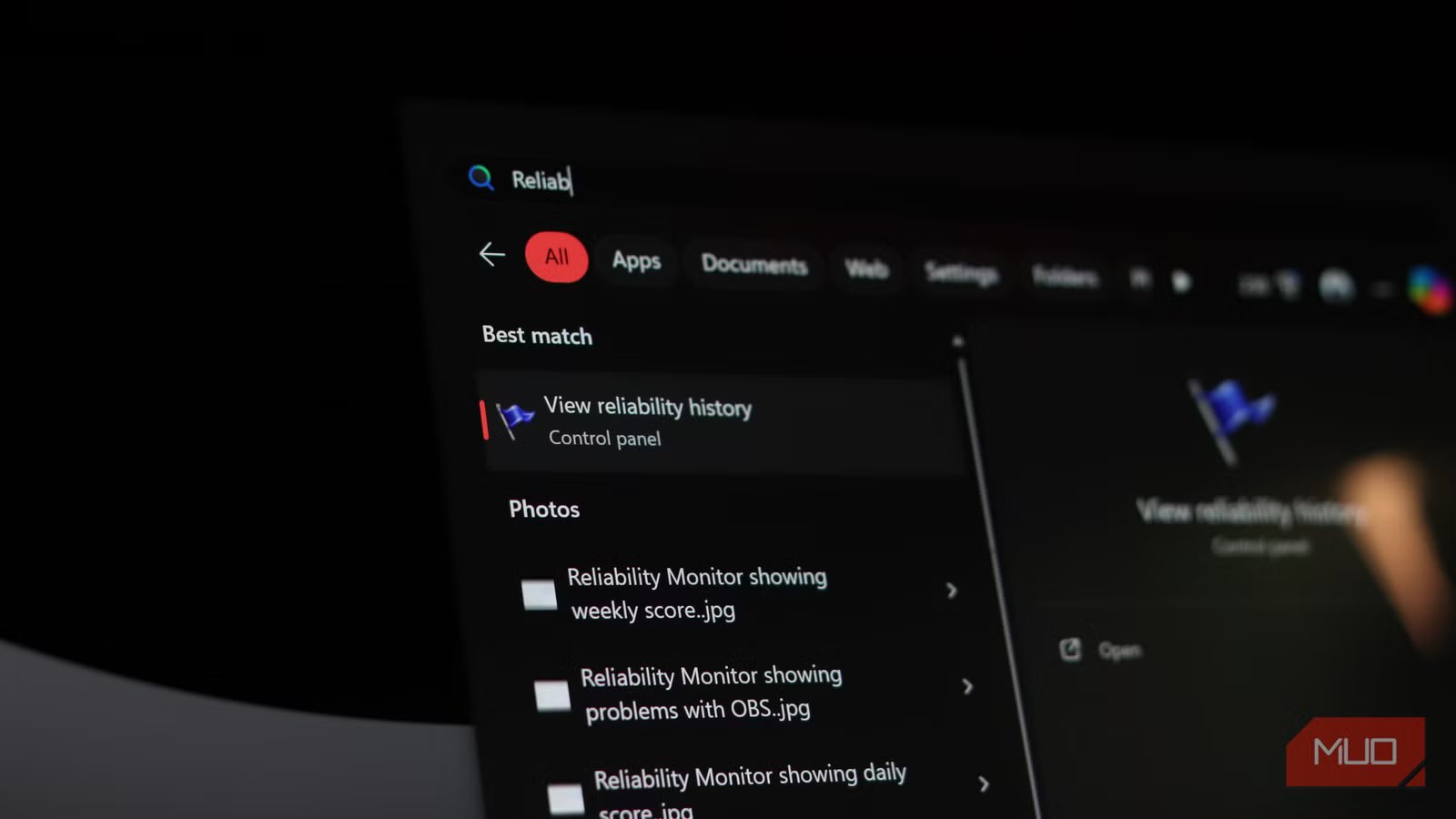
Using the Search Menu
- Press the Windows key on your keyboard or the Start menu button.
- Type View reliability history.
- Click on the appropriate result.
Instantly, the Reliability Monitor window will pop up, calculating your PC’s stability history.
Reading the Readability Report is easy
No complex processes, and no complex information
Credit: Sagar Naresh/MUO
When the Reliability Monitor opens, it may seem a bit too much if you are seeing it for the first time. If you see a graph that has a graph with roller-coaster waves, that is completely normal for a heavily used computer. Making sense of the report is fairly easy.
At the top half of the window, you will see a line graph, which is the Stability Index. It ranges from 1 to 10, where 1 means terrible and 10 means perfect. You have the option to sort this index by days or weeks. By clicking on the specific day when the line dips, the bottom half of the window will be populated with exactly what happened.
The bottom half of the window shows a list of events categorized by specific icons. The red “X” icon means critical events, which are the heavy hitters. This means that the application completely stopped working, Windows crashed (Blue Screen of Death error), or a hardware failure has occurred.
The yellow triangle means non-fatal errors. This means that an application installation failed, or an update did not go through as planned. Such errors do not crash your PC, but Windows wants you to be aware of them.
Lastly, there is the blue ‘i’ icon, which marks informational events. These indicate that something happened (like an install or update) but did not cause a failure. If you want to know exactly why the specific app has crashed, just double-click on any event or right-click and select View technical details.
You should check this tool even if your PC is working fine
After I came across this tool, I often use it to monitor my PC. You should also use this even though your PC is working fine, because Reliability Monitor is great at catching silent errors. You might have an app on the system tray that keeps crashing and restarting itself in the background without coming to notice. The Reliability Monitor catches these errors easily and keeps a record of them. On the other hand, after updating to the latest version or installing the latest drivers, the PC often runs more slowly. With the help of Reliability Monitor, you can pinpoint the exact updates or driver versions that cause the Stability Index to nosedive.
