

Changing your DNS settings is one of the easiest ways to bring some extra privacy to your network. I’ve swapped the DNS settings on most of my devices over the years for faster and more secure alternatives to my ISP’s default DNS settings, with great success.
But I wanted to take it further and keep all of my DNS requests in my own network, boosting my privacy even further.
So, I grabbed an old laptop, a copy of the open-source Proxmox server, and got to work. And considering I don’t have much experience with Linux, servers, and so on, getting my own DNS up and running was a surprisingly smooth and easy process.
Related
I ran a DNS speed test and Google’s 8.8.8.8 wasn’t even in the top two
The only way to find the fastest DNS is to test it yourself.
What I used for my home DNS server
There are other options, though
For this, I’m using a 2021 Honor MagicBook 14 with an Intel i5-1135G7 CPU, integrated Intel Xe graphics, 8GB DDR4 RAM, and a 512GB SSD. It’s not the most powerful laptop, but it has more than enough power to run a basic Proxmox server with a few virtual machines for different services (more coming in the next few weeks!).
You can run Proxmox on much older hardware if that’s what you have to hand, so long as it has a 64-bit CPU (basically all modern PCs and laptops), Intel VT/AMD-V virtualization, and at least 2GB RAM. Oh, and an onboard Ethernet port also helps, but as I found, a decent Ethernet to USB adapter will also get the job done.
On that, if you’re using an adapter, make sure it uses a Realtek RTL8153 chipset, as it has some of the best Linux support and makes setting up your network a little easier than some of the alternatives. For example, one of the main Ethernet-to-USB adapter chipset alternatives, AX88179, is known to cause issues with Proxmox.
Then, I decided on a combination of Unbound DNS with AdGuard to create a comprehensive, in-house DNS solution. In this basic DNS stack, Unbound resolves DNS requests (basically turning human-readable domain names into machine-readable IP addresses), and AdGuard provides blocking, filtering, and more.
In combination, it gives you a very strong, private, and potentially ad-free DNS for all the devices on your network, all for the sake of a few hours’ work.
Also, note that while I’m using an old laptop with Proxmox, that’s not the only way to get this done. You could also use a Raspberry Pi with Unbound and Pi-hole to achieve similar results; it’s just what you have lying around (or want to commit to buying).
Brand
Raspberry
CPU
2.4GHz quad-core 64-bit Arm Cortex-A76 CPU
Memory
16GB LPDDR4X
Ports
4 USB ports, GbE, microSD, 2 mini-HDMI ports
Before wiping your machine, get some network information
You’ll need it during the Proxmox installation
A quick note on IP addresses: the addresses used throughout this guide — 192.168.1.1 for the gateway, 192.168.1.10 for Proxmox, 192.168.1.11 for the DNS container — reflect my own network setup. Your network may use a different range entirely, such as 192.168.0.x or 10.0.0.x. Always use the gateway and subnet information from your own ipconfig output rather than copying my addresses directly. Getting this wrong is the most common setup mistake. It can be fixed (as I found out!), but having the right IP addresses to start makes your life so much easier.
The first step of this process is noting down a few bits of network information from your current machine.
- Open Command Prompt/Terminal and run ipconfig
- Note down your Default Gateway (your router’s IP, typically 192.168.1.1) and the IPv4 Address of your current machine.
You’ll use the gateway IP during Proxmox installation, and knowing your current IP range means you can pick a static IP for Proxmox that won’t conflict with anything else on your network.
For example, if your gateway is 192.168.1.1 and your PC is 192.168.1.50, you could assign Proxmox something like 192.168.1.10 — just make sure it’s outside your router’s DHCP range.
Just don’t do what I did during installation and add the IP for the wrong network interface… let me tell you, that took more than a few minutes to figure out.
Download and install Proxmox
You’ll need to wipe your device
Proxmox VE is a bare-metal hypervisor — you install it instead of an OS, and it lets you run multiple virtual machines and lightweight containers from a browser-based interface. It’s what turns an old laptop into a proper homelab server. It also means that whatever is on your old laptop will be wiped during the installation process, so make sure to back up anything important.
For this part of the process, you’ll need a USB thumb drive. This will be wiped during the ISO creation process, so make sure you’ve cleared any data from it.
- Head to the Proxmox download page and download the latest version of Proxmox VE.
- Next, head to Rufus and download the latest version. Once Rufus finishes downloading, boot it up.
- Press the Select button and browse to the Proxmox server download. Rufus should automatically detect the ISO type and adjust its settings automatically.
Once you’re sure, press Start and let the ISO-to-USB installation process complete.
Boot from the USB and install Proxmox
Proxmox runs directly on your hardware
Now, you’ll need to plug your old laptop into your router. Do this with an Ethernet cable. As said, if your laptop doesn’t have an Ethernet port, you’ll need an adapter.
Once connected, insert your USB. You’ll then need to turn on your laptop while pressing the boot order key to access the boot order sequence. This is typically F12, but varies between manufacturers — a quick internet search will usually reveal what you need.
Select the drive you installed Proxmox on. It’ll launch into the Proxmox installation, where you want to select Install Proxmox VE (Graphical). From here, you’ll need to select the target disk, your country and timezone, the network interface (i.e., where Proxmox will access the internet), a hostname, IP address, DNS server, and an email/password combination.
This is where you’ll need the information you copied down from ipconfig before installing Proxmox. Input your Default Gateway, and choose an IP address that matches. For example, my Default Gateway is 192.168.1.1, so I’ll set a static IP of something like 192.168.1.10/24, and you’re good to go.
On the DNS server section: yes, we’re setting up a DNS solution, but you still need to add one here for Proxmox to use. I went with 9.9.9.9, as Quad9 is one of my preferred options, but this can be changed later.
Review the summary, and hit Install. You’re on your way.
Connect to Proxmox and create the DNS container
Make sure your server is up and running
Once the installation completes, you can reboot the host machine. When it reloads, it should show you the IP address hosting Proxmox on your network.
This is where you need another computer. Input that IP address on another device, and Proxmox should load up. The default username is root, and you’ll need the password you created during the server installation setup process.
Once you’re logged in, it’s time to set up a container for the DNS stack. Rather than installing Unbound and AdGuard directly on the Proxmox host, we’ll use an LXC container — a lightweight, isolated Linux environment that keeps everything neat and separate from the host system. Think of it like a self-contained box within your server that runs its own software independently.
- Click your node in the left panel. It’ll be named whatever you set as your hostname. For example, mine is just DNS.
- Next, select local.
- In the middle panel, select CT Templates, then the Templates button at the top.
- Search for debian 12 bookworm, then download.
The download won’t take long. While it downloads, there is more configuring to take care of. In the top-right corner, select Create CT. From here, work through the various tabs:
- General: Add a hostname (again, dns is fine), and a root password.
- Template: Select the Debian 12 Bookworm template.
- Disks: 8GB is plenty for Unbound and AdGuard
- CPU: 1 core is fine
- Memory: 512MB RAM and 512MB swap
- Network: Set IPv4 to Static, then add the static IP address you’ll use to access AdGuard. For example, I added 192.168.1.11/24, setting the gateway to 192.168.1.1 (as before).
- DNS: Leave as default.
From here, you can select Finish, and Proxmox will build the container. Once it appears in the left panel, select it, click Start, and let it fire up. Once the virtual machine is running, press Console to open a shell where you can enter commands, then input: apt update && apt upgrade -y
If you see errors about failing to resolve package sources, your container may not have network connectivity — double-check the IP and gateway settings in the Network tab of the container match your actual network range. Once that’s sorted, you’re ready to install the DNS stack.
Install and configure Unbound
The engine behind your private DNS
Unbound is a validating, recursive DNS resolver. Unlike simply forwarding your queries to Cloudflare or Google, Unbound starts at the DNS root servers, sending your queries directly to the nameservers and skipping third parties in the middle.
Reopen the Console from the previous section and input apt install unbound -y
Once Unbound is installed, input nano /etc/unbound/unbound.conf.d/local.conf and then paste in the following:
access-control: 127.0.0.0/8 allow
harden-dnssec-stripped: yes
Save the file with Ctrl+O, Enter, then Ctrl+X to exit.
Unbound is configured to listen on port 5335 rather than the standard DNS port 53. That’s because AdGuard Home will occupy port 53 as your front-facing resolver, while Unbound sits behind it.
Prefetch tells Unbound to refresh popular cached entries before they expire, keeping response times low for frequently visited domains, while the cache size settings give Unbound plenty of memory to store results, so repeat queries return almost instantly.
Now, input unbound-checkconf to validate the file. If you run that command and receive no errors in config file, you’re good to go. If you encounter an error here (there are several potential problems), try an internet search or consult an AI chatbot like Claude.
- Next, restart Unbound using the following command: systemctl restart unbound
- Then, run a quick test to confirm Unbound is resolving correctly: dig google.com @127.0.0.1 -p 5335
If all is well, you’ll see the Answer Section containing IP addresses. Your first time out will feel like it takes a little while, as Unbound recurses from the root DNS servers. It’s all good and normal. Once the DNS cache fills, subsequent searches and so on will be faster.
With Unbound working, you’ve got a fully private recursive resolver running on your network. Next, we layer AdGuard Home on top to add blocking, filtering, and a proper web interface.
Install and configure AdGuard Home
Your network’s new front door for DNS
Unbound handles the recursive resolution, but it has no web interface, no blocking, and no per-device visibility. AdGuard Home fills all of those gaps — it sits in front of Unbound, handles ad and tracker blocking across your entire network, and gives you a clean dashboard showing exactly what every device is querying in real time.
Install it with the following commands:
curl -L https://github.com/AdguardTeam/AdGuardHome/releases/latest/download/AdGuardHome_linux_amd64.tar.gz -o AdGuardHome.tar.gz
tar -xzf AdGuardHome.tar.gz
cd AdGuardHome
./AdGuardHome -s install
Once complete, you’ll see a list of addresses AdGuard Home is available on. From another device on your network, open a browser and go to:
http://192.168.1.11:3000
Once AdGuard Home opens, you’ll need to run through the installation wizard, which walks you through most of the settings you need.
- Admin web interface port: I changed this to port 80, so I can access the dashboard at http://192.168.1.11 without typing a port number each time
- DNS server port: Leave this as 53 — that’s the standard DNS port all devices expect
- Username and password: Set something secure, you’ll use this to log into the dashboard
Work through the remaining wizard screens, and you’ll land on the AdGuard Home dashboard. Now, you need to point AdGuard Home at Unbound to link everything up.
In the AdGuard dashboard, go to Settings > DNS settings. Under Upstream DNS servers, remove anything that’s already there and enter 127.0.0.1:5335 then make sure load balancing is selected.
That’s your Unbound instance. Scroll down and click Test upstreams — it should return a green confirmation. If it does, hit Apply.
Add blocklists to AdGuard Home
The next step is to add some blocklists to your new DNS stack. Out of the box, AdGuard blocks some ads and trackers, but there is also the option to add third-party blocklists, which is what makes having your own DNS so powerful.
Go to Filters > DNS blocklists > Add blocklist and look through the built-in options. I’m running four lists:
- AdGuard DNS Filter: General ad and tracking list with 165,000+ rules
- HaGeZI’s Pro Blocklist: A more comprehensive ad, tracking, and malware blocking list with 203,000+ rules
- OISD Small: Smaller, more specialized list with 57,000+ rules
- Malicious URL Blocklist (URLhaus): A malware and phishing-specific blocklist designed for security and privacy, with 14,000+ rules
Of course, you’re free to pick and choose from the lists as you see fit. Each list has an explainer on what it blocks and how it works. But the combination of these lists gives you over 440,000 rules covering ads, tracking, and malware — comparable to what dedicated DNS security services like Quad9 offer, but entirely under your control.
Point your network at AdGuard Home
Every device is covered automatically
Reader, we’re nearly there; the finish line is in view.
With AdGuard Home and Unbound running, the final step is telling your network to actually use them. Right now, your devices are still using whatever DNS your router hands out by default, but that’s exactly what we’re setting up to change.
For this part, you need to access your router. Access your router admin panel and log in. The address for your router admin panel varies between manufacturers and networks, so if in doubt, a quick internet search should reveal the correct IP address.
You’re looking for a field labeled something like Custom DNS servers or DNS server. Enter 192.168.1.11 and save.
Your router will now hand out 192.168.1.11 as the DNS server to every device on your network via DHCP. Devices pick this up automatically when their lease renews — disconnecting and reconnecting from WiFi forces an immediate renewal if you want to test it straight away.
Every router admin panel looks slightly different, so the exact location of this setting varies. If you can’t find it immediately, searching “DNS” within your router’s admin panel usually surfaces the right page quickly.
Related
I set up Pi-hole on my home network, and the internet feels like a completely different place
The many benefits of hosting your own DNS server and the control it gives you over your network.
Test your new DNS configuration
Now, you should be fully up and running with a custom DNS.
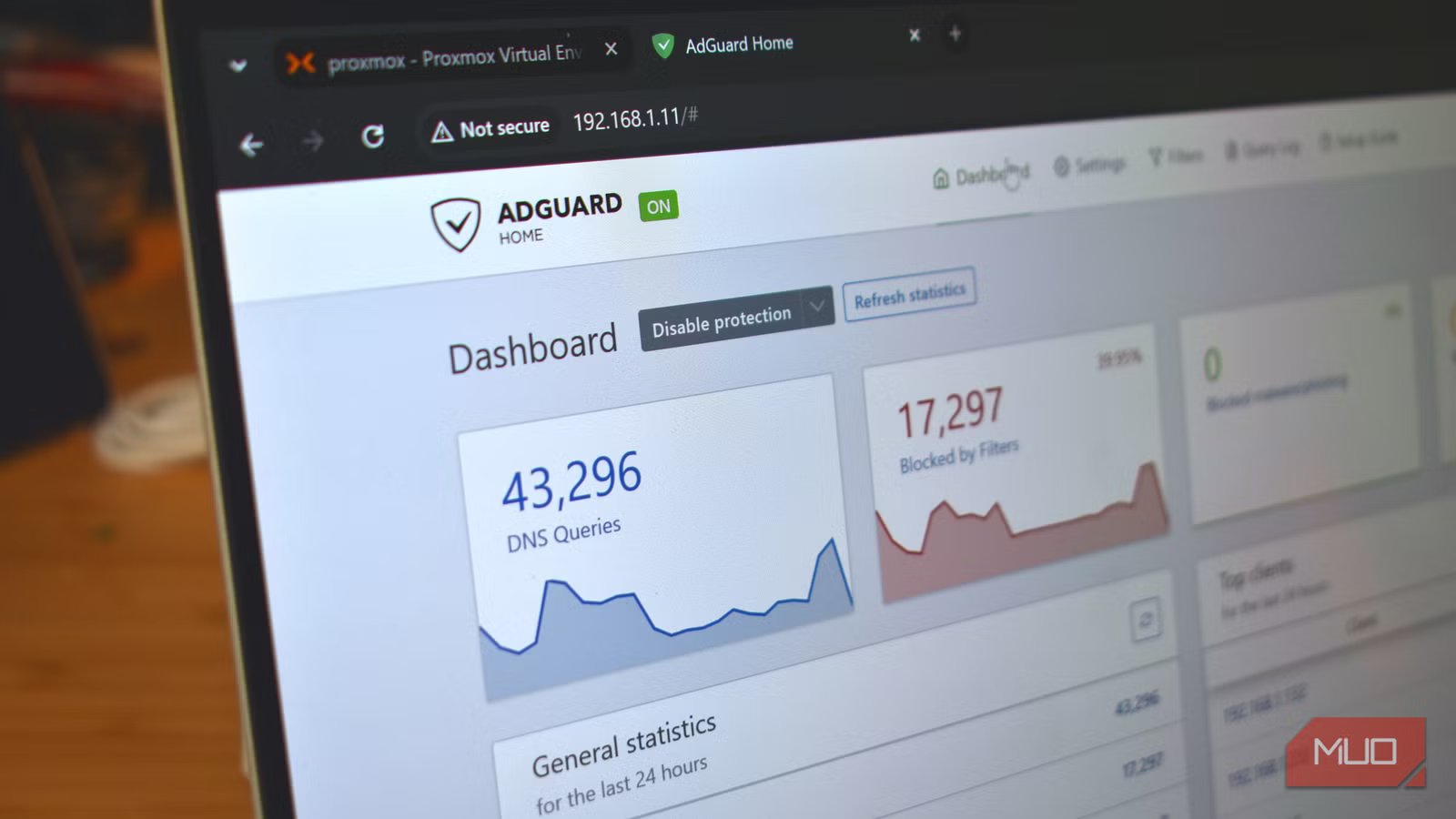
Head to the AdGuard dashboard and watch the query log as the devices on your network connect and start sending requests. On my first day with the setup running, AdGuard was blocking around 25% of all DNS queries on my network, mostly tracker calls and telemetry endpoints from devices I’d never thought to configure.
Once more devices connected to my home DNS solution, I was sitting at 47.5% blocked.
One thing worth knowing: response times will look high immediately after adding blocklists; I saw around 280ms on day one. That’s normal. The cache is cold, and AdGuard is processing a fresh batch of rules. After 24 hours of normal household usage, commonly visited domains will be cached, and the average drops considerably. After a few days of usage, this had dropped to around 60ms.
That’s still slightly slow compared to other DNS options like Cloudflare and Quad9, but the extra privacy and control are more than worth it.
