

Phone Link offers an easy way to connect your phone to your PC. With this, you can reply to texts, take calls, launch and use your phone apps directly from your computer. However, I was forced to ditch Phone Link because it stopped working and recognizing my Android phone out of the blue. Even reinstalling the app didn’t help, because the Android setup option wouldn’t go through no matter what I tried.
I mainly used Phone Link to sync text so that I could copy and paste across my phone and PC instantly. With Phone Link gone, I went looking for other ways to sync my Android and PC clipboard, and found a few better options using my keyboard app and Google’s built-in Quick Share.
SwiftKey has a brilliant clipboard sync feature
Cross-device copy and paste through your keyboard
The easiest way to sync your phone and PC clipboard is if you already use the SwiftKey keyboard. I’ve been using SwiftKey as my Gboard replacement for a year now, and the clipboard sync is one of the features that made me stick with it.
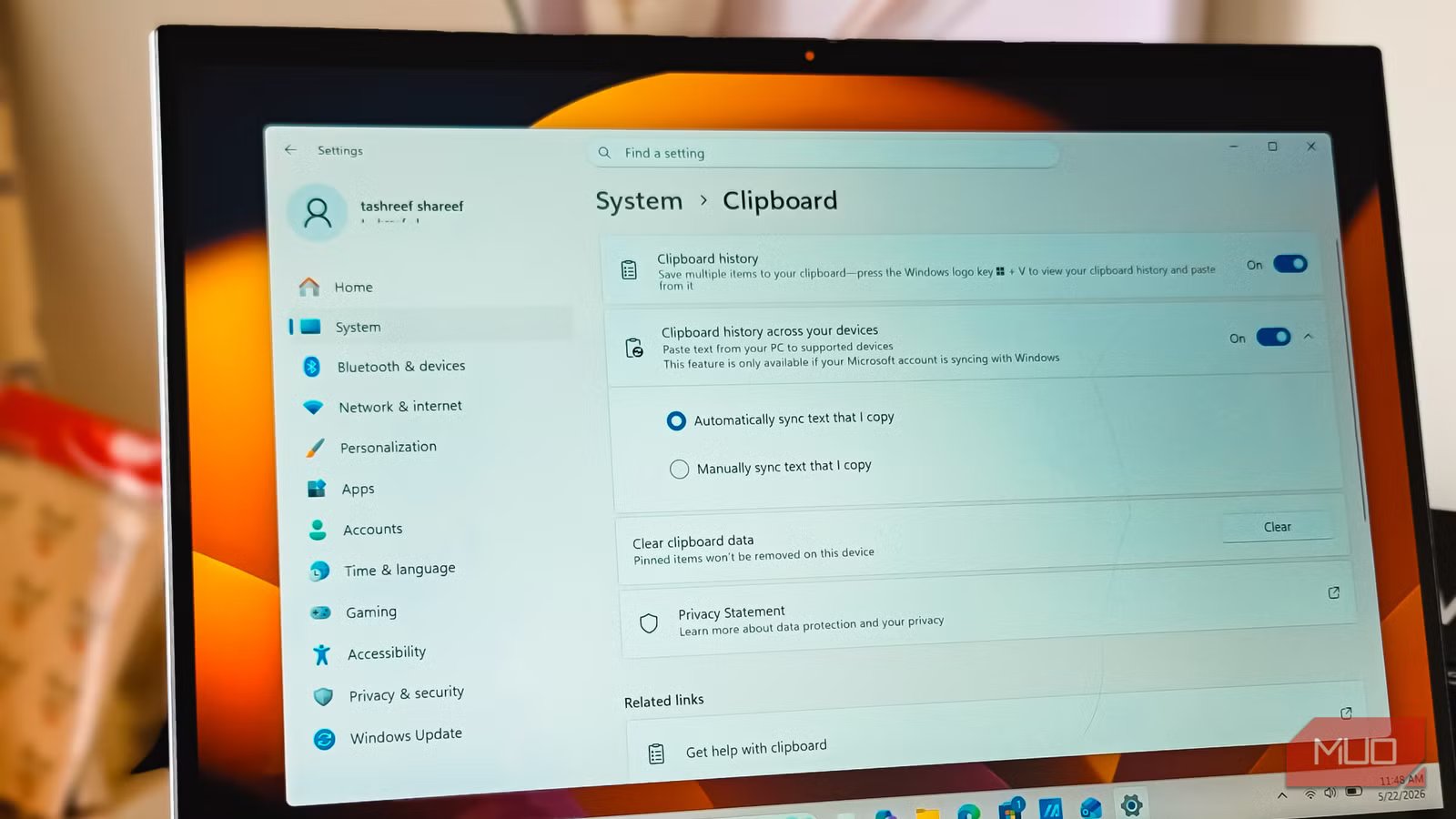
For this to work, you need to sign in to SwiftKey and your Windows PC with the same Microsoft account. On Android, open the SwiftKey app, tap Rich input, then Clipboard, and turn on Sync clipboard history. On Windows, go to Settings > System > Clipboard, turn on Clipboard history, and then enable Clipboard history across your devices. Pick Automatically sync text that I copy if you want every copy to push across instantly.
Once you enable sync on both sides, whatever you copy on one device becomes available on the other within a second. It works in the background, so there’s no app to open or button to press. The history holds the last few copied items, and you can pin the ones you want to keep around longer. It’s the closest thing to a seamless phone-PC clipboard I’ve used, and it doesn’t need Phone Link running in the background.
If you’re already using SwiftKey as your main keyboard, this is the best solution. If not, the next two options work without changing your keyboard.
Quick Share can share text, too
Manual clipboard transfer for Gboard users
Credit: Brady Snyder / MakeUseOf
Now, if you prefer Gboard over SwiftKey, you have other ways to share text between devices. I replaced Phone Link with Quick Share on my PC for file transfers, and while it may not be as fast as Blip or LocalSend, it’s more reliable than both, which is why I’ve stuck with it. Turns out, Quick Share can move text between devices too.
To use it, long-press any text on your phone, tap Share, pick Quick Share, and choose your PC from the device list. A notification pops up on Windows within a second, saying the text is on your clipboard, and you can paste it with Ctrl + V. Going the other way, copy text on Windows with Ctrl + C, open the Quick Share app, and paste it into the app. It then pushes the text to your phone’s clipboard.
Unlike SwiftKey, Quick Share doesn’t sync automatically. You have to send each snippet manually, which actually works in your favor for privacy because not everything you copy gets pushed across.
A quirk I’ve noticed is that Quick Share doesn’t work in apps that don’t have a system-level share button, like Obsidian in Editing view. The workaround is to switch from Editing View to Reading View, then select and share the text just as easily.
OS
Windows, Android
Price model
Free
Google’s Quick Share lets you transfer files wirelessly between Android, Chromebook, and Windows devices. Share photos, videos, and large documents with nearby contacts instantly, skipping cloud storage and messaging apps entirely.
LocalSend can share more than just files
A cross-platform option that handles text the same way
Image Credit: Pankil ShahCredit: Pankil Shah/MakeUseOf
If you prefer LocalSend over Quick Share, you can share text between devices the same way, just through a different app. LocalSend is a free, open-source file transfer app that runs on Windows, Mac, Linux, Android, iOS, and even Google TV, and it does the job over your local network with no accounts or sign-ins.
I mostly use LocalSend for files, but it handles clipboard text just as well. On Android, long-press the text, tap Share, pick LocalSend, and select your PC from the list. The text shows up in the LocalSend window on Windows, and you can copy it to your clipboard from there. Sending text from PC to phone works the same way through the app.
The advantage over Quick Share is that LocalSend works across more platforms, so if you have a Mac or a Linux machine in the mix, this is the more flexible pick. Transfers stay on your local network and are end-to-end encrypted, which is reassuring if you’re sending anything sensitive. It’s the option I’d recommend if your setup spans more than just Android and Windows.
OS
Windows, macOS, Android, iOS, Linux, and Google TV
Price model
Free
LocalSend is a free, open-source file transfer app that uses your local network to send files instantly and reliably between Windows, macOS, Linux, Android, and iOS devices without needing the internet
KDE Connect is a true Phone Link replacement
Seamless clipboard sync that works on any Android phone
Now, if you’re looking for a true Phone Link alternative, nothing comes closer than KDE Connect. KDE makes some of the best free Windows apps, and KDE Connect is right there at the top of the list. It does notifications, file sharing, media controls, and most importantly for me, clipboard sync, all without locking features behind a specific phone brand.
The clipboard sync just works. Copy text on your Windows PC, and it shows up on your phone’s clipboard instantly. Copy something on Android, tap the KDE Connect notification, and it’s on your PC. You can configure it to push automatically or manually, depending on how much control you want over what crosses devices.
This is the part that matters: Phone Link’s clipboard sync is effectively limited to Samsung Galaxy phones, and other Android users have to install SwiftKey to get similar functionality. KDE Connect doesn’t care about your phone’s brand. As long as both devices are on the same Wi-Fi network, the clipboard works the same way on a Pixel as it does on a Xiaomi or a OnePlus. That’s a big deal if you bounce between non-Samsung phones.
OS
Android, iOS, Windows, macOS, and Linux
Price model
Free
KDE Connect allows your phone and computer to work together seamlessly by enabling file transfers, notifications, text replies, and clipboard sharing between devices over a secure wireless connection.
The setup I’ve settled on
SwiftKey gives me the most seamless sync, but only because I already use it as my main keyboard. If you don’t want to switch keyboards, Quick Share and LocalSend cover the manual side well enough, though neither feels as effortless as Phone Link’s clipboard did when it actually worked.
KDE Connect is the one I’d point most people to if they want a Phone Link replacement that does clipboard sync the right way, without the Samsung lock-in. Pick the one that fits your setup, but know that you don’t need Phone Link to copy and paste between your phone and PC anymore.
