

I had noticed a strange occurrence when transferring large files on an external drive. The copy speeds start quite high, sometimes above 300MB/s, but end up collapsing to a crawl. I was seeing really chaotic-looking progress graphs, and transfers that should have taken minutes ended up taking longer. I wasted time changing the enclosure, cables, and even blamed thermals, but the real cause turned out to be a USB policy that had been the default since 2018.
It only took making one switch in Device Manager for my file transfers to be cut in half. They became more predictable.
Windows changed this default for a good reason
Most people never safely eject drives — Microsoft stopped assuming they would
Afam Onyimadu / MUO
Before Windows 10 version 1809 — when Microsoft introduced the policy update that caused this problem — removable drives relied on write caching. This allowed the OS to put temporary holds on writes coming into memory and flush them in efficient batches to the drive. This was a faster approach, but it also meant that if the drive got accidentally disconnected, unwritten data in memory could be lost.
However, several users were not safely ejecting the drive before unplugging it, so Microsoft introduced Quick Removal — which entirely disables write caching — as the new default. Write now goes directly to the drive, with no memory buffering. This is safer for unplugging without ejecting.
If you are only moving a few data items, it’s a completely reasonable tradeoff, but the performance cost of removing write caching is obvious on large files. The two policies exist in Device Manager, and this is how they compare:
Quick Removal
Better Performance
Write caching
Disabled
Enabled
Unplug without ejecting
Lower risk
Higher risk—eject first
Sustained write speed
Significantly lower
Significantly higher
Best suited for
Flash drives, occasional small transfers
External SSDs, large or frequent transfers
Today, fast SSDs have become a common storage option. However, the Quick removal policy wasn’t designed particularly with them in mind.
Related
Your SSD is slowing down, and Windows has been quietly hiding the fix
Speed up your sluggish SSD with this hidden Windows fix.
The worst slowdown didn’t happen at the beginning
My SSD only started crawling after its fast cache filled up
This was genuinely confusing for me because I got top speed at the start of transfers. The speed only plummeted later with no warning. There are two causes for this pattern, and both are worth understanding if you want the fix to make sense.
I have covered the Windows policy above, which is the first one. However, the second is the SSD’s handling of sustained writes. The majority of consumer SSDs have an SLC cache, which is a part of the NAND flash used as a high-speed temporary buffer. This first cache is where data initially lands during a transfer, and it’s the cause of the initially high speeds. The drive starts writing directly into slower TLC or QLC NAND, which is why you see the sharp drop in speed.
Quick removal makes the downside of this mechanism more obvious. Speeds fall once the drive’s cache is filled, and since there is no write caching, the impact is easily noticed. The SLC cache exhaustion is a hardware constraint that switching to Better Performance doesn’t eliminate; however, this switch instantly redefines what happens after the cache fills. In my testing, this is what I noticed:
Metric
Quick Removal
Better Performance
Peak speed
~300 MB/s
~350 MB/s
Sustained speed after cache fills
30–60 MB/s
80–180 MB/s
Average sustained speed
60–120 MB/s
150–280 MB/s
50 GB mixed folder transfer time
7–14 min
3–6 min
The peak speeds were very close since the initial burst—regardless of the applied policy — is handled by the SLC cache. Below that row is where real differences start to show.
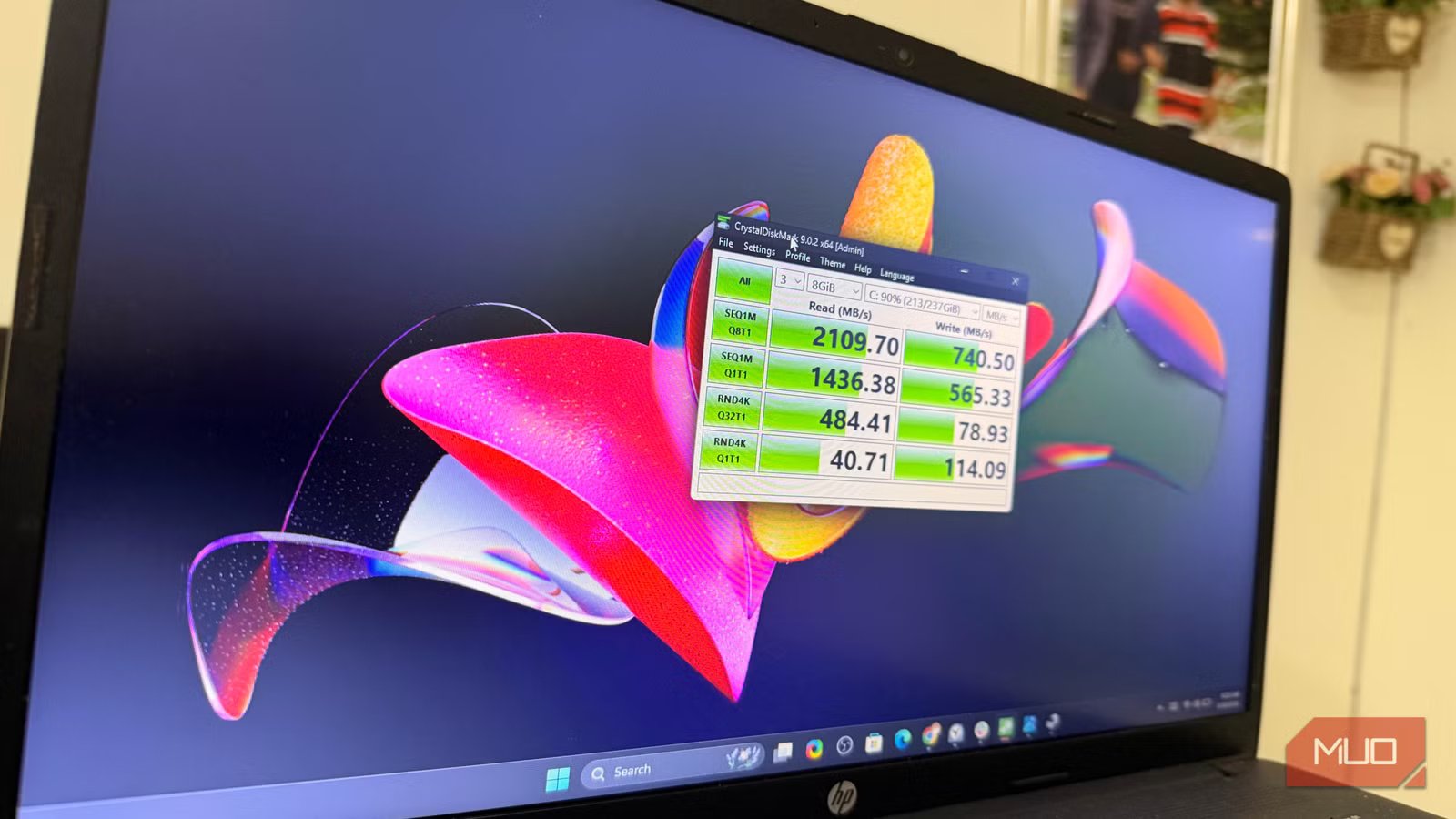
I confirmed using CrystalDiskMark, and the results were similar. With both policies, I got similar results running the 1 GiB sequential write tests because the SSD cache was absorbing the load. However, on the 8 GiB tests, I noticed higher speeds when the profile was set to Better Performance.
OS
Windows
Developer
Crystal Dew World
Free Trial
Yes
Individual Pricing
Free/$9.99
CrystalDiskMark is a simple and popular open-source benchmarking tool used to test the read and write speeds of storage drives like SSDs, hard drives, and USBs.
The setting is buried somewhere most people would never check
It’s under Disk drives, not USB controllers
Changing the policy is a straightforward process:
- Right-click the Start menu and click Device Manager.
- Expand Disk drives, then right-click on your SSD and select Properties.
- Click the Policy tab. The default is Quick removal; change it to Better Performance.
- In the Write-caching policy section, select Enable write caching on the device, and click OK.
This setting seems buried in the wrong spot because, logically, you may want to look under Universal Serial Bus controllers, especially if you are transferring files to a USB device. But this is a setting within the drive itself and not the port.
Once you have changed the policy, safely eject the drive or USB, plug it back in, and proceed with the transfer. You can also reboot the system after the change to ensure it takes effect.
This removed one bottleneck — not every bottleneck
The results I showed were from a fast SSD plugged into a USB 3.2 Gen 2 connection. You don’t expect the same speed for every setup because your USB interface puts a cap on what write caching can push. While changing the policy helps for large video or RAW photo libraries, large mixed folders, and other large file transfers, for casual use it’s fine to stick with Quick removal, as there is no real advantage in changing it.
Most importantly, note that changing the policy doesn’t make your slow drive a fast one; it only ensures the OS isn’t throttling your transfer. This policy is one feature that I wish I’d found sooner.
