

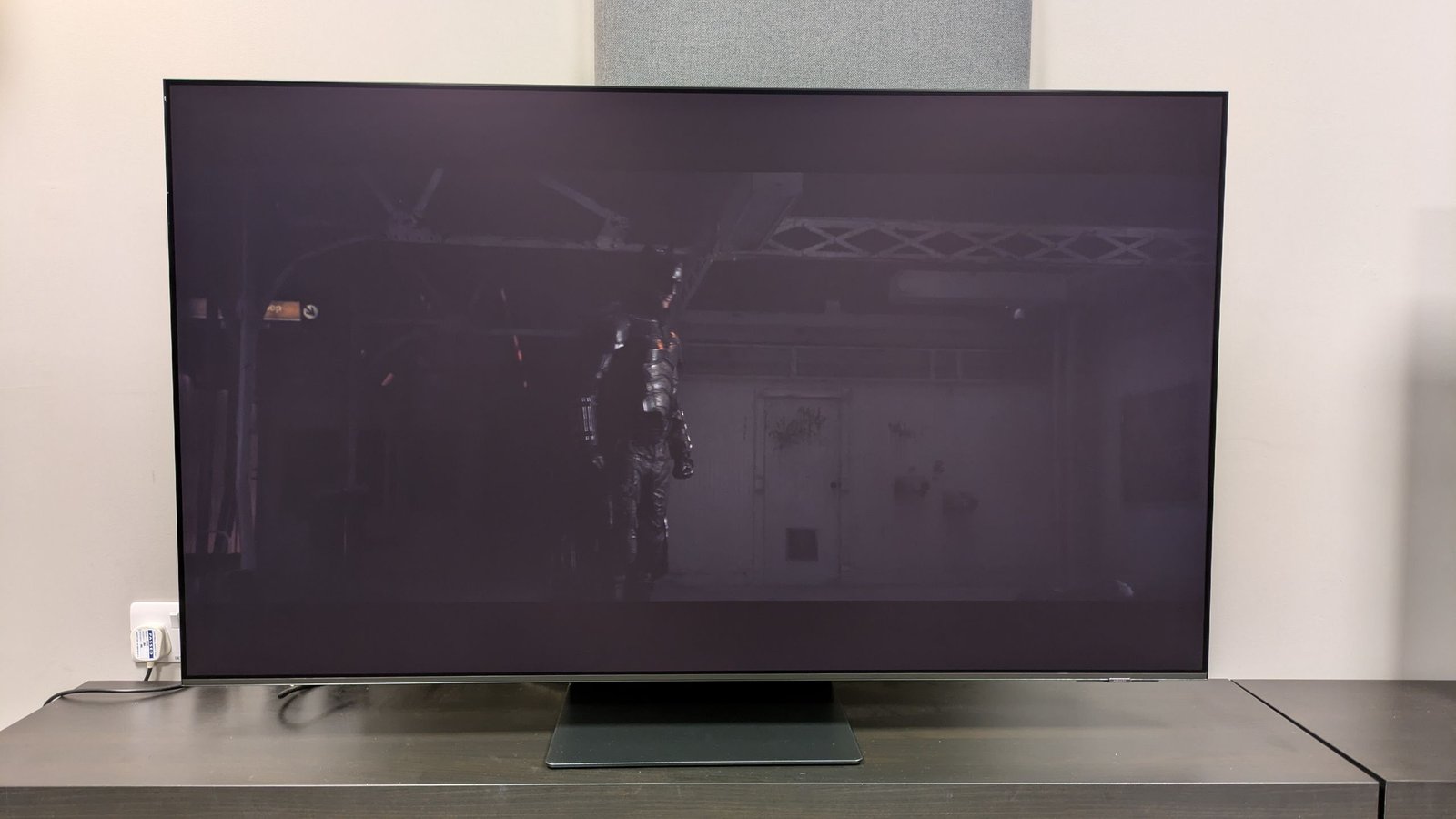
If you find yourself watching a TV show or movie on your current TV and thinking ‘Why is this so dark? I can’t see what’s going on’ then you’re far from alone.
Several years ago, people famously complained that an episode of Game of Thrones was too dark to see: even the best TVs struggled! Due to the extremely dark scenes used, details were crushed in dark areas so shapes couldn’t be differentiated, and it really demonstrated how important shadow detail can be on a TV.
You may like
As TechRadar’s TV reviewer, I’ve had my fair share of issues with TVs being too dark in certain modes, or without changing some settings. So, here are some quick fixes as well as more in-depth settings that will hopefully help you solve, or at the very least reduce, your ‘too-dark’ TV problems.
Easy fixes
The following options will be available on pretty much all TVs, and are your most direct route for fixing a picture that’s too dark.
Picture mode
Image 1 of 2
Filmmaker Mode(Image credit: Arrow Video / Future )HDR Cinema (Image credit: Arrow Video / Future )
Probably the most obvious and easy change is to check what picture mode your TV is in. Most companies now ship TVs in an ‘Eco’ mode by default and, as you guessed it, this mode limits brightness as an energy-saving measure. While helpful for bills, it’s limiting your TV’s potential brightness and contrast.
While I typically use Filmmaker Mode during TV testing and for my own personal viewing at home, it can also be quite dim (in the name of accuracy rather than energy saving, though) and some TVs can really struggle in brighter rooms in this mode.
Cinema/Movie mode is often a brighter alternative to Filmmaker Mode that’s still accurate and is great for movie viewing.
In the example above, Dark City, a movie with plenty of dark and high-contrast scenes, really benefits from the G5’s brighter Cinema mode in a brighter room, whereas Filmmaker Mode results in more obvious mirror-like reflections and loss of detail. Filmmaker Mode can work well in the right viewing conditions, however.
You may like
While it might be tempting to opt for a TV’s Vivid mode, this is often an overly bright, oversaturated mode that I recommend avoiding. If you want brighter than Cinema/Movie, Standard is the next best alternative, and is the mode I often use for sports viewing.
Picture settings: brightness
Image 1 of 3
The LG G5’s peak brightness menu and options (Image credit: Future)Peak brightness – Off(Image credit: Future)Peak brightness – High (Image credit: Future)
The most conventional setting you can change on your TV to try and fix murky pictures is the brightness setting. In SDR mode, I’ve found most TVs won’t have this setting turned to its maximum, and usually for good reason. Some, such as the Samsung S95F I tested as part of a four-way OLED comparison, are set to 12 out of 50, and they can definitely handle a brightness adjustment without resulting in inaccuracies.
In HDR modes, TVs will most likely be at their highest brightness. If you’re struggling in this mode too, there is another setting you can look for: peak brightness. Typically featured on mini-LED TVs, peak brightness (or peak light) can provide a hidden bonus boost to your TV’s brightness. While some are set to Maximum by default, some can be set to Medium, meaning there’s some extra brightness to be found.
In the above example with the pocket watch displayed on the LG G5, peak brightness was set to High in Cinema Home mode by default, but I turned it off to experiment, and there was a difference. The gold and white colors of the pocket watch were significantly punchier with peak brightness set to High.
It’s worth checking to see if your TV has this setting and if you can adjust it. I’ve found Hisense and TCL models often carry this setting.
(Image credit: Future)
Related to the Eco picture mode I discussed above, it’s worth checking to see if there are any ambient light or eco brightness settings hidden. These settings use the viewing environment to judge how much brightness the TV should output. In darker rooms, it’ll dim itself and in brighter rooms, it’ll push the brightness… in theory.
I’ve still found these ambient light settings can still limit brightness, even in brighter rooms, so if you keep having problems with it turned on, it’s worth experimenting with this setting to see if turning it off and manually boosting brightness works.
The G5, for example, has its Energy Saving Step setting turned on by default, which limits its brightness output. Turning this off can really add a big brightness boost to the picture and help with brighter rooms and darker movies.
In-depth fixes
These settings require a bit more experimentation and they won’t be on every TV. If they are, they may have a different name and it will vary how intuitive they’ll actually be.
Picture settings: contrast
The LG G5 has a good number of settings to improve brightness and contrast. Your TV is likely to have similar. (Image credit: Future)
Another setting, or sometimes group of settings, that can help brighten a picture are contrast-enhancement tools. These settings can have a variety of names such as ‘shadow detail’, ‘black level enhancement’, ‘dark detail’ or even just ‘contrast’. Their purpose is to enhance contrast, by making black tones bolder and bright tones brighter at the same time.
While this can sometimes compromise the authenticity of a picture on screen, it can be very useful for TVs struggling in bright rooms or more budget sets.
Image 1 of 2
Auto Dynamic Contrast – Off(Image credit: Warner Bros. / Future)Auto Dynamic Contrast – High (Image credit: Warner Bros. / Future)
The amount you’ll be able to do with these contrast settings will vary from TV to TV, but on our reference G5 we’ve got a couple of options available. Above, I tried out a few of the G5’s numerous contrast settings with The Batman in HDR Cinema Home. The Batman is a torture test for some TVs, as its low-mastered brightness can make it really tough to watch in bright rooms – I use it in reviews all the time for this reason.
Auto Dynamic Contrast was turned off by default in Cinema Home, and while the picture was accurate, some details in shaded areas were difficult to pick out. Setting Auto Dynamic Contrast to High brought more details of Batman’s face into view, such as his eye. While having this off is more accurate, that doesn’t matter much if you can’t see what’s going on.
Image 1 of 3
Called Expression Enhancer on the LG G5, your TV may have something similar, such as ‘shadow detail’(Image credit: Future)Expression Enhancer set to detail (Image credit: Future)Expression Enhancer set to brightness (Image credit: Future)
Another here is the Expression Enhancer setting. While not as obvious a difference maker as some of the other settings, changing its default setting from Detail to Brightness has made the whites on the owl a little bolder in the example above. This could be useful again for bringing more brightness to scenes.
Image 1 of 2
Changing Black Level from 50 (image 1) to 65 (image 2) can make things brighter, but may affect accuracy (Image credit: Future)Changing Black Level from 50 (image 1) to 65 (image 2) can make things brighter, but may affect accuracy(Image credit: Future)
Another setting you may find is Black Level (sometimes called Shadow Detail). Boosting this can add some brightness to the overall picture as well by adjusting black levels.
In the example above with the eagle, changing the black level setting from 50 to 65 again adds some more brightness. With the G5, it did negatively affect the accuracy of the blacks, giving them more of a gray hue, but this may be more limited on your TV, or may simply be a compromise you need to live with to be able to see what’s going on.
The best TVs for all budgets
Our top picks, based on real-world testing and comparisons
Follow TechRadar on Google News and add us as a preferred source to get our expert news, reviews, and opinion in your feeds. Make sure to click the Follow button!
And of course, you can also follow TechRadar on YouTube and TikTok for news, reviews, unboxings in video form, and get regular updates from us on WhatsApp too.
