

Setting up devices on your TV sounds easy enough. Plug them in using an HDMI cable, switch to the right input, and call it a day. But get it wrong, and you could miss out on the performance you paid extra for.
The tricky part is that nothing usually breaks when you use the wrong HDMI port. Everything looks just fine, and that’s why most of us never stop to question if we’re getting the best possible picture or sound. But it matters a lot, and now that I’ve figured it out, it’s one of those things I can’t stop talking about.
Related
The USB trick that bypasses your smart TV’s 100Mbps Ethernet limit
A tiny hardware limitation is slowing your TV down, but it is easy to get around.
The HDMI ports on your TV may all look the same, but they’re not
The hidden pecking order behind HDMI ports
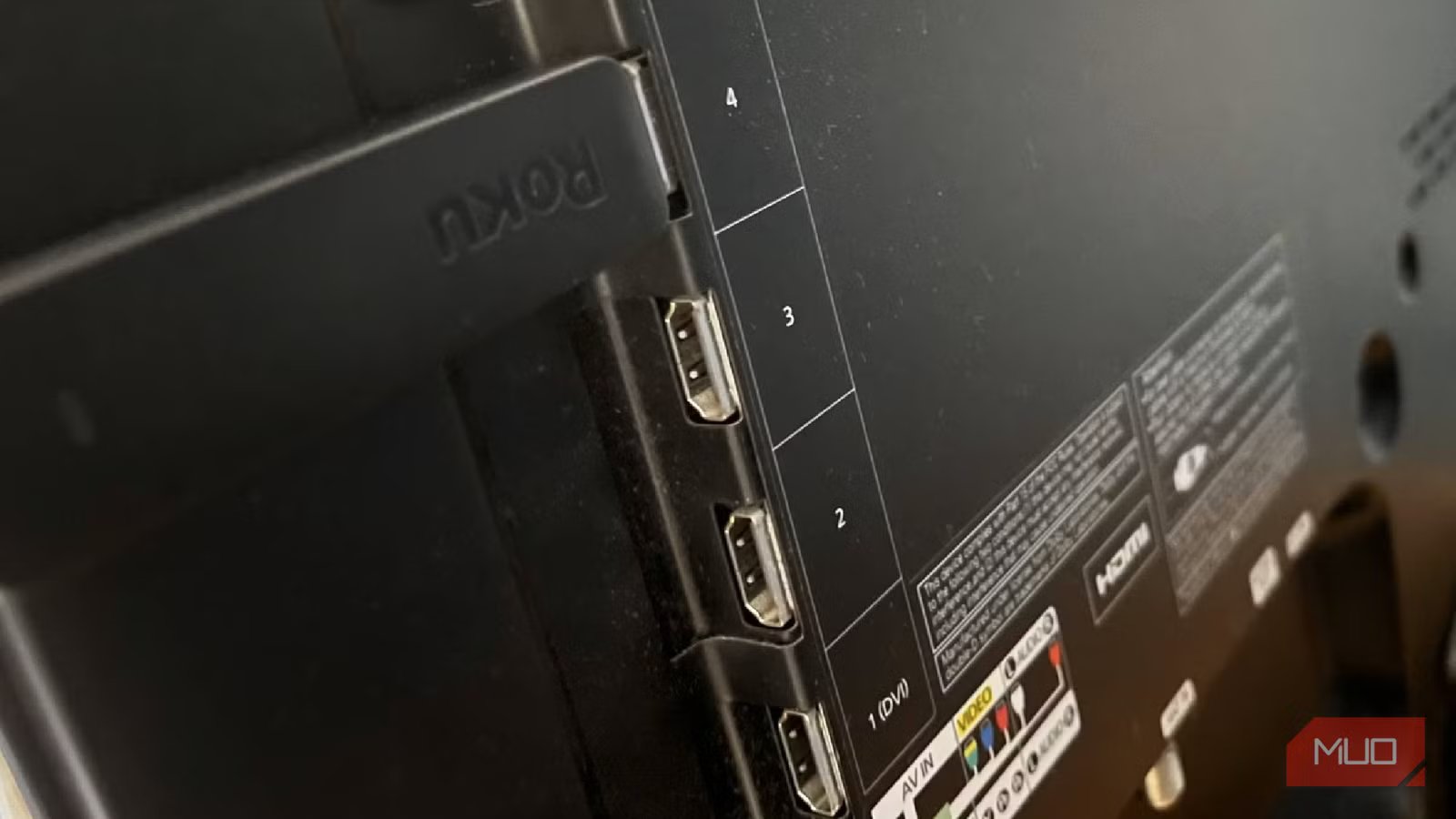
Not all HDMI ports on your TV are created equal. Yes, the connectors may look identical, but their capabilities can vary wildly. That’s because HDMI has gone through multiple upgrades over the years, with each one bringing more bandwidth and new features.
Older ports like HDMI 1.4 can handle Full HD effortlessly and can even push 4K, but at lower frame rates. HDMI 2.0 is where things get much better. You get proper 4K at 60 FPS, which makes it ideal for streaming devices, Blu-ray players, and even consoles. Finally, there’s the HDMI 2.1, which is where you get higher refresh rates like 120Hz and support for 8K. It also brings capabilities like dynamic HDR, variable refresh rate, and Auto Low Latency Mode (ALLM).
Most TVs mix these HDMI standards across their ports. You might have four HDMI inputs side by side, but only one or two may be HDMI 2.1. Most others are likely to be HDMI 2.0 standard. The good thing is that modern TVs rarely include HDMI 1.4 ports. And in most cases, you’ll see markings like HDMI 2.1, HDMI 2.0, or 4K 120Hz that let you identify these ports at a glance. If not, you may have to open the manual to figure things out.
It affects more than just picture quality
Your audio might be taking a hit too
Once you understand the different HDMI standards, it becomes obvious how they affect picture quality. But the story doesn’t end there. Plug in the HDMI cable into the wrong port, and your audio quality can suffer too. This all comes down to differences between ARC and eARC.
ARC (Audio Return Channel) lets your TV send sound back to a soundbar using the same HDMI cable that carries videos. This means you don’t need extra cables. But the thing is, ARC is limited, and it can only handle compressed formats like Dolby Digital, so you may not be hearing everything your system is capable of.
Compared to this, eARC (Enhanced Audio Return Channel) has significantly higher bandwidth, which means it can carry uncompressed, high-bitrate audio. We’re talking about formats like Dolby TrueHD, DTS-HD Master Audio, and Dolby Atmos at its best. If you’ve invested in a good sound system, this is the port that’ll get it to perform the way it’s meant to.
And just like with video, not every HDMI port on your TV supports eARC. In most cases, a TV will only have one ARC or eARC port, and it’s usually labeled. You need to make sure you’re using the right one when plugging in your soundbar or receiver.
Pairing devices with the right port
Match the port to the power
Wallpaper Engine app running on a Windows 11 PC connected to an OLED TV.Credit: Dave Meikleham \ MakeUseOf
This is the part most people get wrong, and I’ve been there too. The funny thing is, it’s also the most straightforward once you know what each HDMI port does.
The trick here is to start with your most demanding device. If you have a PS5 or an Xbox Series X, it should go into an HDMI 2.1 port. That’s the only way to unlock 4K at 120Hz, along with features like variable refresh rate and low latency modes. Plug it into anything else, and you’re leaving performance on the table.
Next should come your audio setup. Your soundbar or AV receiver should always be connected to the port labelled ARC or eARC. That single port handles sending audio from your TV back to the speakers at the highest quality.
Streaming devices like the Amazon Fire TV Stick or an Apple TV 4K are far less demanding, so they can all go into HDMI 2.0 ports. These can handle 4K at 60 FPS, which is enough for streaming. Blu-ray players fall into a similar category unless, of course, you’re using a high-end setup with advanced audio formats.
Make sure to check your TV’s settings too
Even if you’ve plugged everything correctly, you may still not get the desired output. That’s because TVs sometimes ship with key HDMI features disabled. Things like enhanced bandwidth modes, HDR support, and advanced audio features need to be turned on manually. The same goes for gaming features like variable refresh rate and auto low latency mode. So yes, make sure to take a quick look through your TV’s settings and even the cable before anything.
Length(s)
3ft, 6ft, 10ft
Brand
TISOFU
