

The first time Notepad++ let me down was when I tried to open a server log that had grown to a few hundred megabytes. The window came up fast enough, but the moment I tried to scroll or search through it, the whole thing started crawling. I sat there waiting for a Find dialog to catch up with me, and somewhere in that wait, it occurred to me that I’d been recommending Notepad++ to people for years without ever checking whether it still held up.
So I generated a 500MB log file and threw it at the alternatives I’d seen people swap to: Sublime Text, Notepad3, Kate, and Geany. The one I ended up keeping wasn’t the one I expected. If you’ve already given up on Notepad++ for daily writing, Kate is the lightweight replacement worth looking at, but for huge files, the winner sits elsewhere on this list.
Notepad++ opens fast, then falls apart
The numbers look great until you use it
image credit – self captured (Tashreef Shareef) – No Attribution Required
On paper, Notepad++ wins this test. The 32-bit build cold-opened my 500MB log in 2.18 seconds and sat at around 540MB of RAM, roughly half of what most of the alternatives used. Those are the two metrics most comparisons rely on, and Notepad++ comes out looking like the obvious choice.
The trouble starts the moment you try to do anything with the file. Scrolling stuttered the whole way down, and searching for a string near the end of the file took nearly 11 seconds to highlight. Navigation felt laggy so much that it made me hesitant to even click around in the document.
A fast launch doesn’t matter if every interaction afterward makes you wait. For small text files and config edits, Notepad++ is still fine. For anything in the hundreds of megabytes range, it’s the wrong tool, even if the benchmark numbers say otherwise.
OS
Windows
Developer
Don Ho
Notepad++ is an open-source text and source code editor that serves as a powerful, feature-rich alternative to the default Windows Notepad.
Sublime Text was smooth, but slow to get there
Polished and capable, with one big trade-off
image credit – self captured (Tashreef Shareef) – No Attribution Required
Sublime Text has long been the editor people point to when Notepad++ starts to wobble. It’s a paid editor (around $99 for three years of updates), but it has a reputation for handling large files gracefully thanks to its C++ and Python core. The interface is more polished than Notepad++ as well, with a cleaner sidebar, a minimap, and a better default theme.
In my test, Sublime Text took 11.14 seconds to open the same 500MB log, which is a noticeable wait when you’re staring at a window that hasn’t responded yet, and RAM usage settled around 758MB, putting it in the middle of the pack. A search for a string near the end of the file took 16.83 seconds, again with that upfront load cost baked in.
Once the file was fully loaded, Sublime Text was a different beast. Scrolling stayed smooth from top to bottom, and searches felt instant. The reputation isn’t unearned, but the upfront wait is long enough to feel painful on a file you’d open repeatedly during a debugging session.
OS
Windows, Linux, macOS
Free trial
Yes
Sublime Text is a fast, sophisticated cross-platform text editor for code, markup and prose, featuring GPU rendering, multi-select editing, smart auto-complete, split panes, and powerful syntax highlighting across Windows, Mac and Linux.
Notepad3 is lightweight in name only
The Notepad replacement that misses its own pitch
image credit – self captured (Tashreef Shareef) – No Attribution Required
Notepad3 is pitched as a faster, feature-rich replacement for the default Windows Notepad. It’s based on the Scintilla engine, supports syntax highlighting for languages like C, Python, HTML, and XML, and adds touches such as code folding, AES file encryption, and bookmarking lines for navigation. For small files and config edits, it’s a sensible upgrade over the built-in Notepad.
However, the claims fall apart on big files. My 500MB log took 4.37 seconds to open, twice the time Notepad++ needed, and RAM usage was 1,218MB, more than double that of Notepad++ as well. Searching for a string near the end of the file took roughly 19 seconds, and scrolling carried the same sluggishness I saw in Notepad++, if not slightly worse.
Notepad3 also lacks tabs entirely, so you’re working with one document per window. That’s manageable for quick edits, but on a half-gigabyte log, it just made the slowness more obvious. There’s no area where Notepad3 beats Notepad++ in this test, which makes it hard to recommend it as the replacement it’s positioned to be.
OS
Windows
Price model
Free
Notepad3 is a fast, lightweight Windows text editor built on Scintilla, offering syntax highlighting for 60+ languages, code folding, bracket matching, auto-indentation, regex find and replace, and multiple encoding support.
Kate handles small files comfortably, but not this one
My everyday editor isn’t the right tool here
Kate is the editor I switched to for daily writing and light coding, and it’s been excellent for that. It’s free, open-source, runs natively on Windows, Linux, and macOS, and handles things like split views, Vim mode, and a built-in terminal without feeling bloated. For everyday work on small files and code, it’s been my go-to since I moved away from Notepad++ for general use.
However, Kate doesn’t like big files. Searching for a string near the end of the file took 38.12 seconds, the slowest of every editor I tested. Even then, scrolling carried a mild sluggishness that wasn’t as severe as Notepad++ or Notepad3, but it was noticeable enough to slow me down when skimming.
Kate’s strengths sit in a different place. It’s a capable editor for daily work, but its performance falls off somewhere past a few hundred megabytes, and a 500MB log is well past that line. I’d still pick Kate for almost everything else, but not for files this size.
OS
Windows, Linux, macOS
Price model
Free
Kate is a free, open-source text editor from KDE with multi-document support, split views, syntax highlighting for hundreds of languages, built-in terminal, and powerful plugins for serious code editing.
Geany was the only one who stayed responsive throughout
A free editor that quietly outperformed the rest
image credit – self captured (Tashreef Shareef) – No Attribution Required
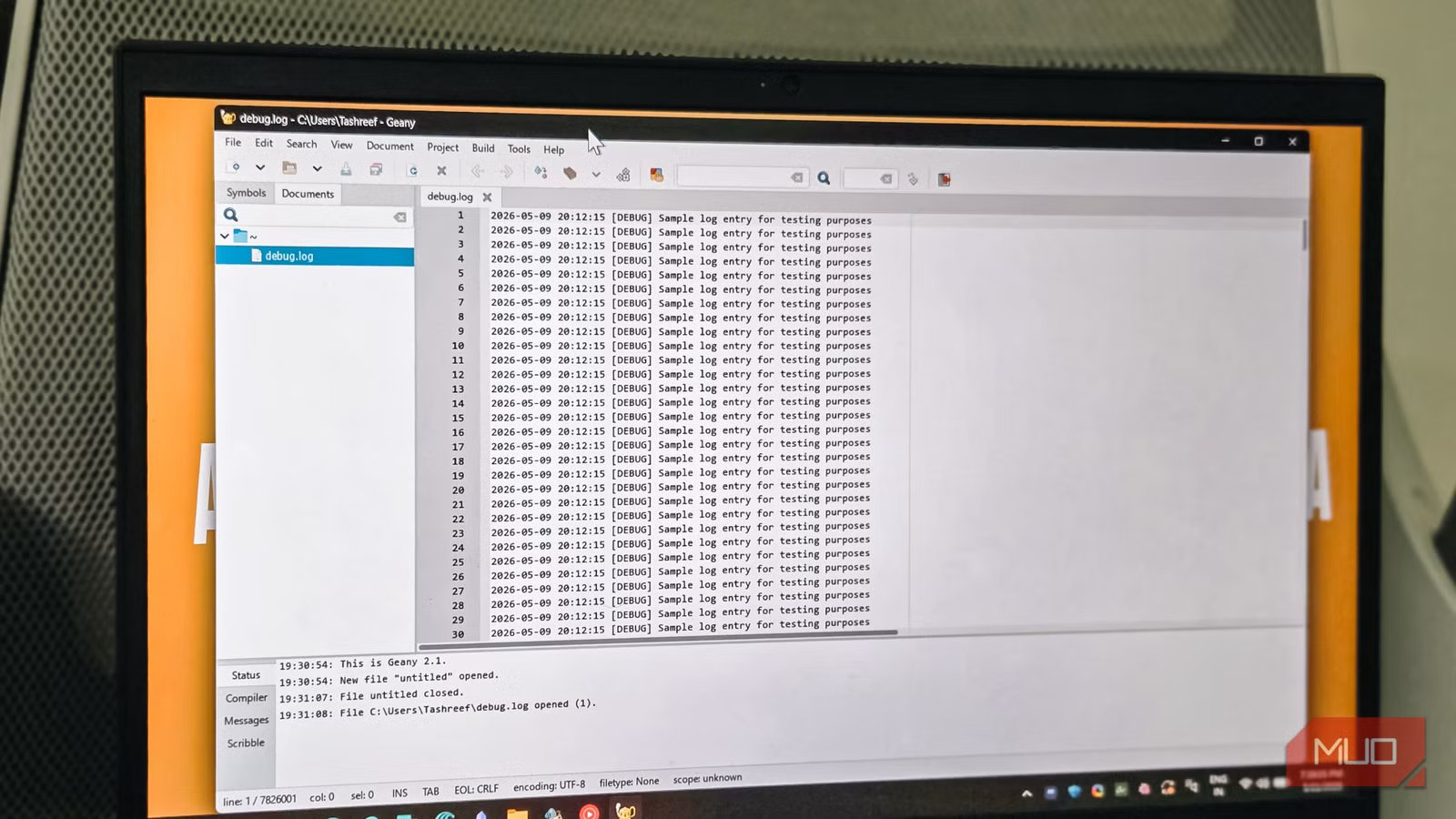
Geany blew all the other editors out of the water. It’s a free, open-source editor licensed under the GPL v2, often described as a lightweight IDE for languages like Python, Java, PHP, and C. I’d written it off as a niche Linux tool, but the Windows build held up better than anything else in this test.
The 500MB log opened in 2.10 seconds, tying Notepad++ for the fastest cold start. Searching for a string near the end of the file took 8.20 seconds, the fastest search of the five. Scrolling stayed smooth from top to bottom, with no stutter and no lag, and once the file was in memory, navigation felt instant.
The trade-off is RAM. Geany used about 1,101MB on this file, roughly twice what Notepad++ consumed. On a modern machine with 16GB or more, that’s a fair price for an editor that actually stays responsive on a half-gigabyte file. It was the only tool I tested that combined a fast open, fast search, and smooth scrolling in the same session.
OS
Windows, Linux, macOS
Price model
Free, Open-source
Geany is a powerful, stable, and lightweight programmer’s text editor that provides tons of useful features without bogging down your workflow.
Why I’m keeping two editors instead of one
I’m not uninstalling Kate as my default editor. For quick edits, config files, and small text work, it still launches fast and gets out of the way, which is most of what I need on a normal day. The problem is only the large-file scenario, and on that single criterion, the tool I assumed was the standard turned out to be one of the worst performers I tested.
Geany has earned a permanent spot on my system as the editor I open when a log file balloons past a few hundred megabytes. Sublime Text would also work if you don’t mind the upfront wait. Notepad3 and Kate are fine for the work they’re built for, but neither belongs near a 500MB file. The right answer depends on how often you hit that wall, and for me, it’s often enough to keep both Kate and Geany installed side by side.
