

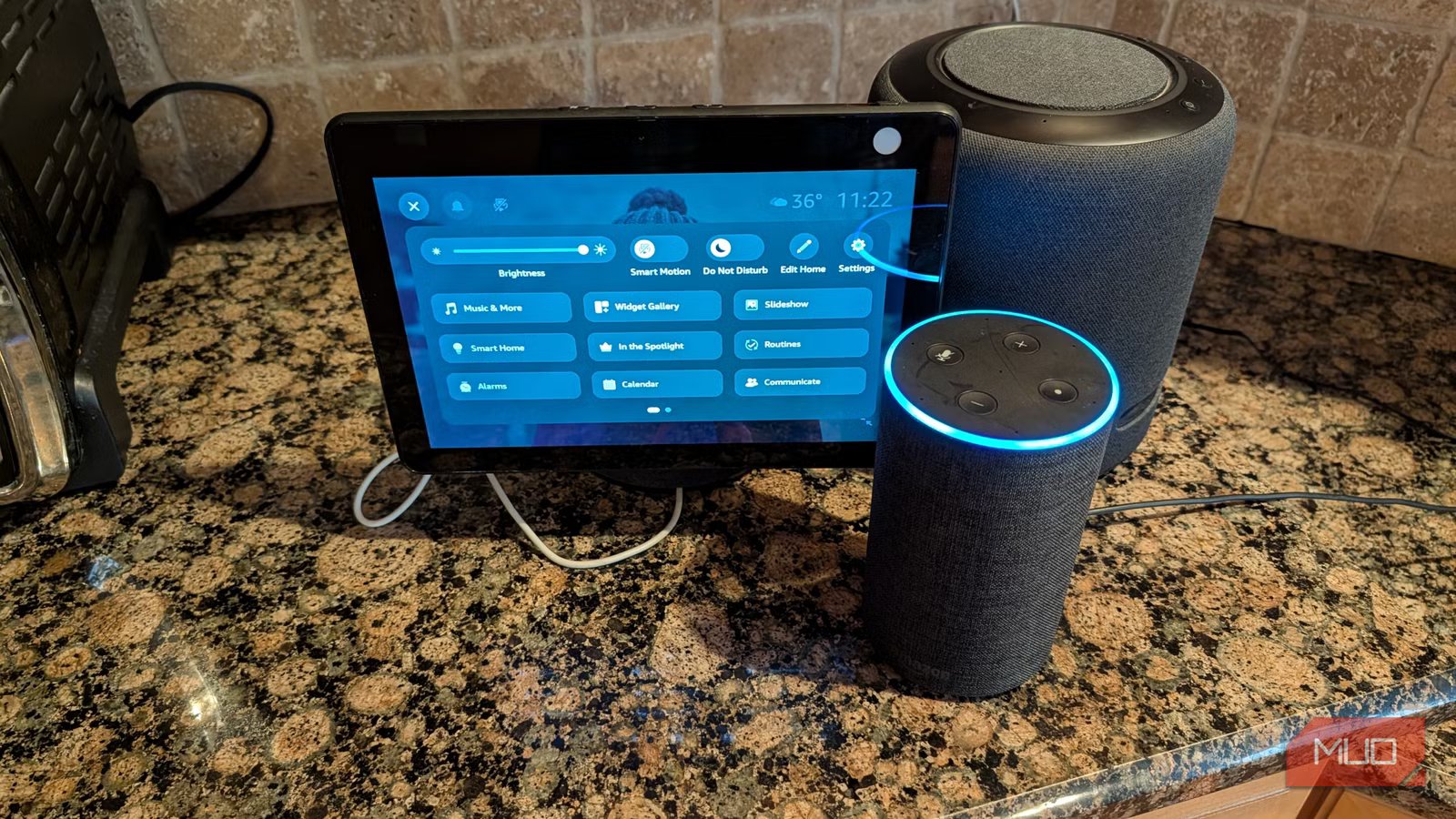
If you’re like me, you probably own more than one Amazon Echo. In fact, I have one in nearly every room of my house, and the new Alexa+ features have changed my life for the better. But what you might not be aware of is that having more than one Amazon Echo at home unlocks a bunch of interesting features that can make life easier, especially for communicating with your family and even for remote-controlling other Echo devices.
Prerequisites
Do these things first to enable features for multiple Echos
A lot of the features I’m going to cover require you to give each of your Echos a unique name so you can refer to them individually. To do this, open the Alexa app -> Settings -> Device Settings -> tap on the Device -> type in a unique name. You’ll want to use practical, memorable names, like “kitchen” for the kitchen or “Bob’s room” for Bob’s room.
Broadcast to your entire home
Intercom, drop-in, and announcement features
Credit: Brandon Miniman / MakeUseOf
There are three communication features that let you take advantage of multi-room Amazon Echos. Here’s what they are and how to use them:
Global Announcement
This feature will broadcast an announcement to all Echo devices in your home. This is perfect for when you have to tell everyone in your house something at the same time.
Say “Alexa, make an announcement: [wait for query “what is the announcement?”] and say what you want to announce.”
Intercom
You can use multi-room Amazon Echos as an intercom system, like a two-way walkie-talkie. This is ideal for having a conversation with someone in another room or if you need a hands-free way to communicate. This is useful in kids’ rooms when you need to tell your kid something, but maybe they have the door closed.
Say “Alexa, start intercom with kitchen.” and when done say “Alexa, stop intercom.”
Drop-in
This is similar to an intercom, but the connection happens faster, such that you can immediately hear (and see, if the Echo has a camera) what is happening in another room. Certainly, there’s a bit of a privacy factor here, so you’ll have to enable drop-in by going to Settings -> Device Settings -> Choose device -> Settings -> Communications -> Drop in -> Choose between On (only permitted contacts can drop in), My Family (Only device on your account), or Off. I like to keep the drop-in setting for all Echos in my house set to “My Family” so that any device in the house can access other devices. Whenever you drop in on another room, the Echo will indicate that drop-in has turned on with a sound, so it would be impossible to spy on someone without them knowing.
Say “Alexa, drop in on kitchen,” and you’ll immediately hear and see what’s happening in the kitchen, and when done, say “Alexa, stop.“
Remotely control other Echos
Play music in specific rooms or the whole house, and remotely control timers
Credit: Brandon Miniman / MakeUseOf
With multiple Echos, you can remotely control all or certain Echos with key commands. For example, you can have any audio source (like Spotify, SiriusXM, etc. ) play in one or all rooms.
Say “Alexa, play Taylor Swift in all rooms,” or “Alexa, play Taylor Swift in the kitchen.” Also, “Alexa, turn volume up in the kitchen.“
Remote control timers
Another cool thing you can do is remotely control timers. It just so happens that people use timers probably the most out of any Alexa feature, especially in the kitchen, where you can set multiple timers and give them names.
Say “Alexa, start a 10-minute bread timer in the kitchen,” or “Alexa, stop the bread timer in the kitchen.“
Don’t get your Echos confused
Give each a unique wake word
Credit: Brandon Miniman / MakeUseOf
What happens when you have more than one Echo within a short distance of each other? Which one “handles the request”? Whichever one, here’s your request first, even within milliseconds. However, a great way to properly route your request when you have multiple Echos is to give each its own unique wake word.
For example, on the first floor of my house, my kitchen and living room are very close to one another, and both have an Echo. The Echo in my kitchen is called “Amazon,” and the Echo in my living room is “Alexa.” This way, I can route a request to the Echo I want (my living room has an Echo Studio that plays music best, so whenever I play music, I route my request to Alexa, so my Studio plays it). Oddly, you get to choose from five and exactly five wake words: Alexa, Amazon, Computer, Echo, and Ziggy.
Say “Alexa, change the wake word,” and it’ll prompt you to choose one of the five options.
Related
Alexa+ changed my life for the better
Ambient AI at home is finally here
Echos are better together
The age of ambient AI is finally here with Alexa+ (see how smart Alexa has become). That means you can have intelligent conversations from any room where you have an Echo. But when you have more than one Amazon Echo, or one in every room as I have, you can fully leverage the power of a whole-house communications system that makes life better for the entire family.
