

It’s easy to go down the rabbit hole of guesswork when your computer has a performance dip or certain apps stop behaving as you expect. That’s often because you don’t realize there’s a clear way to find the problem.
However, that’s not always true — you may not realize that Windows logs most of the answers you need by default. The Event Viewer is one of the most powerful troubleshooting resources. It’s so robust that you may feel discouraged from digging into it. But buried somewhere within this tool are time-stamped records of app installations and uninstallations that span weeks, months, and sometimes longer. This little detail is often enough for most Windows troubleshooting.
Windows has been logging installs all along
It lives in the Event Viewer, not where most people look
Afam Onyimadu / MUO
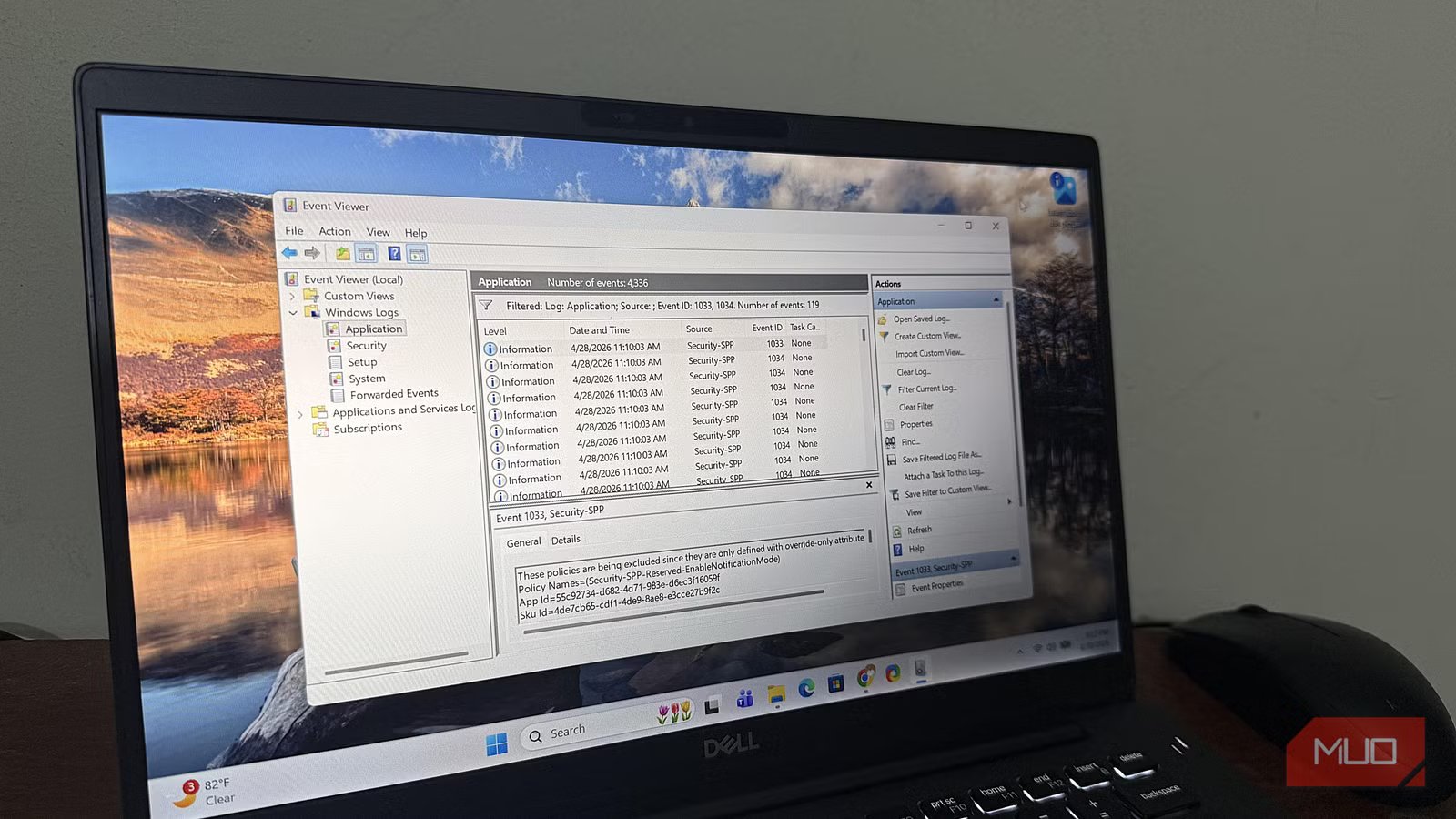
Windows Event Viewer is a detailed activity log. It has one particularly useful section for troubleshooting: Windows Logs -> Application.
Unfiltered, this section holds thousands of background services, app events, and system activity entries. This very dense list may lead you to close it before it proves useful, especially if you don’t know how to wade through the noise. This is the part where installed or uninstalled apps leave a record. It happens by default on Windows as part of an internal operation-tracking system.
You must understand two important things about the data this log captures. The log is capped at 20MB by default; older entries are overwritten as the log fills. On busy systems, this gives you weeks of history, but in many cases, it could stretch much further. Secondly, it only includes records if the software was installed through the Windows Installer. While this is a large part of most installed apps, it leaves out Microsoft Store apps, portable tools, and certain EXE-based installers.
Related
I used Windows for 15 years before I discovered it had this cool feature built in
Windows had this all along and I somehow never triggered it.
The two event IDs that unlock this log
Filter for 1033 and 1034 — everything else is background noise
Afam Onyimadu / MUO
If you don’t know what to look for, the Application log won’t be helpful. Two events track installs and uninstalls:
Event ID
What triggered it
What the entry contains
1033
A supported app installed successfully
Product name, version installed, exact timestamp
1034
A supported app removed successfully
Product name, version removed, exact timestamp
These events are generated only after successful installs or removals; failed operations are not logged under these IDs. However, what differentiates this from other ways you can view installed software is the appended timestamps. For instance, from the Settings, you can view all installed apps, but you don’t see when they were installed.
Before you start poring through the entries, it’s important to note that software updates may appear as multiple events. For apps updating through the installer, this is recorded as a 1034 event for the outgoing version and a 1033 event for the new one. Once you understand how to recognize this paired sequence, it saves you a lot of confusion later.
How to filter the log and read what’s left
A 30-second filter cuts thousands of entries down to what matters
Afam Onyimadu / MUO
You should start by isolating the events. For this, navigate to Windows Logs -> Application, then click Filter Current Log on the right pane, and enter 1033, 1034 in the Event IDs field, then click OK.
Now, when you click on the event, you’ll see exactly what happened in the General tab entry. This usually includes a product name and version, and it tells you if it was an installation or an app removal. These details are written in plain English.
You may make your filtered view even more useful by sorting by Date and Time. This way, it’s easier to reconstruct the event sequence. This is useful when you need to anchor an event to a specific period. Secondly, you may choose to save your view as a Custom View. This ensures you don’t go through all these steps in the future.
What this log covers — and where it stops
Knowing its limits is what makes it reliable
While this log is a great reference, you should understand its limits. You may draw the wrong conclusions by believing it’s a complete install history.
Tool
Tracks install history
Includes timestamps
What it actually covers
Installed apps list (Settings)
No (current state only)
No
Every app currently installed, nothing historical
Windows Update history
No (updates only)
Yes
OS patches and driver updates, not third-party apps
Reliability Monitor
No (stability events only)
Yes
Crashes, errors, and install-related stability changes
Event Viewer (Application log)
Yes (within retention window)
Yes
MSI-based installs and removals only
From the table, you can tell that the complete picture is not found in a single tool. Event Viewer includes historical, timestamped software entries, which is context that the other tools don’t give. However, it only covers MSI-based installs and removals.
How to connect a log entry to an actual problem
Event Viewer’s Application log is not there simply because you need to browse install history. It actually fills a vital gap by showing what happened before a problem occurred. This is handy because most system issues you experience have triggers. Something usually changed before there was an uptick in fan noise or a slowdown, and Windows won’t directly show that a change was the trigger; you’ll need to dig into the logs.
Starting with a date helps when you know when the problem started. It becomes your anchor, and with a filtered log, you can investigate events around that time.
