

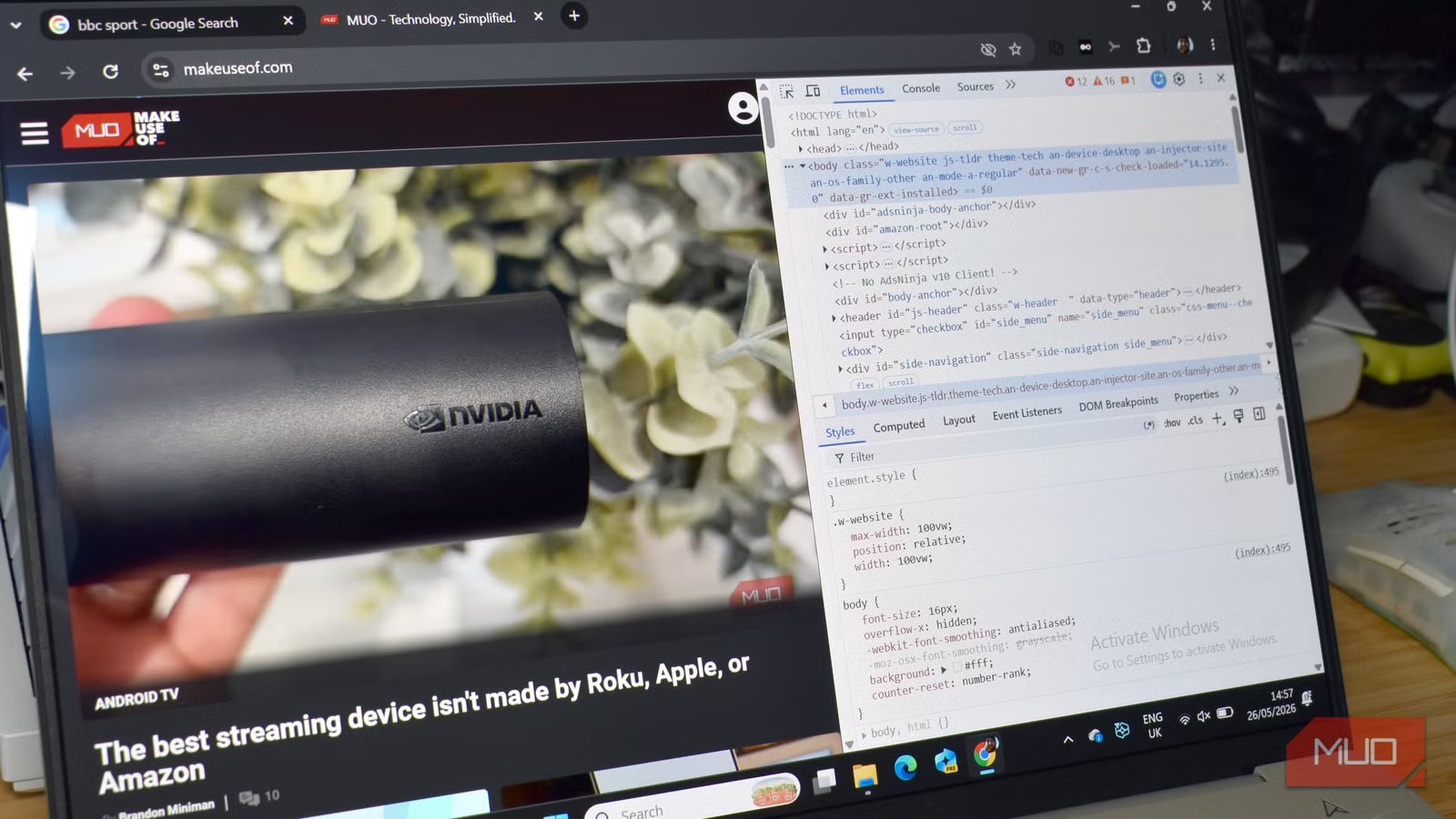
Most folks have, at some point, hit F12 and opened the browser console. It’s the wall of text and errors flowing in a constant stream that looks like a garbled mess.
While the browser console (also known as the developer console) looks highly confusing and like you shouldn’t be there, it has a few handy tricks up its sleeve that you can’t really replicate in most other places. That’s because the browser console is actually a live JavaScript environment running directly inside your browser, which means it has access to the page in a way no extension ever will.
Related
Please stop storing passwords in your browser
Time’s up for your browser password manager.
Edit any text on any page
Fun, but not permanent
This is one of the more fun ones. You can enable on-page editing for nearly any webpage you encounter, swapping out the words and text as you see fit.
- Press F12 to open the console
- Select the Console tab
- Input document.designMode=”on” and press Enter
The entire page should become editable. You can change the text, edit the headlines, swap out prices, facts, and other information, and generally muck around.
None of this is permanent; it all disappears the moment you hit refresh. This fun little trick is really for developers to test out changes to site text and whatnot before it’s pushed live.
You can actually target different colors and fonts from the browser console, too. For example, document.querySelector(‘h1’).style.color=”red” turns the highlight H1 red, while document.querySelector(‘body’).style.fontFamily = ‘Georgia’ will switch the text body to the Georgia font.
Find everything a webpage is hiding from you
Every webpage has hidden elements — things the browser has loaded but isn’t showing you. Some of it is boring: collapsed menus, inactive tabs, elements that only appear when you interact with something. But some of it is more interesting than that.
Run this in the console:
document.querySelectorAll(‘[hidden], [style*=”display: none”], [style*=”visibility: hidden”]’)
It returns a list of everything on the page that’s currently invisible. Click through the results in the console, and you can inspect each one. This shows what it contains, its class, and sometimes why it’s being hidden from your view.
Now, I won’t pretend that this always has interesting results. What you find varies widely from site to site; most of the time, it’s just stuff the developers have removed for a test but not fully deleted yet, or something being considered for a rollout but not entirely finished.
However, you can also find content that’s hidden behind a login check that’s being enforced purely by CSS rather than the server, meaning the content is already there, already loaded, just not visible. It can be unhidden using the following line:
document.querySelector(‘.paywalled-content’).style.display = ‘block’
Again, this won’t work everywhere, and most sites these days are much better at really enforcing paywalls and other content-gates (i.e., server-side). But soft paywalls and blurred content can sometimes be extracted this way.
The other features you may encounter are hidden form fields, invisible tracking pixels, and A/B test variants that aren’t currently active — a window into the machinery of the page that you’re not supposed to see from the front end.
OS
Windows, macOS, Linux, Android, iOS
Developer(s)
Brave
Price model
Free
iOS compatible
Yes
Android compatible
Yes
Desktop compatible
Yes
Strip page elements for your current session
This is actually really handy
This is one browser console trick that you’ll always remember, because it’s just so useful. Ad blockers and content blockers work from preset filter lists — they block what they’ve been told to block. The console lets you write your own logic, live, against the specific page in front of you.
document.querySelector(‘.cookie-banner’).remove()
This is something I’ve used over the years to remove annoying, persistent cookie popups that just won’t go away. And I’m someone who browses the web with script blockers enabled.
The problem is that there is no universal selector, as every page names its cookie banner differently. That’s why adblockers and script blockers don’t always do their job.
- Right-click the cookie banner
- Hit Inspect to open DevTools with that element highlighted
- Note the class or ID on it
- Go to the console and run document.querySelector(‘.whatever-the-class-is’).remove()
Another option is to use a broad sweep to catch the commonly used naming conventions.
document.querySelector(‘[class*=”cookie”], [class*=”consent”], [id*=”cookie”], [id*=”gdpr”]’)Similar to the above, it won’t work every time, but it does the job enough of the time, so it’s worth using.
See exactly what data a site is storing about you
Well, most of the data
Every site you visit can store data in your browser: cookies, localStorage, sessionStorage, and so on. Most of it is mundane session data and preferences, but some of it is more revealing than you’d expect.
Open the console on any site and run:
console.log(localStorage
It can return some interesting information, depending on the site. When I ran the command on the BBC Sport website, it returned:
Storage {bbc-comments-hint-status: ‘{“firstSeen”:1777283791259}’, smphtml5_vbr: ‘1604’, dashjs_audio_settings: ‘{“settings”:{“lang”:”en”,”audioChannelConfiguration”:”2″,”role”:”main”},”timestamp”:1779795600000}’, dashjs_video_bitrate: ‘{“bitrate”:”146011.500″,”timestamp”:1779795600000}’, length: 4}
Which looks like gibberish, but is actually saying that it has four items stored, along with comment hints, video settings, audio preferences, and that’s about it.
But you can run the same command on sites with paywalls and similar blocks to reveal hidden information.
Storage {_sp_non_keyed_local_state: ‘{“gdpr”:{“_sp_v1_data”:”1218095″,”_sp_v1_p”:”695″},”usnat”:{}}’, likeTagList: ‘{}’, pageview: ‘{“value”:”1″,”expiry”:1779369954289}’, _sp_local_state: ‘{“gdpr”:{“mmsCookies”:[“_sp_v1_ss=1:H4sIAAAAAAAAAI…mmsCookies”:[],”propertyId”:39759,”messageId”:0}}’, likeModList: ‘{}’, …}
This website is tracking the number of free articles you’ve read before triggering the paywall exclusion, along with revealing its GDPR management and paywall systems. In some cases, you may be able to manipulate the free article trigger…
Related
If you’re still using Chrome on Android, you’re missing out on a genuinely better browser
It’s arguably better than Chrome on all platforms, too.
The browser console isn’t for everyone, but it’s way more useful than you think
You don’t need to be a developer to use the browser console. It has a whole host of tricks you can get to grips with and start customizing web pages just how you want. The console just looks intimidating because it was built for people who spend their days in it, not because what it can do is inherently complex.
I mean, it is when you really get into it, but it’s also really useful to show us a bit more about how the web works and how web pages are developed. Most of it is easy to work with, and it helps you see that most of what we use is presentation.
So, next time you’re wondering why something isn’t working properly, hit F12, and you find out more than you’re thinking.
