

I’ve been using Windows for a while now, but most of that time I spent clicking through menus and watching progress bars. Then I started looking to use Windows Terminal more, learning the commands I can use there. A few of them genuinely changed how I can work with my PC.
I’ve always treated Windows Terminal as a last resort, and that’s been a mistake. A handful of commands, some of which have been around since Vista, can replace entire workflows that would otherwise take minutes of clicking around the GUI with my mouse. Here are five that I wish I’d started using earlier.
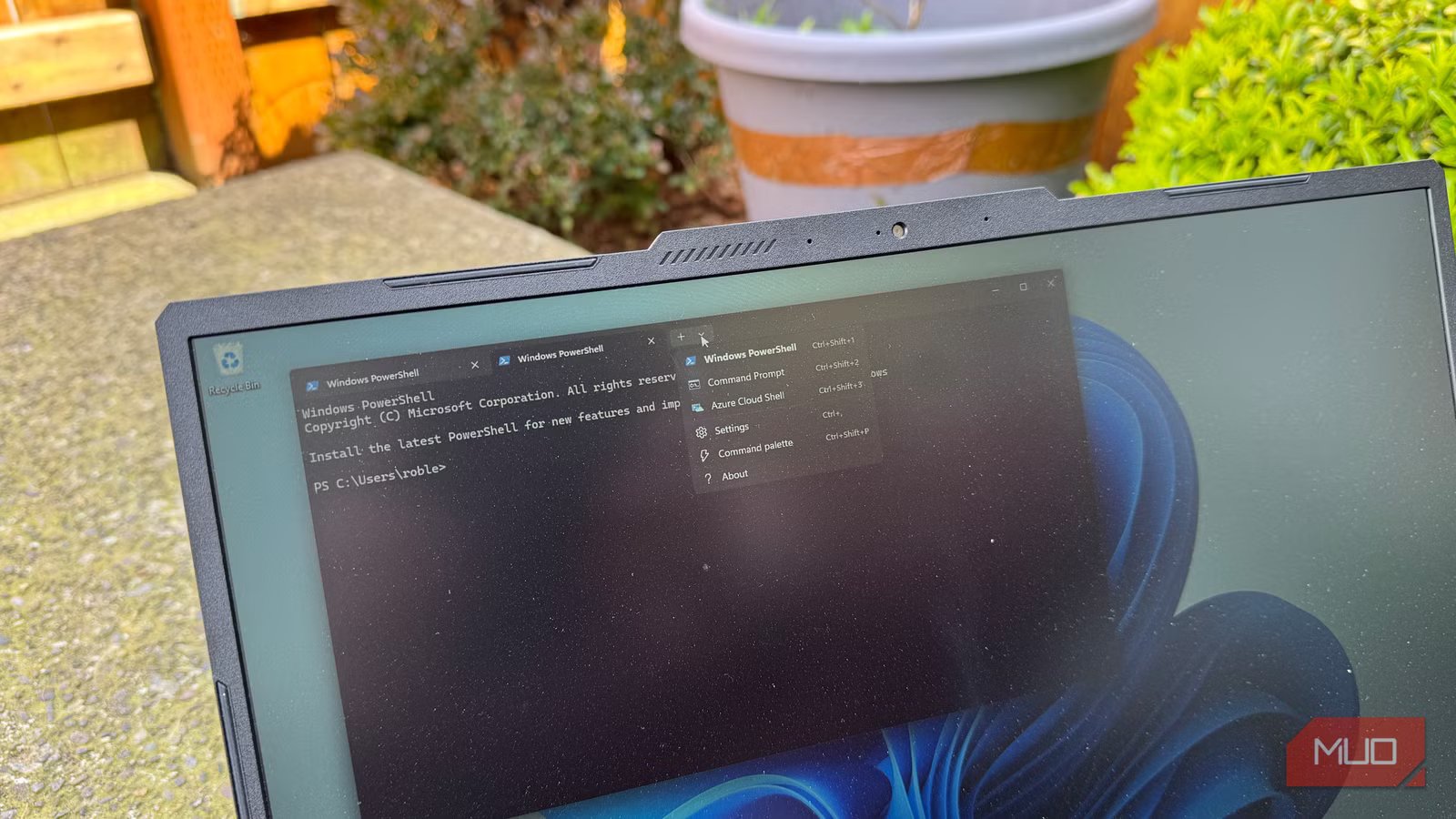
Windows Terminal is an app; it’s pre-installed on Windows 11 (since 22H2) and is available for free from the Microsoft Store on Windows 10. It acts as a tabbed host for the various shells you already know, like PowerShell, Command Prompt, and Windows Subsystem for Linux (WSL). When I say Windows Terminal commands in this article, I’m referring to commands you type inside the app, primarily in PowerShell or CMD.
Related
You can install 20 Windows apps with one command—Winget does the heavy lifting
Winget can set up all your must-have Windows apps in one command.
Command 1: winget upgrade –all
Ditch the manual update shuffle
Winget is a command-line tool that lets you discover, install, upgrade, remove, and even configure applications on Windows 10, 11, and Server 2025. It’s teh client interface for the Windows Package Manager service. Running winget upgrade –all causes Windows Package Manager to find all applications with available updates and then try to install them.
If you want to see what those apps are before executing, just type in winget upgrade and it will list all packages with available updates without installing them. If you’ve previously pinned any apps to a specific version, –all will leave them alone, which is what you want. If you want to upgrade those apps as well, add the flag –include-pinned.
Winget manages application packages, while Windows update handles OS patches, drivers and Microsoft components at the system level. You can and should use both.
Command 2: robocopy with /MIR, /E, /Z
This file copy tool finishes the job
Robocopy (or Robust File Copy) is Windows’ built-in power tool for copying, moving, and syncing large sets of files. It was originally released with the Windows NT 4.0 Resource Kit and has been a standard integrated feature since Windows Vista and Server 2008.
Here are the key switches you can use with robocopy:
- /E — this copies all subdirectories, including empty ones
- /Z — this enables a restartable mode to resume interrupted transfers
- /MIR — this switch mirrors the source to the destination, including deletion of files at the destination that no longer exist at the source
- /L — this is like a dry run, testing the copy operation safely before committing
What can you use this tool for, though? Here’s a typical backup command: robocopy “D:\Files” “E:\Backup” /E /Z to copy files from your D drive Files directory to your E drive Backup folder. The /E and /Z flags will copy every subdirectory and enable restartable mode, respectively.
You can also create a log file when using robocopy, so you can see what the tool did once the process is complete. use /LOG to write to a new log file or /LOG+: to append to an existing one.
Plus, robocopy supports the /MT flag to perform multithreaded copying (with a default 8 threads), which can make large transfers much faster.
Command 3: taskkill /IM [process] /F /T
When “End Task” just doesn’t cut it
Using Task Manager to End Task sometimes fails on deeply unresponsive processes. The Terminal command taskkill is much more reliable, thanks to its force flags. Here are the key flags for this command:
/F — forces termination
/IM — specifies the process by image name (e.g., chrome.exe)
/T — terminates the entire process tree, including child processes
/PID — alternative to /IM if you know the process ID from tasklist
A command you might use is taskkill /IM chrome.exe /F /T — the /F flag forces the process to terminate and /T kills any child processes that a task spawned. Taskkill is a great command line tool for frozen apps, background processes that are using up a ton of RAM (that you don’t need), or anything eating your CPU that won’t respond to the typical End Task.
Command 4: wt command-line arguments (split panes / workspace launch)
Stop opening tabs one at a time
Credit: Microsoft
You can open a pre-set workspace from a single wt (Windows Terminal) command. Separate commands with ; and use sp (or split-pane) to create panes. Microsoft Learn provides this example: wt -p “Windows PowerShell” ; sp -p “Command Prompt” ; new-tab -p “Ubuntu” ; sp -H -p “Ubuntu” ; focus-tab -t 0.
You
can add a -d . or a path after the -p flag to start in a specific directory, and use –title to set initial tab titles.
Because PowerShell also uses ; as a command separator, you might need to escape semicolons using backticks when running wt commands from a PowerShell prompt.
If you want to run this command at startup, save a wt workspace command as a .lnk shortcut in shell:startup so your full environment launches when you login.
You can also enter split-pane commands right into the Windows Terminal Command Palette (Ctrl+Shift+P) once you remove the > prefix that shows up when you launch the Command Palette.
Command 5: Quake Mode (wt -w _quake)
A trick borrowed from the 1990s first-person shooter
Quake mode lets you open a new terminal instance from within any app. The terminal window opens at the top of your screen and fills the whole width. It was added in Windows Terminal version 1.9. You can invoke it with a quick Win + ` (the grave accent, usually under the tilde). Or you can run wt -w _quake from the Run dialog (Win +R).
It’s called Quake mode because pressing the tilde/grave accent key dropped a console terminal down during the game, allowing you to type in cheat codes, tweak settings, and run game commands.
Terminal needs to be running for the global hotkey Win + ` to work.
The whole idea here is about speed. When you need a quick terminal check on your ping, a netstat command, a short PowerShell query, or even a one-line WSL command, the dropping panel avoids having to launch Windows Terminal or switch to it with an Alt+tab hit.
You can make this one launch at login, too, if you create a shortcut pointing to wt.exe -w _quake and putting it in the shell:startup folder.
When a window is in Quake mode, it snaps to the top half of the monitor, and cannot be resized horizontally or from the top. Only one Quake mode window can exist at a time.
