

Building a secure and efficient smart home takes more than just a fast internet connection. You also need to consider network segmentation, depending on your network’s size. Many homeowners achieve this by setting up a guest network to separate smart devices from personal ones, enhancing both security and performance. One of the easiest systems for this setup is also among the most popular Mesh Wi-Fi networks for your home.
Among today’s top home mesh solutions, Google Nest (available as Nest Wi-Fi and the newer Nest Wi-Fi Pro) stands out for its user-friendly design and quick, straightforward installation. It’s certainly not the only networking solution with a guest network option. However, many have found that Google has created one of the easiest-to-use mesh networks available, which is worth noting. It checks all the boxes for anyone wondering whether they need a mesh Wi-Fi network in their home.
Why your smart home needs a digital wall
Understanding the role of mesh Wi-Fi in home security
Smart homes are convenient and connected, but they can also be much more exposed than you would imagine. Every smart bulb, speaker, or camera that’s connected to your network can be a doorway for outside forces to cause disruption. That’s why setting up a “wall” in the form of a guest network is important to achieve better digital security. This type of network acts as a virtual barrier, separating your smart devices from your main network, where personal data, banking details, and work files may reside.
By segmenting your smart gadgets onto a dedicated guest network, you can significantly reduce the number of entry points into your primary network for hackers. This makes it much less likely they can access all-important laptops, phones, or cloud accounts.
Therefore, a “guest” network isn’t really for your home’s guests, although it can also be used for that purpose. Instead, it’s like creating rooms in your digital home where your personal data has its own space, separated from all those smart devices you’ve added over the years.
What makes Google Nest Wi-Fi a top mesh network choice
Simple setup and seamless home coverage
As noted, Google Nest Mesh isn’t the only mesh network option that lets you add a guest network. In fact, in 2026, I can’t think of any that excludes this option. And yet, I’m convinced Google Nest offers the easiest setup among the top brands.
The mesh design of Google Nest excels in delivering reliable coverage throughout the home, eliminating dead zones that often plague traditional routers. With a guest network, a homeowner has several options that increase the likelihood of achieving strong, consistent connectivity throughout the home. As a result, you can easily toggle the guest network on or off, customize shared devices such as smart televisions, and benefit from automatic security features that keep vulnerabilities at bay. This combination of whole-home performance and effortless management makes Nest a top choice for home network management.
Additionally, Nest’s guest network supports many of the features that make mesh networks so popular. This includes prioritization and parental controls, WPA3 encryption, and self-healing mesh technology. For anyone seeking a plug-and-play solution that scales to their needs, Google Nest Mesh certainly stands out as an ideal, user-friendly upgrade option.
Step-by-step guide to creating a guest network
Tips for choosing network names and passwords
Before moving forward, we’re assuming you have already set up your Google Nest WiFi Mesh network. If you found this article, it’s probably safe to assume this is the case.
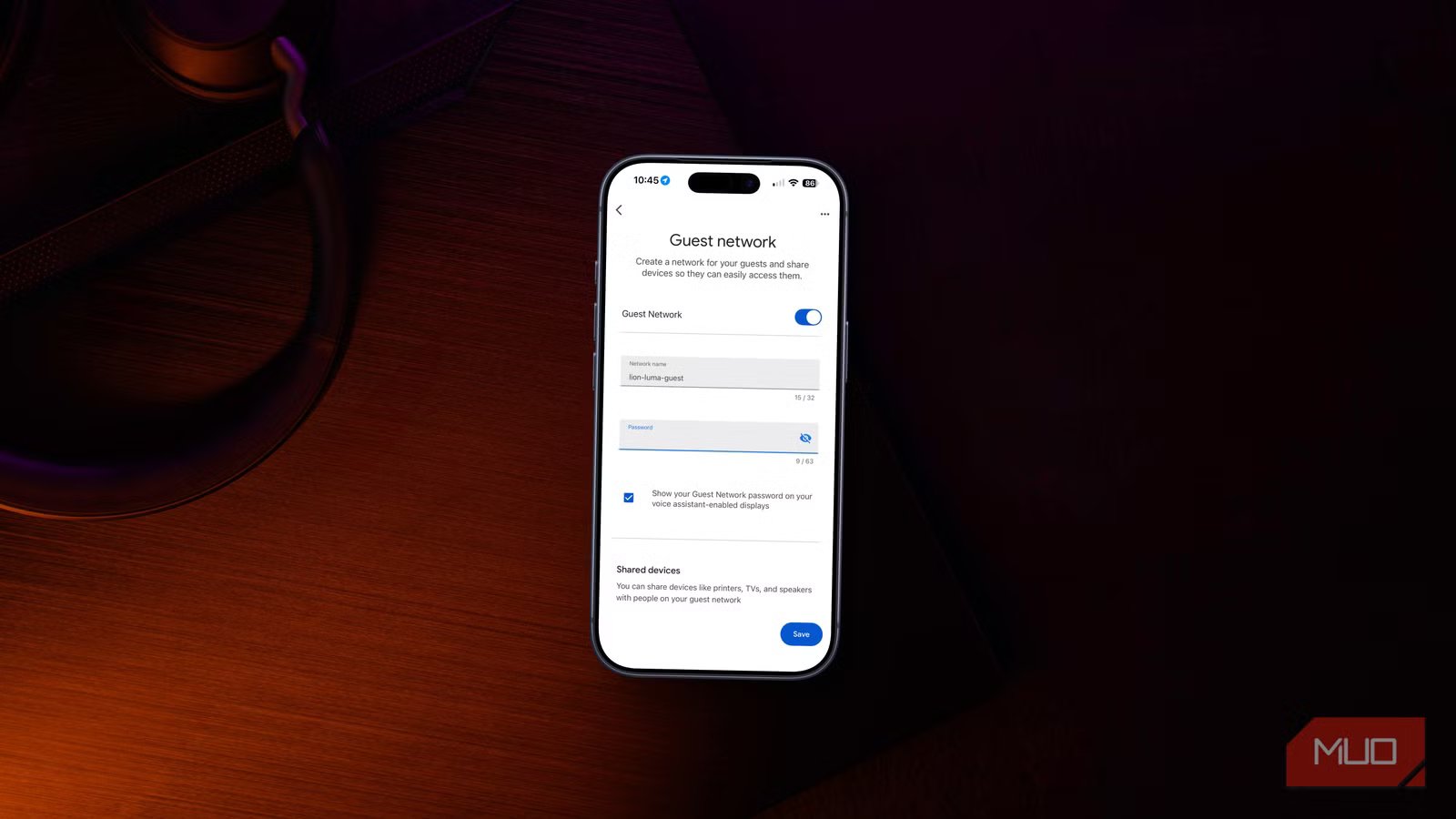
To create your guest network, open the Google Home app on your mobile device, whether an iPhone or an Android device, as the steps are similar. From there, tap Wi-Fi Settings for your network, which is usually at the top right of the screen.
Next, choose Network Settings, followed by Guest Network. From there, toggle on Google Network. You’ll need to assign a network name and password for your guest network. At home, my primary network is called “lion-luma,” therefore, the guest network is “lion-luma-guest.”
Make sure the password for your guest network is entirely different than the one you choose for the primary network, as this will make it even less likely a hacker will gain entry.
Once finished, choose Save to create your guest network.
Related
How I Secure the Smart Devices in My Home
Your smart home devices make life easier, but don’t forget to secure them against hackers.
Moving your devices (and guests) to the new networks
How to transition smart devices to your guest network
Yadullah Abidi / MakeUseOfCredit: Yadullah Abidi / MakeUseOf
A guest network serves two main purposes: separating smart devices from personal ones like computers and phones, and providing visitors with a secure way to connect. The former can take some time, depending on the types of devices you plan to move. For smart devices such as bulbs, plugs, and sensors, this will involve resetting them according to the manufacturer’s instructions.
To make the process run smoothly, take an inventory of which items you’d like to move to the new network, then categorize them. Reset them by category. For example, if you want to move smart bulbs to the new network, add them to a list, then reset them and add them to the new location during the same session. Many of these are probably inexpensive smart devices you probably picked up on a whim. Once those are finished, move on to another category, and so forth. In most cases, you can re-pair your smart devices using an app that’s provided by the manufacturer, such as Kasa or Hue.
Adding visitors to your home’s new guest network is much simpler. Add them to your network just as you would have before. For example, to add an iPhone to the new network, go to the phone’s Settings app, then choose Wi-Fi. From there, choose the new network under Networks. If your guests’ devices were previously connected to your primary network, you should remove that connection before selecting the new one.
Improve your home network
A guest network built into Google Nest Mesh helps lock down your smart home without slowing things down. Separating devices like phones and laptops from your main network reduces threats while keeping everything running smoothly. Because it installs quickly, connects well, and offers features like top-tier security and safe browsing settings, Nest Wi-Fi just works. Better yet, it keeps pace as more devices show up, making security smarter over time.
Starting fresh with a smart setup? Or adjusting what’s already there? Sorting your network right makes a difference, and you’ll breathe easier knowing things are handled. A setup like Google Nest, built with mesh logic, keeps everything linked and safe while complexity grows behind the scenes.
