

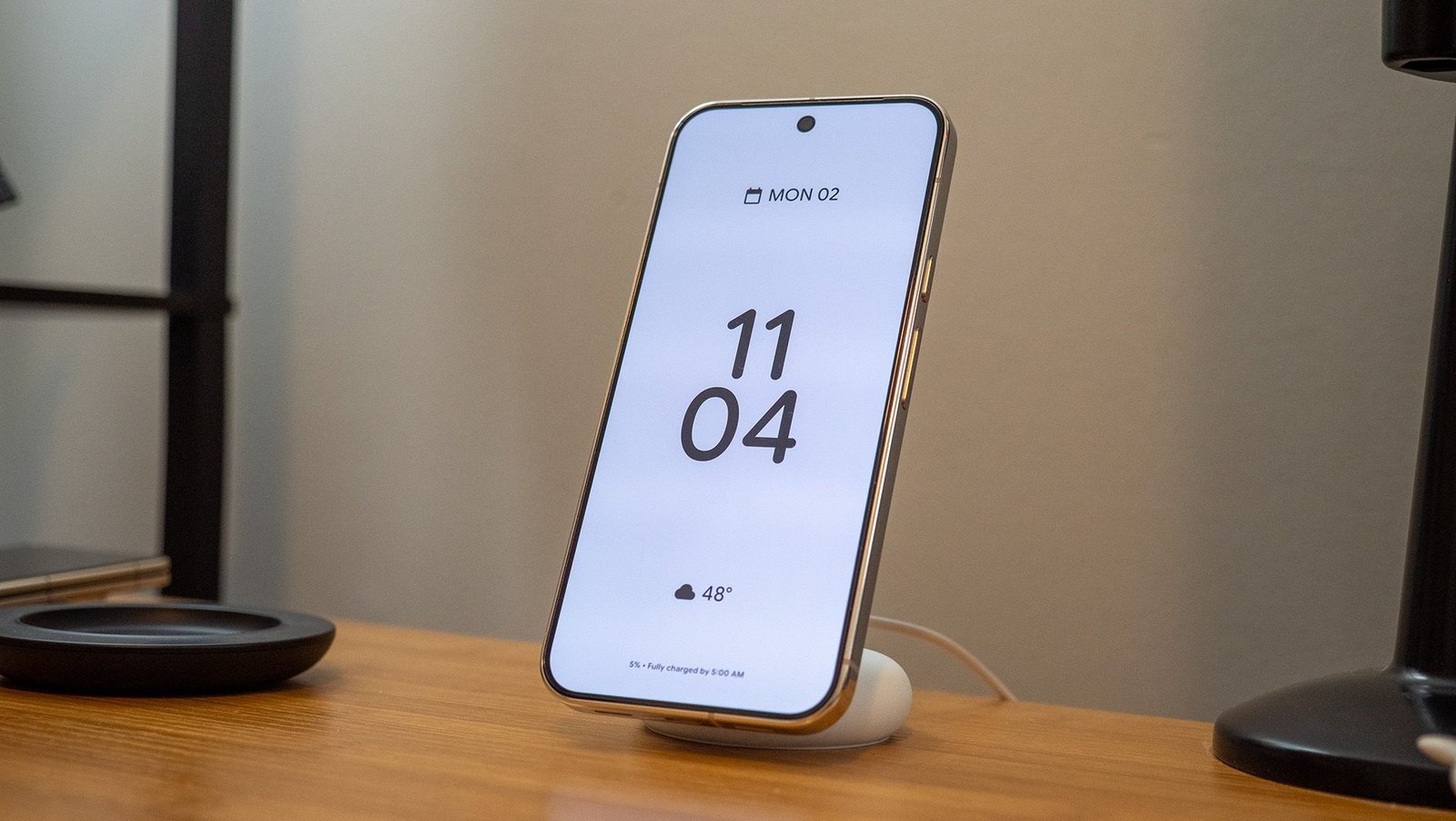
One of my favorite features of the Google Pixel Tablet is its ability to turn into a clock, weather station, Google Photos slideshow, and even a smart home control center while docked on its charging stand. Google upgraded all Pixels with this functionality some time ago, but it turns out Pixels have even more awesome alarm clock-like functions than I initially realized.
The Google Pixel 10 series particularly brings out this feature with its built-in Pixelsnap magnets, which can easily attach to a supported wireless charger to ensure your Pixel doesn’t slide off the charger in the middle of the night. You don’t need a wireless charger to get all the best alarm clock functions to work, but they usually work best since the best Pixelsnap chargers usually prop the phone up at an angle that’s easy to see from your pillow.
You may like
Bringing back the 90’s screen saver
Image 1 of 4
(Image credit: Nicholas Sutrich / Android Central)(Image credit: Nicholas Sutrich / Android Central)(Image credit: Nicholas Sutrich / Android Central)(Image credit: Nicholas Sutrich / Android Central)
I audibly laughed the first time Google reintroduced the screen saver functionality in Android 7, as it brought back memories of watching flying toasters move across the screen on my childhood Windows 95 PC. But modern screen savers aren’t just there to prevent your screen from burn-in; they serve a much more practical function.
They’re designed to deliver glanceable information while your phone is charging, and they can come in handy on your bedside table. I’ve included some photos of the default options above, but find that I prefer the simple “Everyday Clock” option for a nighttime clock. Note that you can place the phone in landscape or portrait mode and your Pixel will rotate the display, as needed.
Here’s how to enable the Pixel screen saver:
1.) Open system settings. You can do this from the app drawer on the home screen, or by pulling down on your status bar twice, then tapping the settings gear at the bottom.
2.) Navigate to Display & Touch.
3.) Tap Screen saver.
4.) Tap the toggle next to Use screen saver.
(Image credit: Android Central)
5.) Tap When to show.
6.) Select Restrict to wireless charging if you only want the screen saver to appear when wirelessly charging the phone. This is best if you’re using it like an alarm clock.
7.) Go back to the main screen saver settings and toggle Low light mode if you only want the screen saver to turn on at night when the room is dark.
(Image credit: Android Central)
Now that you have the screen saver enabled, it’s time to customize it! Google currently offers 5 different options for screen savers: Everyday Clock (digital), Google Photos, Home Controls, Pilot Bold Clock (analog), and Weather.
All of these options can be customized, including the theme to keep things extra dark at night. Once you’ve found the screen saver style you like, click the Customize button on the selected screen saver’s tile. Then, you’ll tap Theme at the bottom. I recommend selecting the Auto theme, as it’ll automatically switch between light and dark depending on what your phone is using.
(Image credit: Android Central)
Now, when you dock your Google Pixel phone onto a wireless charging dock (or wired, if that’s your preference), it’ll automatically display the screen saver when the screen goes to sleep. If you’re having trouble getting the screen saver to work, lock your phone, then turn the screen on while it’s still locked before you plug it in or dock it.
This will ensure the screen saver starts once the screen goes to sleep again. This really shouldn’t ever happen, but I’ve seen it be a bit buggy from time to time, and this seemed to always work for me.
Now for the “alarm” part
OK, so now your Pixel is showing a clock, the weather, or something else when it’s docked, but how about that “alarm” part of the equation? Turns out, Pixel software supports a ton of mega awesome alarm functions, including playing white noise or music at bed time, slowly waking you up with a sunrise alarm, and even showing you the weather forecast for the day once the alarm goes off.
This kind of functionality is not only fun, but it’s also the best way to slowly wake up and feel refresh in the morning in a more natural way. You can choose to enable bedtime functions, wake-up functions, or both. Here’s how you enable everything:
1.) Open the clock app.
2.) Tap the Bedtime tab at the bottom.
3.) We’ll start by enabling bedtime functions. Under the Schedule section, tap Bedtime.
4.) Select your preferred bedtime, any days you want to select (the whole week is selected by default), and any other options you like here. Hit Next when you’re satisfied.
(Image credit: Android Central)
5.) Now, tap the Wake-up section and select the time and days you want to be woken up.
6.) I prefer the Sunrise alarm option, which will slowly illuminate the screen and gradually increase the alarm’s volume over a period of a few minutes. This emulates the feeling of a sunrise, birds chirping, etc.
7.) You can also select Weather forecast here to have your Pixel give you a forecast after you’ve dismissed the alarm. Hit Next when you’re done.
8.) Now you can select Sleep sounds from the main menu. If you’ve already chosen a sleep sound, tap the Choose another sound button to reselect things.
9.) From here, you can select one of the built-in sounds or use your favorite music service like YouTube Music, Spotify, Apple Music, and more. I used YouTube Music and searched for White Noise for Sleeping 12 Hours.
Now you’ve got a bonafide alarm clock replacement, complete with sleep sounds, a sunrise alarm, and customizable display. It’s a huge improvement over the classic digital or analog options, especially since it ensures that your phone is fully charged and ready to go by the time you wake up.
Before you go, may I make one more setting suggestion? Adaptive Charging will help prolong your Pixel’s battery longevity by only charging to full right before your alarm goes off, ensuring that it doesn’t get overcharged. To enable adaptive charging, follow these steps:
1.) Open system settings.
2.) Tap the search bar at the top, then type in charging.
3.) Tap Adaptive Charging from the list.
4.) Enable Use charging optimization and select Adaptive Charging from the list below.
(Image credit: Android Central)
Now, your Pixel is ready to go by morning with a fully recharged battery for both you and your phone. Restricting charging to 80% max has been proven to further prolong battery health, which might be something to think about if you plan to hold on to your phone for four or more years before upgrading. Sweet dreams!
