

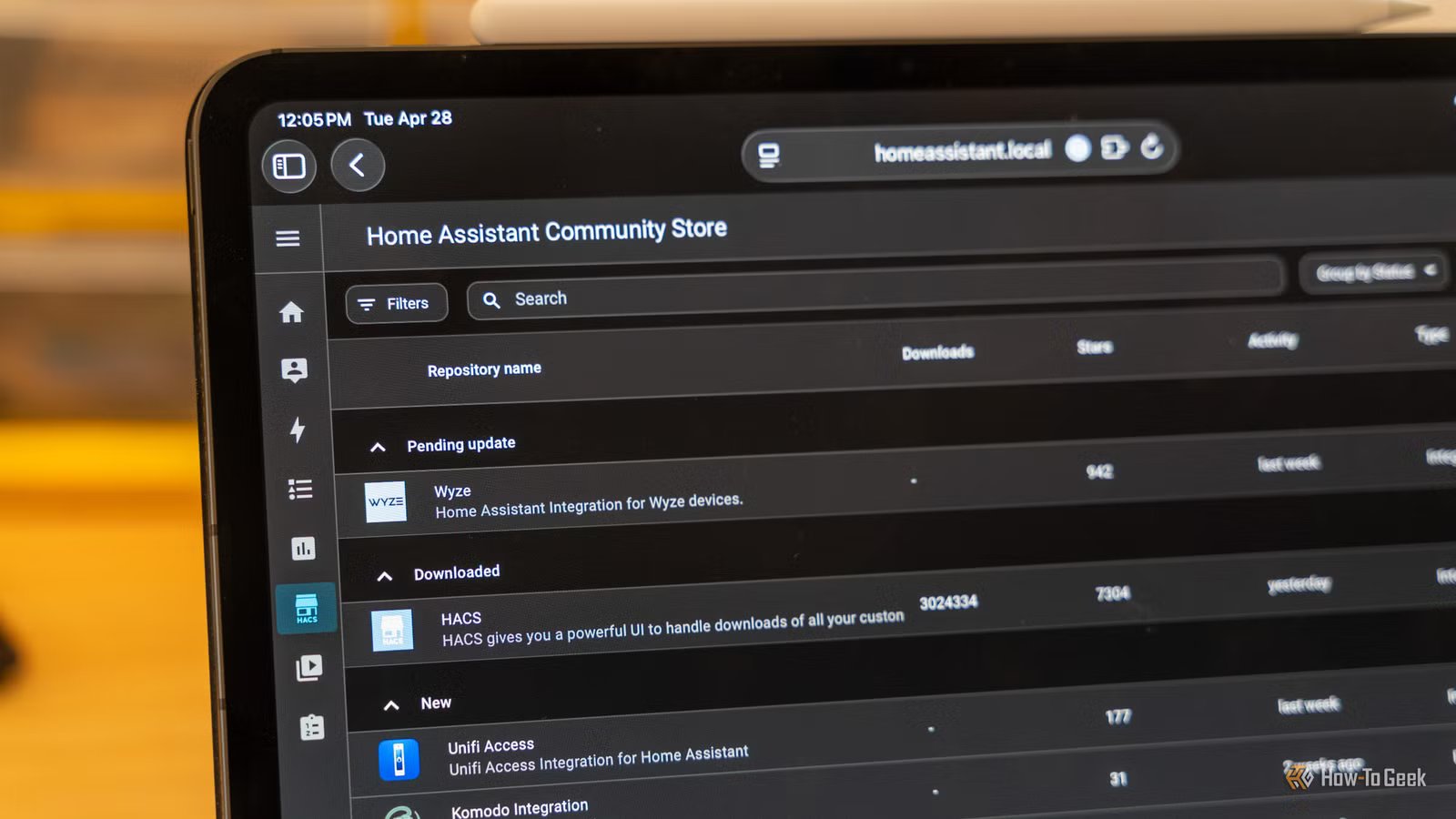
Home Assistant is one of the most powerful smart home platforms around, but even Home Assistant has its limitations. That’s exactly what the Home Assistant Community Store aims to solve, and it does a killer job at making your Home Assistant installation much more capable.
Home Assistant doesn’t have all the plugins or add-ons you might want
Not everything gets approved for the main add-on store
Credit: Patrick Campanale / How-To Geek
I love Home Assistant, but I do have a few gripes with it. My primary problem with it is that not everything is available in the native Home Assistant app or plugin directory. For me, the primary culprit is Wyze.
This is where the Home Assistant Community Store, or HACS, comes in. HACS is a third-party add-on and plugin store for Home Assistant that is run by the community. While the core Home Assistant project requires plugins and add-ons to be fully approved, HACS isn’t like that.
HACS runs on community repositories, and you can even build your own if you want. This means that someone can build a Home Assistant plugin and simply submit it to an existing HACS repo, or build their own, and all you have to do is point your HACS to that repo to install it.
One of the primary reasons to run HACS is for reverse engineered APIs. If someone reverse engineers an API for a platform, Home Assistant isn’t going to approve that plugin to be published in the official repository—for good reason. Just because I understand Home Assistant’s reasoning doesn’t mean I agree with it, and that’s exactly why HACS exists.
HACS fixes all the gripes I have with Home Assistant
Credit: Patrick Campanale / How-To Geek
My main use case for HACS is adding support to Home Assistant for platforms that don’t have native support. In my case, Wyze is the biggest proponent of this. I have a lot of Wyze gear in my house, from their smart bulbs to smart plugs, I love using Wyze products.
Since Wyze doesn’t natively work with HomeKit, my primary smart home platform of choice, I need some way to get the devices in there. I’ve tried HomeBridge in the past, but Home Assistant is simply a better platform for me, especially with HACS.
HACS also allows me to integrate various robot vacuums, build better dashboards, and a whole lot more. One of the biggest parts of the Home Assistant Community Store is visual tweaks. HACS offers quite a few graph and chart plugins, layout tweaks, fully custom UI designs, themes, and so much more.
You’ll also find advanced automation and logic helpers within HACS, since it can extend what Home Assistant is capable of. Things like better presence detection, more advanced scheduling logic, and other functions are all available through HACS.
Something that HACS excels at is data visualization, which is further extended by the functions I already mentioned with better graphs and charts. You can build much more detailed energy dashboards, network and device monitoring, and so much more.
Really, it’s hard to list the number of things that HACS can do because it’s just so versatile. Plus, many official integrations start as HACS projects before graduating to the official repository. So, if you run HACS, you can use these official plugins before they’re officially released.
Dimensions (exterior)
4.41″L x 4.41″W x 1.26″H
Weight
12 Ounces
Home Assistant Green is a pre-built hub directly from the Home Assistant team. It’s a plug-and-play solution that comes with everything you need to set up Home Assistant in your home without needing to install the software yourself.
Installing HACS is fairly simple
And should be the first thing you install in Home Assistant
Installing HACS isn’t all that complicated, but it does require a handful of steps. For starters, you need to go to your profile in Home Assistant and toggle on Advanced Mode.
From there, use the terminal or SSH plugin for Home Assistant (or just SSH into the server it’s running on) and run the following command: wget -O – https://get.hacs.xyz | bash -. This is the simplest way, but you can also manually copy the HACS files into /config/custom_components/hacs on the server.
Once you’ve either run the terminal command or copied the HACS files, restart Home Assistant. You’ll now be able to go to Settings > Devices & Services > Add Integration and search for HACS to enable it. You’ll need to log in with your GitHub account when prompted, and then paste the code GitHub gives you to complete the setup.
At this point, HACS should now be enabled and visible in your sidebar if you did everything right. Next, you simply need to click on the HACS shortcut in the sidebar and finish the configuration, which should only take a few clicks. I normally enable everything during setup.
Now, you’re ready to go! Just start installing HACS plugins for whatever you want—Lovelace cards, a theme, or integration. I’d avoid installing a ton of stuff all at once and just test one thing at a time, but definitely install whatever you want.
Your smart home is only as powerful as the platform that runs it, and Home Assistant Community Store really adds a ton of capabilities to any Home Assistant setup. I really don’t think any Home Assistant setup is complete without HACS installed, so if you haven’t tried it out yet, you definitely should.
