

Ask anyone about benchmarking on Windows, and you’ll hear about Cinebench, CrystalDiskMark, 3DMark, or one of the many free benchmark programs for Windows that people swear by. All these third-party tools, yet nobody mentions the one Microsoft already built into every copy of Windows.
That tool is WinSAT. It’s been sitting in your system since Vista, capable of scoring your CPU, RAM, GPU, and storage in seconds, and Microsoft has done almost nothing to tell you it exists. I stumbled on it while poking around the command line, and after running it on a few machines, I’m genuinely surprised this never got more attention. It’s not a replacement for specialized benchmarks, but for a quick hardware health check, it does more than you’d expect from a buried command-line tool.
WinSAT is a built-in benchmark that Microsoft buried after removing the Windows Experience Index
A capable tool hidden behind a forgotten interface
WinSAT stands for Windows System Assessment Tool. It runs a series of synthetic tests that measure the performance of your CPU, RAM, storage, desktop graphics, and 3D graphics. Each component gets its own score, and the results are saved as detailed XML files with raw metrics like disk throughput and memory bandwidth.
If you’ve been using Windows long enough, you might remember the Windows Experience Index (WEI), a simple 1.0 to 9.9 score that showed up in Control Panel. WinSAT was the engine behind those scores. Microsoft removed the WEI interface starting with Windows 8.1, partly to push the idea that all Windows 8-class systems ran “equally well,” regardless of hardware. The scores also had a reputation for being gamed, since the underlying XML files were editable, and OEMs sometimes treated them as marketing labels rather than useful diagnostics.
But Microsoft never removed WinSAT itself. The command-line tool still ships with Windows 10 and 11, fully functional. You just need to know it’s there and open an elevated Command Prompt or PowerShell to use it.
Running WinSAT tests your CPU, RAM, GPU, and storage in under a minute
Quick commands that benchmark individual or all components
To run WinSAT, you need an elevated terminal. Press Win, type cmd, and choose Run as administrator. Without admin rights, some tests will fail, or the console window may close before you can read anything.
Once you’re in, the fastest way to benchmark everything is with:
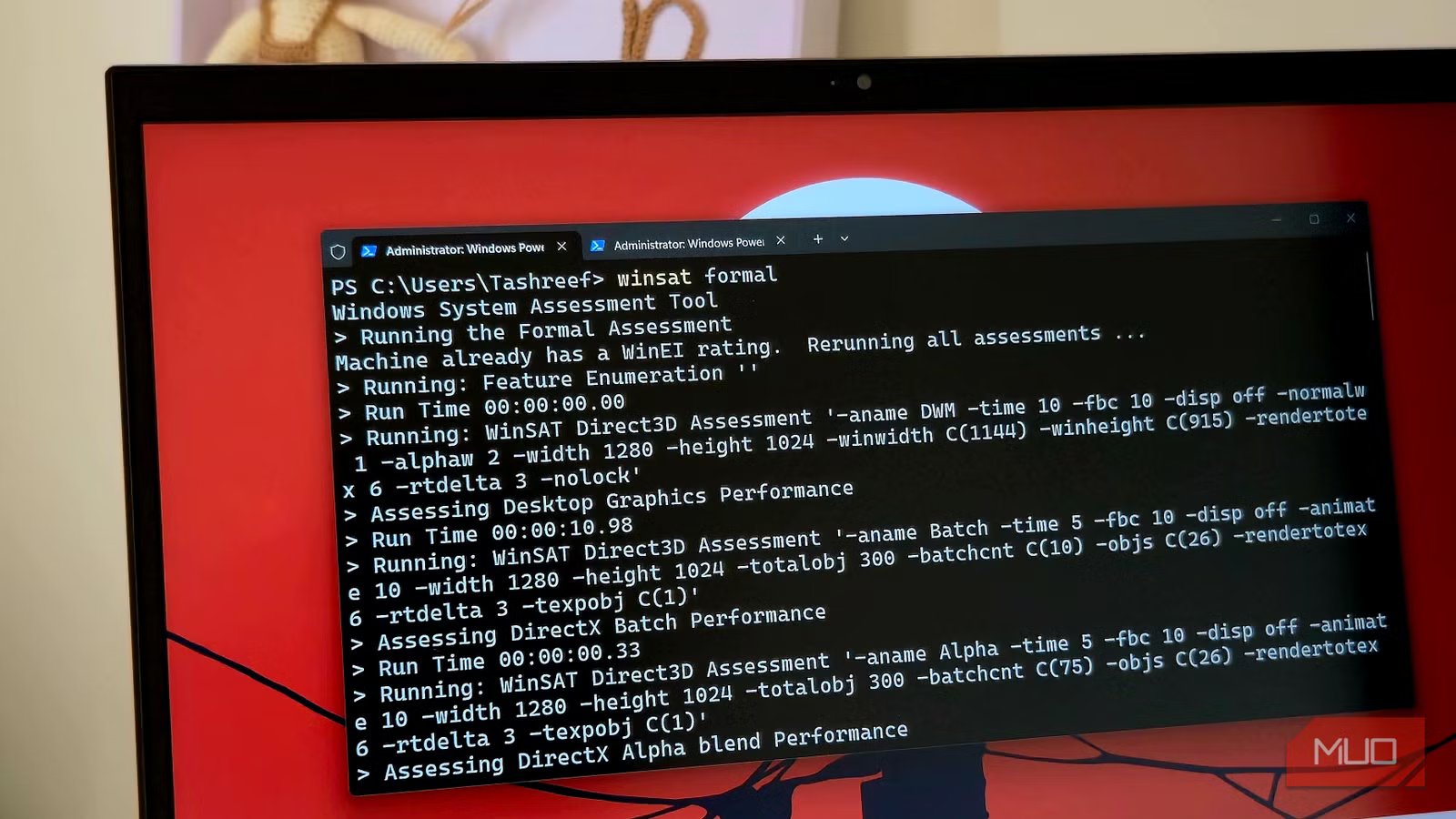
winsat formal
This runs a full suite covering CPU, memory, desktop graphics, 3D graphics, and storage. It saves the results as XML files under C:\Windows\Performance\WinSAT\DataStore. The whole process takes a few minutes, during which your screen might flicker, and the desktop may feel sluggish. I’d recommend leaving the machine alone until it finishes.
You can also test individual components if you want quicker results. Running winsat cpu tests only your processor, winsat mem checks memory bandwidth, and winsat disk measures sequential and random disk I/O. These single-component runs are faster than the full suite and useful when you want to verify a specific upgrade. After swapping in a new SSD, for example, I ran winsat disk to confirm the drive was actually hitting the speeds it should.
For more control, WinSAT accepts additional switches. Adding -v gives you verbose console output, while -xml saves results to a specific file instead of the default DataStore folder. The disk and graphics tests have their own flags too, like -seq or -ran for disk and -fullscreen for D3D, which let you tailor tests to specific scenarios.
WinSAT’s results are surprisingly useful for diagnosing bottlenecks
Subsystem scores reveal your weakest hardware link
Tashreef Shareef / MakeUseOfCredit: Tashreef Shareef / MakeUseOf
After a test finishes, the interesting part is in the XML files. Open any result file from the clear folder in a browser or text editor, and look for the section. It contains scores for each subsystem: CpuScore, MemoryScore, GraphicsScore, and DiskScore. The SystemScore is the lowest of these, which effectively tells you which component is holding back your system.
This makes bottleneck hunting straightforward. If your CpuScore, MemoryScore, and GraphicsScore are all above 7.0 but your DiskScore sits at 5.2, storage is the weak link. That was exactly the situation on an older laptop I tested. Everything else scored well, but the aging hard drive dragged the whole system down. After replacing it with an SSD, the DiskScore jumped significantly, and the machine felt noticeably faster during boot and app launches.
The same logic applies to other components. A low GraphicsScore compared to everything else points to GPU or driver issues, which is worth investigating if your desktop animations stutter, or you’re getting poor frame rates. A low MemoryScore can explain slowdowns during heavy multitasking or when you have dozens of browser tabs open.
You can also use WinSAT to validate hardware changes. If you’ve upgraded your RAM or installed a new GPU driver, running the relevant test before and after gives you a concrete number to compare against, rather than relying on how things “feel.” Power users can even parse these XML results with useful PowerShell commands to automate comparisons across multiple machines or track performance over time.
OS
Windows
Minimum CPU Specs
1Ghz/2 Cores
Windows 11 is Microsoft’s latest operating system featuring a centered Start menu, Snap Layouts, virtual desktops, enhanced security with TPM 2.0, and deeper integration with Microsoft Teams and AI-powered Copilot.
A useful tool, even if Microsoft forgot about it
For stress testing, dedicated benchmarking tools like Cinebench or CrystalDiskMark for detailed storage analysis still have more to offer and give you more granular control over test parameters. WinSAT’s scores are also synthetic and don’t always map perfectly to real-world workloads, especially on modern NVMe drives where the scoring scale feels outdated.
That said, I keep coming back to it because nothing else on Windows gives me a quick, all-in-one hardware snapshot without installing anything. For diagnosing a slow machine, verifying an upgrade, or if you are just curios about how your hardware stacks up, WinSAT does the job. It’s just a shame Microsoft buried it instead of giving it a proper interface.
