

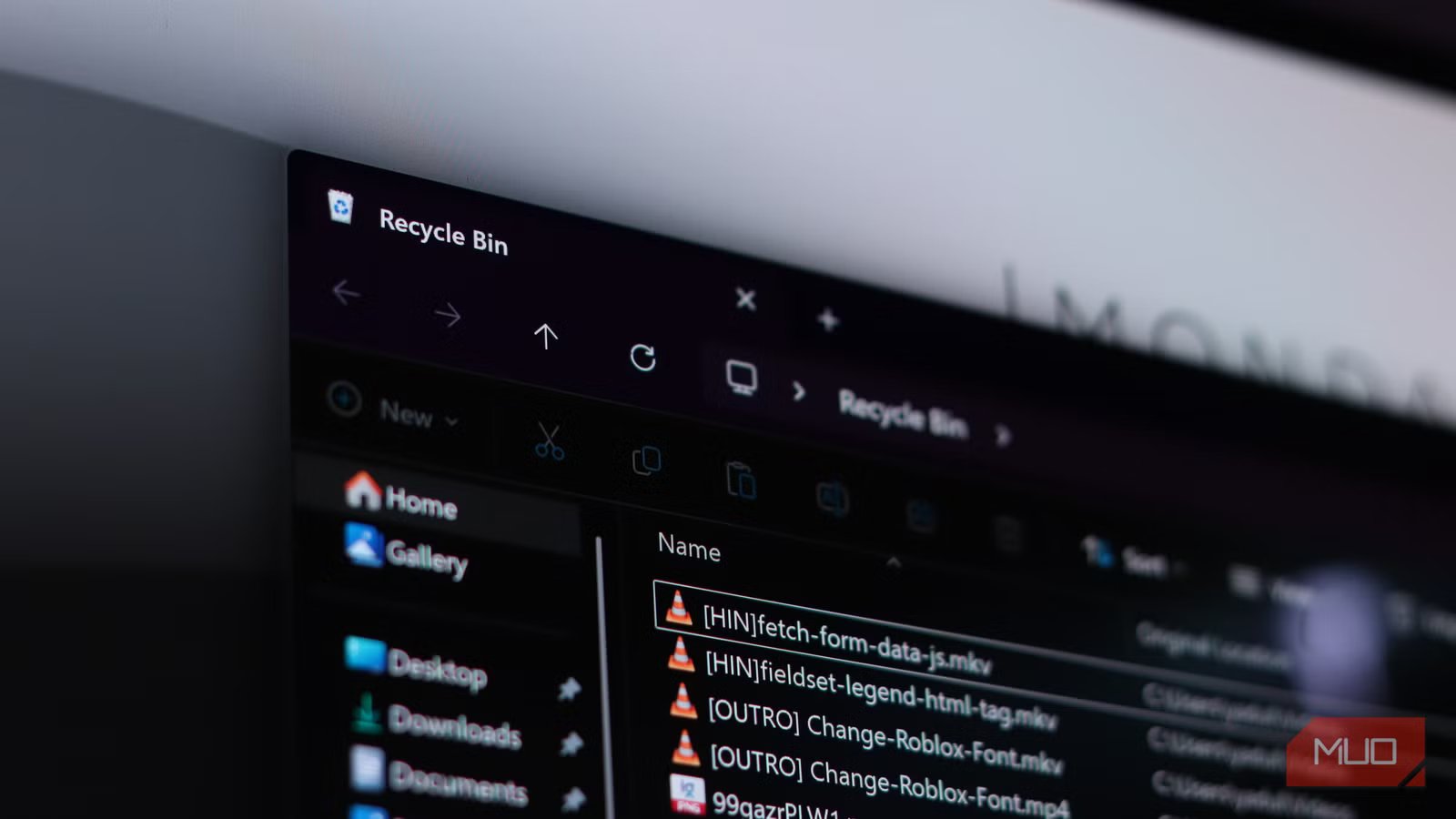
if you think emptying the recycling bin deletes your files, you’re mistaken. The file isn’t actually gone; it’s still sitting on your drive, fully intact, just waiting to be overwritten. So if you’ve got sensitive documents, photos, or personal data you’ve deleted, anyone with the right recovery software and access to your drive can pull it back.
Thankfully, Windows has a trick up its sleeve to help you permanently get rid of deleted files and any traces of them. It’s a simple, built-in command that can clean any deleted data from your drives, though it takes some time.
Deleting a file doesn’t mean it’s gone
Windows removes the pointer—not the data itself
Tashreef Shareef / MakeUseOfCredit: Tashreef Shareef / MakeUseOf
When you delete a file in Windows, regardless of whether it’s permanently deleted or sent to the Recycle Bin, the OS doesn’t actually erase the data. It simply marks the space that the file occupied as available. This makes the file invisible to Windows, but the raw data remains on the drive.
The data is never really deleted. Windows just overwrites it with other data at a later time. This design is intentional as it makes file operations faster and also gives users a chance to recover accidentally deleted data. The obvious downside is that if anyone else can get access to your storage drive, they can recover these files with an appropriate file recovery tool.
This one command finishes the job
Cipher wipes what the Recycle Bin leaves behind
Windows has had a built-in command to overwrite any supposedly empty data blocks since Windows 2000. It’s called Cipher and is usually known as an encryption tool, as it’s designed to manage the Encrypting File System (EFS) on NTFS volumes. But it has a lesser-known /w flag that overwrites all the unused space on your drive, wiping out any data left behind by deleted files.
The command you enter in the Windows Terminal is quite simple. Just open a terminal window with administrator privileges and type the following command, ensuring you replace C with whichever drive letter you want to clean up:
Screenshot by Yadullah Abidi | No Attribution Required.
cipher /w:C
You can also target specific folders by providing the folder path:
Screenshot by Yadullah Abidi | No Attribution Required.
cipher /w:C:\Users\YourName\Documents
This tells the command to run on the volume containing the specified folder and clean up the deallocated space across the whole drive associated with that path.
That’s it. No third-party software, no paid tools, and no downloads required. The tool already exists on your system and will do a great job of scrambling up your drive so any traces of deleted data are gone.
What Cipher is really doing under the hood
Overwriting free space so recovery tools find nothing
Yadullah Abidi / MakeUseOf
The cipher /w command doesn’t just perform a single pass over your drive’s free space. IT performs three separate passes, each designed to make data recovery progressively harder. The first pass writes the value 0x00 across every byte of free space. The second pass writes 0xFF, and the third pass writes completely random data. This approach can scramble whatever remnants were left behind by deleted files to the point where recovery software can’t reconstruct them.
The command also only touches free space, meaning any of your existing files or folders are unaffected by the command. There’s no risk of accidentally wiping something you still need. The command is essentially a targeted cleanup of the invisible ghost data that accumulates on your drive over hundreds of deletions.
You do have to sit for a while and wait for the command to finish running, especially on bigger drives. Doing three passes over every empty data block on your drive is a time-consuming process, so it’s best if you run the command overnight when your machine’s going to be idle. It’s also a good idea to close running applications before running Cipher. It temporarily fills up the free space on your drive, affecting the performance of anything else running at the same time.
Running Cipher once in a while, say every six months or so, is more than enough. I have a computer maintenance ritual that I run once a year, and Cipher has been a part of that ever since I learned about the command. Apart from that, if you’re giving away or discarding your computer or storage drive, running this command ensures that recovery software can’t bring them back later.
SSDs play by different rules
Secure deletion works differently on modern drives
Before you go around running Cipher as part of your regular computer maintenance, note that it works best on traditional spinning hard drives. SSDs, on the other hand, are a bit more complicated.
Solid state drives use a technology called wear leveling, which means the drive’s controller moves data around internally to extend the lifespan of the flash memory cells inside the drive. Because of this mechanism, the OS never really knows the physical location of your data.
When you run cipher on an SSD, it overwrites the free space that Windows can see. But there are areas of the SSD, including over-provisioned and remapped blocks, that just aren’t accessible through the usual software commands. This is where your SSD manufacturer-provided software will come in handy.
Another problem is that running a cipher command puts a lot of write cycles on your SSD. These drives only have a limited number of write cycles before they kick the bucket, so running cipher frequently is a quick way of shortening your SSD’s lifespan.
Built-in commands that quietly outclass third-party apps
If you’ve been paying for data erasing tools to wipe data from your drives, you don’t have to anymore. Windows has had this capability built in for nearly two decades now. The command isn’t flashy, it doesn’t have a GUI, and Microsoft has never really promoted it for this specific use case, but it gets the job done reliably, without any extra software on your system.
Related
I ran one Disk Cleanup command and recovered 20GB of Windows Update files I didn’t know were there
Quickest 20GB I’ve recovered on my PC.
So if you care about what happens to your deleted files—and you absolutely should—this is one command well worth adding to your toolkit.
