

When you hear Excel automation, it’s easy to assume it refers only to those complex, or even basic, VBA scripts and macros that seem too intimidating to edit or reuse. However, with any real, consistent, daily use of Excel, you’ll eventually run into tasks that need automation, whether that means formatting the same report every week, cleaning up messy data, or resetting templates before sharing them with your team.
Thankfully, contrary to popular opinion and thanks to ongoing Excel updates, automation no longer requires deep technical knowledge or experience with old-school macros. If you have a Microsoft 365 license, you might already have access to Excel’s built-in automation tool, and it’s designed to be just as easy to use as it is efficient.
Related
I’ve been paying for Microsoft 365 wrong — here’s what I actually get for the money
Microsoft 365 packs many apps and services that can replace third-party subscriptions.
Excel’s Office scripts
Automating repetitive work inside Excel
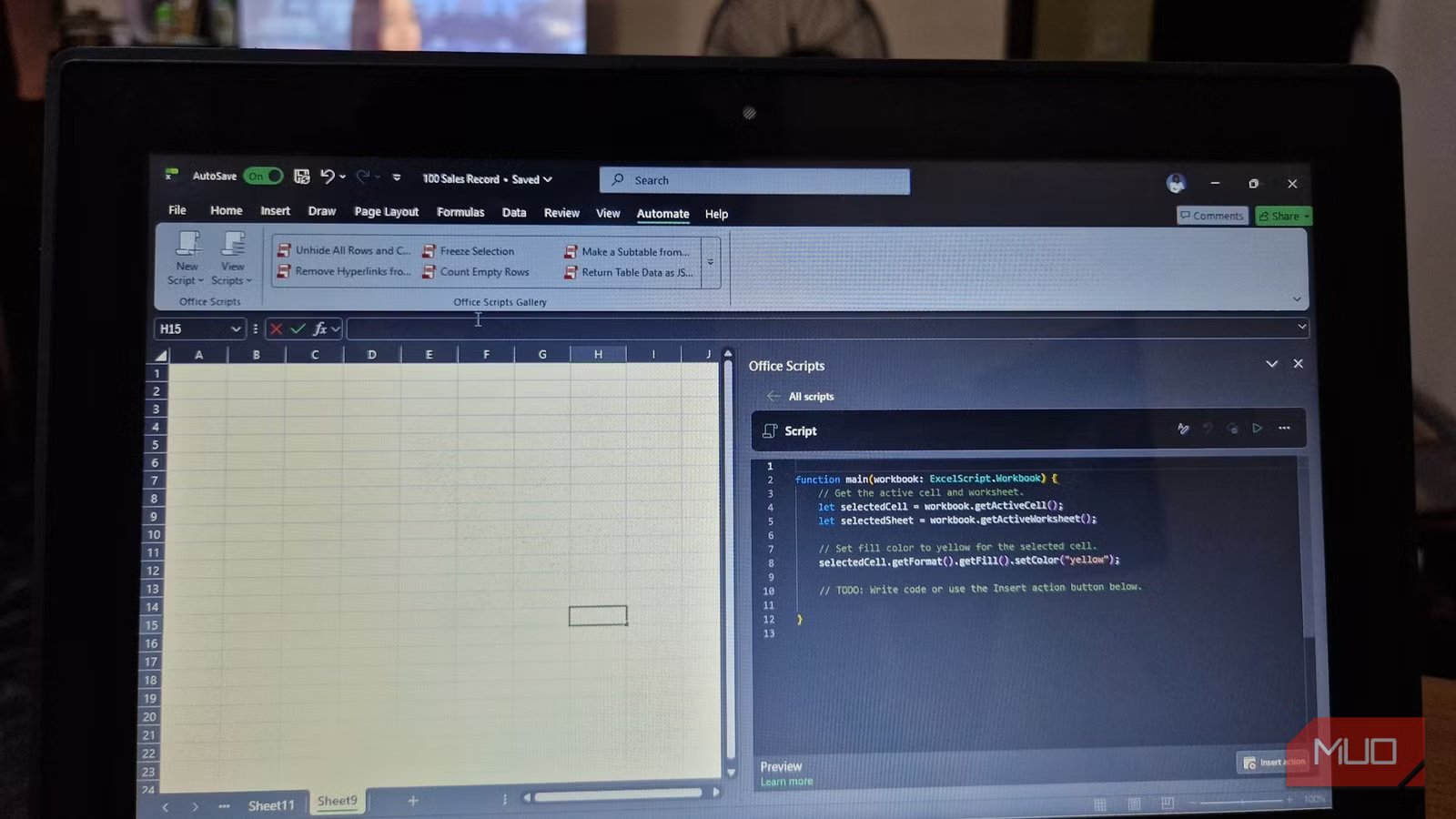
Office Scripts is a cloud-based automation feature built directly into Excel, and it’s designed to make your repetitive work far less tedious. The scripts rely on the Office Scripts API and a specialized version of TypeScript. That might sound technical, but you don’t need to know how to write or edit code to get started. In fact, you can begin by recording your actions in Excel.
Before you jump in, there are a few requirements worth knowing. Office Scripts is available in Excel for the web, Windows, and Mac, but it requires a Microsoft 365 business or enterprise license. Your workbook must also be saved to OneDrive or SharePoint, and you’ll also need your organization’s IT administrator to enable the feature. Once everything is set up correctly, you’ll see the Automate tab appear in Excel, and that tab is your gateway to automation.
The easiest way to create a script is by using the Record Actions button. When you choose to create a new script from a recording, you activate the Record Actions tab. Once recording begins, Excel tracks your steps, editing cells, applying formatting, or creating tables, and automatically converts them into code.
For instance, imagine you’re preparing a weekly report. Every week, you bold the headers, change the background color, auto-fit the columns, and apply currency formatting. Instead of repeating those steps manually, you can record yourself performing them once and save that recording as an Office Script. The following week, you simply run the script, and your weekly report will be ready in seconds.
You can also build scripts that wipe out data, remove filters, and clear formatting, returning a worksheet to its original state. These scripts can auto-fit columns, apply consistent Excel number formats such as currency or thousands separators, and remove leftover ghost data that often lurks in spreadsheets. This approach is especially helpful for shared templates that need to be reused repeatedly.
Editing and reusing scripts
Screenshot by Ada
One of the biggest advantages of Office Scripts is flexibility. After recording a script, you can open it in the built-in Code Editor. The editor is based on Visual Studio Code, which means it includes helpful features such as syntax highlighting and IntelliSense auto-complete to make editing easier.
If you feel comfortable experimenting, you can add logic to your scripts, such as if/else conditions or loops. That allows your script to make decisions, repeat tasks, or handle different scenarios automatically without requiring you to repeat the same steps.
Another major benefit is portability. Unlike traditional macros, Office Scripts are saved as separate files in OneDrive or SharePoint, which means they aren’t locked inside a single workbook. You can run the same script across multiple files, making them especially useful for teams and recurring workflows.
The Automate a task button
Let Excel run scripts for you
The Automate a Task feature connects Office Scripts to Power Automate, enabling Excel workflows to interact with other apps such as Teams, SharePoint, and Outlook. More importantly, it allows your scripts to run without you needing to open the file at all.
To use this feature, you’ll need a Microsoft 365 business license and access to Power Automate. Some license types don’t display the Automate a Task button directly in Excel, but that doesn’t mean you’re locked out of using the feature.
If the shortcut isn’t visible, you can still build workflows by logging into office.com or onedrive.com. From there, open the nine-dot menu and select Power Automate. Inside the portal, click Create to begin building your workflow. You’ll typically see three main flow options: Scheduled cloud flows, which run at a specific time; Automated cloud flows, which run when an event occurs; and Instant cloud flows, which run manually from a button.
Within the Excel app, clicking the Automate a Task button opens a panel where you can select a template, such as Scheduling an Office Script to run in Excel. After signing in, you’ll be prompted to specify details such as how often the script should run, the file location, the document library, the workbook name, and the specific script you want to execute. This process mirrors building the workflow directly inside Power Automate. Once you’ve entered all the necessary details, click Create to finish setting it up.
Keep in mind that before you can automate a task, you must already have a script ready to run. Once you do, however, scheduling makes automation even more powerful. Instead of remembering to update files manually, you can set scripts to run at regular intervals, such as daily, weekly, or monthly.
Imagine a sales workbook that requires daily updates. You could create a script that cleans new entries, calculates totals, and formats the results. Then, using Power Automate, you set up a scheduled flow that runs every morning. Once the flow is active, your report updates automatically before your workday begins, so by the time you open the file, everything is already finished.
This kind of automation isn’t limited to scheduled tasks. You can also trigger scripts when a new file is uploaded to a folder, when an email arrives, or when someone submits a form, allowing Excel to respond to events without manual intervention.
Small automation, big payoff
Automation in Excel doesn’t have to be complicated, and it doesn’t have to feel like learning a programming language from scratch. Office Scripts gives you the ability to record and reuse repetitive steps, while Power Automate turns those scripts into self-running processes that handle routine work in the background.
As you grow more comfortable using Office Scripts and Power Automate, you’ll likely notice that even a few small automations can eliminate hours of repetitive work over time.
OS
Windows, macOS
Supported Desktop Browsers
All via web app
Developer(s)
Microsoft
Free trial
One month
Price model
Subscription
iOS compatible
Yes
