

I have spent the better part of a decade covering tech, and if there is one thing that I’ve learned, it is that a smartphone is only as smart as the user. If you are using your smartphone the way it came out of the box, you aren’t using its full potential. Let’s take swipe gestures, for example. Google introduced system-wide navigation gestures with Android 10 in 2019, after Apple made them the default on iPhone X.
People are still navigating their Android devices the hard way, tapping through menus, stretching their thumbs to the limit, etc. You will be glad to know that Android has several hidden gestures that will help you fly through your daily tasks.
Related
Navigate Your iPhone Faster With These 8 Tricks
These iPhone navigation tricks make everyday tasks feel effortless.
Use this gesture and become a pro multitasker
The quick switch
Traditionally, if you want to switch to a different app on your phone, you have to swipe up, pause, and hunt through the recent app cards to jump to that particular app. This process takes time, especially if you want to switch between the currently open app and one you opened a while back.
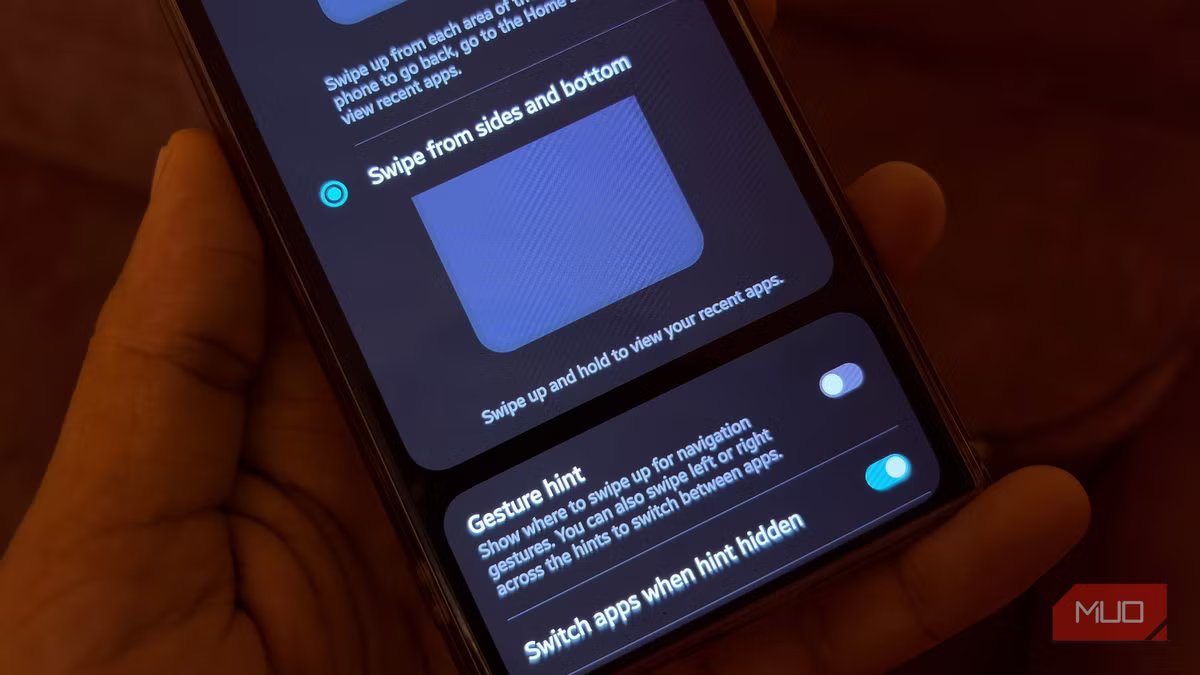
In fact, this process is also cumbersome for switching between two recently opened apps. Thankfully, you don’t need to rely on this to switch between apps. You can simply swipe left or right along the very bottom edge of your screen, right above the gesture bar, to switch between apps.
The best part is that you can use the same gesture to switch between tabs in Google Chrome too, if you are still using it over the feature-loaded Samsung Internet. However, instead of the navigation bar, you need to swipe over Chrome’s URL bar. A quick swipe bounces you back and forth between apps without missing a beat, perfectly mimicking the Alt + Tab experience of a Windows PC.
Reach every corner of your phone
One-hand mode activated
As most modern phones are pushing the 6-inch mark, even the 7-inch, reaching the top of the screen with one hand is like performing finger gymnastics. You have to stretch your finger to its limit and, during the process, adjust the phone in your hand or use both hands to reach the corner. If one hand is occupied, reaching the top of the display could mean you drop your phone at any time.
Thankfully, Google understood this issue, and there is a special one-handed mode that shrinks your phone screen so you can reach every corner with just one hand. To use this, simply swipe down on the navigation bar.
I tried giving this a go on my Samsung Galaxy S26 Ultra, only to realize that on some phones, you need to first enable One-handed mode from the Settings menu for this gesture to work. Once enabled, you can perform the swipe-down gesture and take control of your phone.
Related
9 Useful Android Apps That’ll Make Your Phone Smarter
Want a smarter phone? Replace your default camera, SMS, gallery, and other apps with these smarter alternatives.
There’s a free mouse to go with your keyboard
Gboard’s hidden trackpad
Typos in text messages on our smartphones are something we go through hundreds of times a day. The worst is spending those extra 10 seconds furiously tapping the screen to get the cursor exactly between two specific letters. On a PC, that is quite easy, thanks to the mouse, but on a smartphone, you don’t have that liberty.
If you use Gboard, you will be glad to know that it features a built-in mouse that is meant for precision tasks exactly like the above example. It is a superior way and one of the best Gboard tips you can learn. All you need to do is press and slide your finger left and right across the Spacebar. The cursor moves with pinpoint accuracy and turns the Spacebar into a mini trackpad.
Open the Quick Settings panel in one go
It just takes a single swipe
When you swipe down on the home screen from the top, it shows you notifications. You have to swipe once more to view the Quick Settings panel (Wi-Fi, Bluetooth, Location, etc.). There is an easy way to skip that double step to access the Quick Settings panel.
You can simply swipe down from the top of the screen with two fingers simultaneously to reveal the fully expanded Quick Settings panel. While it saves just a few seconds, it is a nice way to quickly access the tiles. For instance, turning on the airplane mode before a flight or switching on the flashlight in the dark.
You can also access Accessibility features through a secret gesture. You need to head over to Settings -> Accessibility -> Advanced settings -> Accessibility button/gesture. Here, you can set any action. For instance, open the Magnifier by swiping up from the bottom with two fingers.
Tap the back to make your phone work
Your phone has a secret button
Modern phones are almost buttonless. Aside from the power button and volume rockers, phones hardly get that many buttons. What if someone told you that, apart from the buttons that you see on your phone, there is a hidden button on the back of the phone?
While it is not a physical button, there is a feature that unlocks a gesture that mimics a button. On Google Pixel phones, it is called Quick Taps, and on Samsung phones, you have to make use of the Good Lock module.
The best thing is that you have to tap twice or three times to perform certain actions. For instance, you can set the back tap gesture to open the flashlight, control the music, open the notifications panel, and more.
OS
Android
Developer
Good Lock Labs
Good Lock is a powerful customization suite for Samsung Galaxy devices, offering a collection of modules and plugins that let you personalize almost every aspect of your phone. With Good Lock, you can tweak the lock screen, home screen, navigation bar, keyboard, notifications, and more to match your style and workflow.
Using your phone is easy
Once you know about these hidden Android gestures, you will understand how easy it is to use a phone. Using these gestures might feel a bit tricky, and there may be a learning curve. But within a few hours or days, you will get the hang of it. To make using your device much easier, there are a bunch of apps that you can install and turn dead space into something useful, like turning the notch into a button or controlling your phone with physical movements.
