

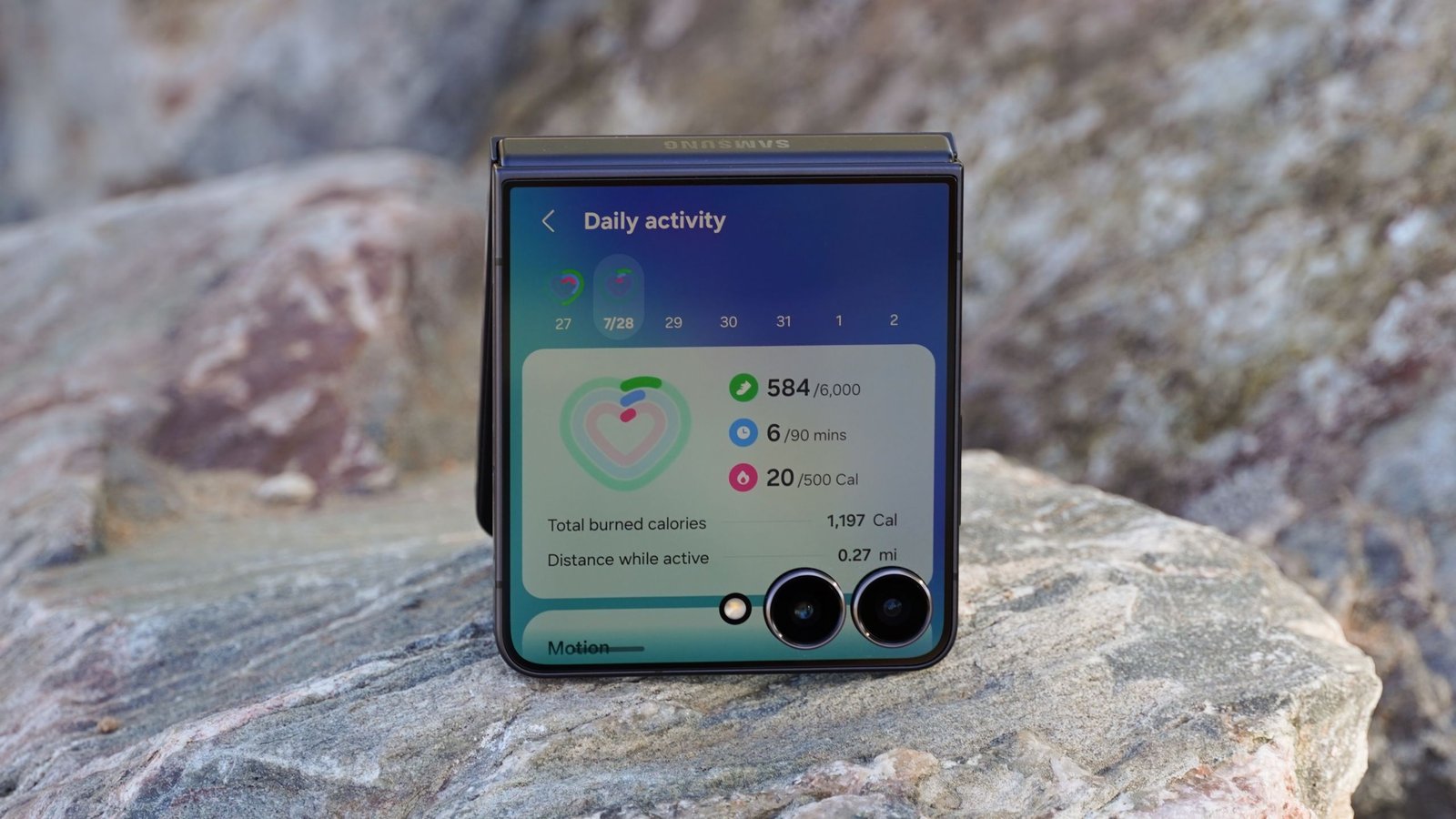
The Samsung Galaxy Z Flip 7 is arguably the most complete clamshell foldable on the market. It doesn’t have the fastest chip or the most versatile software, but it nails the basics. The build quality, thickness, and weight are all top-notch, especially considering the relatively affordable $1,100 price point — that is, compared to the new $1,499 Motorola Razr Ultra 2026.
One thing the Razr lineup consistently does better than the Galaxy Z Flip series is the cover screen software. Motorola basically gives its users unrestricted access to the Razr cover screens, and that’s how it should be. After all, flagship flip phones offer expansive outer displays with enough room to run most apps in a limited fashion. Although the out-of-the-box Samsung cover screen experience is lackluster, there are a few things you can do to make it better.
These are the three cover screen tips I use to get the most out of my Galaxy Z Flip 7 without opening it up.
Latest Videos From
You may like
Today’s best Samsung Galaxy Z Flip 7 deals
(Image credit: Brady Snyder / Android Central)
The best way to make your Galaxy Z Flip 7 cover screen worth your time is to add widgets. Swipe left on your Samsung flip phone’s external display, and you’ll see extra pages for widgets. You can fit up to four widgets on a single cover screen page. This flexibility makes it possible to load up a Galaxy Z Flip 7 with handy widgets, putting glanceable information and key controls at your fingertips.
To get started, swipe left past the lock screen wallpaper to open a widget page. Enter your passcode if prompted, and hold down on the widget page you want to edit. Then, press the Edit button. Unfortunately, you can’t add widgets to cover screen pages from the cover screen — follow the prompt to unfold your Galaxy Z Flip 7 to start editing. Next, ignore the lock screen, clock, and notifications options for now.
Instead, focus on the Widgets tab. You can see a list of all supported widgets on your phone, which varies depending on the apps you have installed. Third-party widgets are supported on the cover screen, but not all of them. Select the widgets you’d like to add to your cover screen, and save them. You can fit four 2×2 widgets or two 2×4 widgets on a Galaxy Z Flip 7’s outer display home screen.
While you’re here, you may want to go back and edit your lock screen, clock, and notifications preferences. You might be surprised to learn how many widgets you can fit on the Galaxy Z Flip 7’s cover screen wallpaper alone, making data easier to view and act upon.
Enable cover screen apps
(Image credit: Brady Snyder / Android Central)
Since some of my favorite Android apps don’t have supported cover screen widgets, being able to run them on my Galaxy Z Flip 7’s outer display is crucial. This isn’t supported by default either, but there is a workaround. Following the steps to add widgets we covered above, add the Apps widget to your cover screen. This widget essentially adds a small app launcher that you can use to run apps on the external display.
However, expect to find a limited set of basic apps available to add to the Apps widget. I see apps like Google Maps, Google Messages, and YouTube available for addition to the Galaxy Z Flip 7’s default Apps widget in One UI 8.5. That doesn’t really solve the limitation of not being able to run third-party apps on the cover screen, so we need to go one step further.
Open the Settings app with your Galaxy Z Flip 7 unfolded and look for the Apps allowed on cover screen setting. Once you’ve found it, tap Get MultiStar at the bottom of the page. This will prompt you to install Good Lock and then MultiStar via the Galaxy Store. For those out of the loop, Good Lock is Samsung’s advanced feature suite for power users. Since the brand considers running apps on the cover screen an experimental feature, you’ll need Good Lock and the MultiStar module.
What to read next
After installing MultiStar, open the module and tap the Launcher Widget to add it to your Galaxy Z Flip 7 cover screen. This widget is similar to the main Apps widget, but the MultiStar version supports any Android app. You can add whatever apps you need to the MultiStar Launcher Widget and access them on your Galaxy Z Flip 7 cover screen by swiping left to the widget pages.
Use Gemini or Gemini Live on the cover screen
(Image credit: Brady Snyder / Android Central)
If you’re frustrated by the lack of default cover screen options on Samsung flip phones, you might be happy to know that Gemini and Gemini Live are fully supported on the Galaxy Z Flip 7. Before, trying to access multimodal Gemini Live on the Galaxy Z Flip 6’s cover screen would simply tell you to open the device up. Now, after initially setting up Gemini with the screen opened, you can use basic Gemini, voice-based Gemini Live, or multimodal camera-based Gemini Live on the cover screen.
Is this something Galaxy Z Flip users were asking for? Honestly, it was probably pretty low on the priority list, but we’ll always welcome more cover screen functionality. To use it, hold down the power button and you’ll see Gemini appear on the cover screen.
Even with these tweaks, Motorola takes the crown for the best flip phone cover screen experience. If you’ve chosen a Galaxy Z Flip 7 for its other perks, it’s worth using the above tips to expand the functionality of the cover screen as much as possible.
The best Samsung flip
The Samsung Galaxy Z Flip 7 still has an underwhelming cover screen software experience out of the box. However, these tips help you make it better. There are still a handful of other reasons you might want a Galaxy Z Flip 7, like the thin and light build or the long software support window.
