

Microsoft is warning users about an issue you may not have heard of. In the Device Security menu of the Windows Security app, some PCs now have a notice showing a Secure Boot certificate connected to a mandatory renewal deadline coming in 2026.
It doesn’t mean your PC will stop working in 2026. However, if your system fails to transition to the newer Secure Boot certificates, at some point it will start to lose boot-level security protection. The problem is that there is a design flaw in the warning system, which may leave several people falsely thinking their computers are fine.
Windows is now showing you a warning it used to hide
And this week, it started following you to the system tray
Afam Onyimadu / MUO
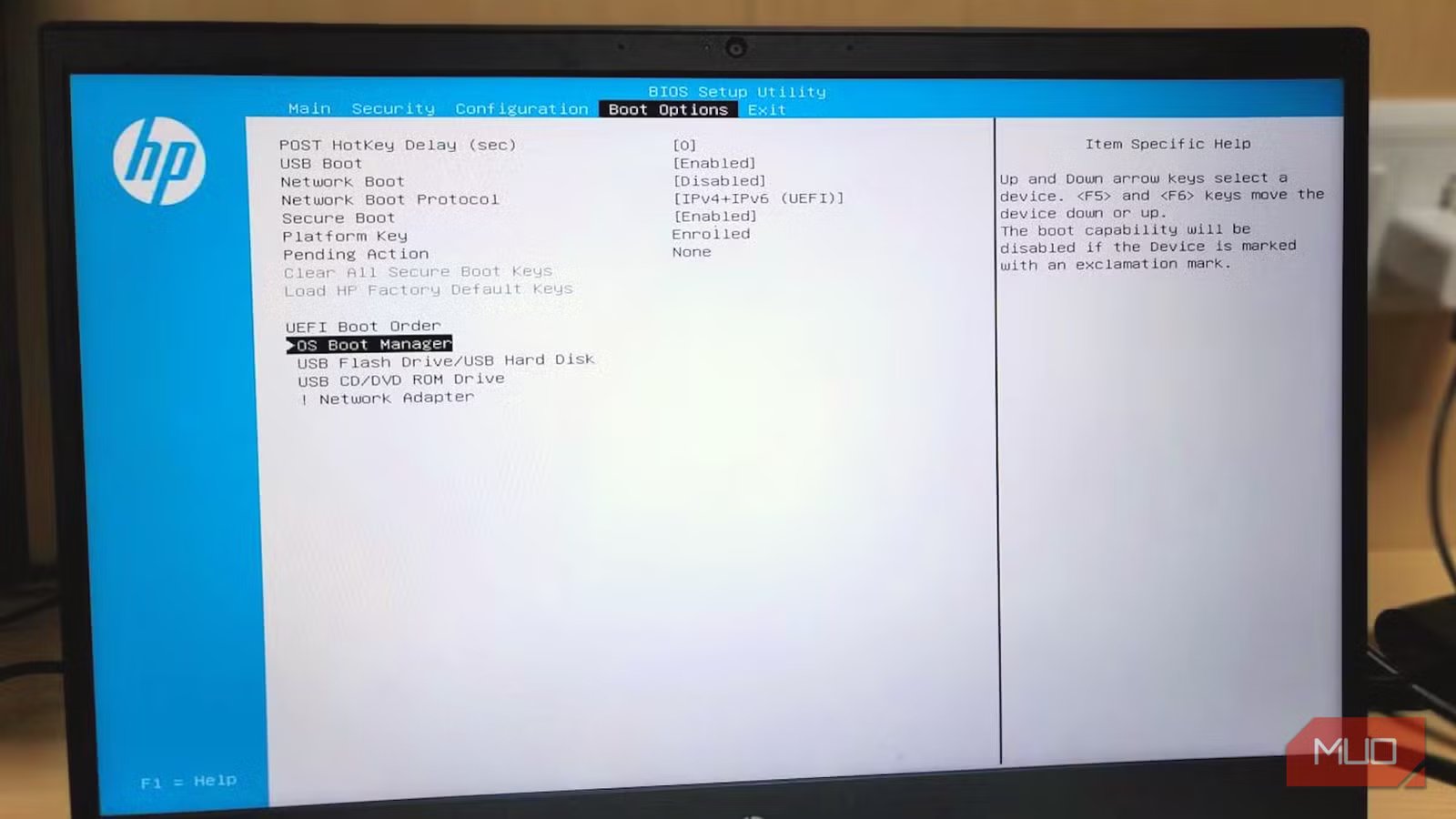
You typically have to go through the firmware menu, PowerShell commands, or registry paths to check Secure Boot certificate status, but that’s not necessarily the case anymore. Now, when you navigate to Windows Security -> Device Security -> Secure Boot, you may see the status.
This rollout with new status indicators started on April 8 for Windows 11, and Microsoft will start pushing these notifications to the system tray from May 13. The warnings are color-coded: green, red, and yellow. When the updated security certificate is correctly applied, the notification shows up in green; yellow points to an incomplete transition. This may also be a sign that it’s waiting for firmware cooperation. Red means that the device, in its present state, can’t receive the certificate update.
However, the color codes alone do not tell the complete story. Microsoft’s statement said:
A green checkmark alone does not confirm your certificates are updated. Look also for the text: “Secure Boot is on and all required certificate updates have been applied. No further certificate changes are needed.”
In other words, the text matters more than the color you see because even when it’s green, it may be saying your device is running with an older Secure Boot certificate.
Related
I found a Windows 11 log that shows exactly what’s making my PC slow — and most people don’t know it exists
A forgotten Windows feature that explains performance drops clearly.
The expiration date is not really the problem
Losing future protections is
Brady Snyder / MakeUseOf
When you turn on your computer, Secure Boot is active even before Windows loads. It allows a system check for valid critical boot components and would block startup in cases where the components fail the check. This is a trust chain that has been around since Windows 8, using certificates built in 2011, but these old certificates are being replaced by 2023 certificates.
Expiring certificate
Replacement
What becomes unprotected without it
Microsoft Corporation KEK CA 2011
Microsoft Corporation KEK 2K CA 2023
Future updates to Secure Boot’s list of trusted and blocked components
Microsoft UEFI CA 2011
Microsoft UEFI CA 2023
Third-party bootloaders and drivers (including Linux and security tools)
Microsoft Windows Production PCA 2011
Windows UEFI CA 2023
The Windows Boot Manager itself; future boot-level security patches
The BlackLotus UEFI bootkit exposed Secure Boot’s flaws, especially on older trust models, making it more evident that an urgent transition is needed. This malware proved that revocation, or the capacity to stop a known bad boot component from running, is necessary and maybe more important than only patching Windows. With the 2023 updates, it’ll be possible to perform revocations in the future. Without the new certificates, even after Microsoft patches a known boot-level vulnerability, machines on the 2011 certificates will remain vulnerable.
So, the real fear isn’t whether expiration will brick your devices, but the security consequences when those devices can’t benefit from future firmware updates, DBX revocations, and boot-chain security fixes. Even though the machine runs, its defenses no longer keep pace with current malware.
The green badge can lie to you
These three PowerShell commands won’t
You may have gotten a high-level picture simply by relying on the badge color in Windows Security, but you can get more context by running three PowerShell commands as an administrator. The first is:
Confirm-SecureBootUEFI
This command checks if Secure Boot is enabled. You can confirm active Secure Boot protection if it returns True, but False shows if it is disabled (or not enforced), and this has to be resolved first before the certificate transition can happen.
The next command is:
[System.Text.Encoding]::ASCII.GetString((Get-SecureBootUEFI KEK).bytes) -match ‘Microsoft Corporation KEK 2K CA 2023’
This command shows if your firmware accepted the new KEK certificate. Even after Windows Update delivers new certificates, the firmware must physically accept and store them. This step is rejected on several older systems.
The last command is a pair:
[System.Text.Encoding]::ASCII.GetString((Get-SecureBootUEFI db).bytes) -match ‘Windows UEFI CA 2023’
[System.Text.Encoding]::ASCII.GetString((Get-SecureBootUEFI db).bytes) -match ‘Microsoft UEFI CA 2023’
These commands confirm if the actual boot trust database accepted the update. You’d expect both commands to return True. Again, this is a point where some older systems may fail. In most cases, you need a firmware update from your manufacturer if the DB checks fail to complete the transition.
Some PCs are more exposed than they look
The “never had a problem” machines often top the list
Digvijay Kumar / MakeUseOf
While several old PCs will miss the transition without proper firmware updates, they aren’t necessarily the most vulnerable. A lot of updated and well-maintained enthusiast builds are also exposed. The best examples are dual-boot systems running Linux alongside Windows. As long as a system has gone through custom bootloaders, automatic certificate updates are harder to achieve.
The same goes for systems that have third-party Secure Boot keys or have gone through non-standard boot chains. This could be a problem on older gaming systems where you may have disabled Secure Boot to accommodate hardware or anti-cheat software.
What to do if any of this applies to your PC
Regardless of the situation, you should run the three PowerShell commands I explained in the article as a starting point, then also look through the Windows Security text displayed for Secure Boot. Having these two gives a clear picture of the problem. If these checks show a problem, contact your PC manufacturer’s support page — they can often provide a firmware update faster than waiting for Windows Update.
It’s quite unusual for Microsoft to surface a firmware-level problem inside a consumer-facing app. I believe this has been an imperfect warning system, but it’s still addressing a real problem, and the window for resolving it is closing quite fast.
