

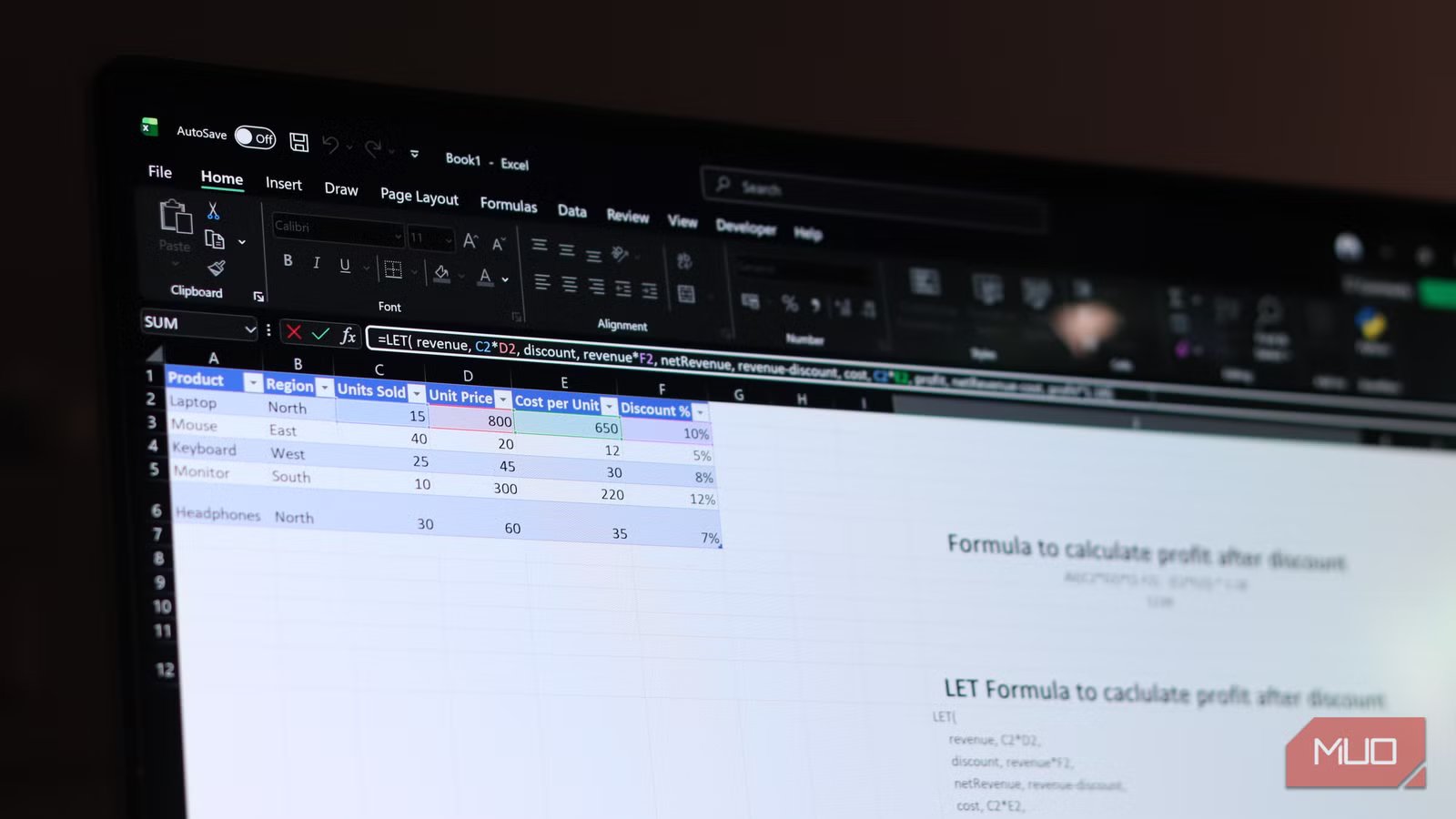
If you’ve spent any time writing formulas in Excel, you’ve likely written that one long formula like a sentence that never ends. These formulas may work, but they’re long, complicated, and if someone other than you needs to replicate them, they’re not going to have a good time understanding what’s going on.
However, problems like this shouldn’t exist, especially considering Excel can now write its own formulas. But if you don’t trust Excel, or simply prefer to write your own formulas, the LET function is here to help you out.
Related
This Excel Trick Lets Me Write Formulas Like a Human
Smarter Excel formulas with the simplicity of everyday language.
This function changes how Excel formulas work
What LET actually does—and why it matters
Image taken from Microsoft Excel support page.Credit: Microsoft
The LET function is built for one simple function, and if you’ve ever written code before, you can probably guess what it is: it lets you name things inside a formula. You give a value or calculation a name, and then you can use that name later in the same formula instead of repeating the full expression over and over. There are Excel formulas you may be wasting too much time on; LET helps you avoid that.
The syntax follows a clean pattern, too. You write the name, then the value it represents, and keep pairing them up until the final argument, which is the result you want. The formula supports up to 126 name-value pairs, but I don’t see anyone needing more than five or six for most real-world formulas.
=LET (name, name_value, calculation)
Let’s say that you’re working with a nested IF statement that grades exam averages. Without LET, you’d write AVERAGE (B2:D2) three or four times inside the same formula, once for each condition. With LET, you can define avg as AVERAGE (B2:D2) once at the start, and then use avg whenever you need to reference the average for that particular range. This not only reduces the amount of effort you’d have to put in when typing the formula, but the logic also becomes human-readable.
OS
Windows, macOS
Supported Desktop Browsers
All via web app
Developer(s)
Microsoft
Free trial
One month
Your formulas will work faster
Reusing calculations for real performance gains
Screenshot by Yadullah Abidi | No Attribution Required.
More often than not, it will seem that using LET primarily affects the readability of your formula, and that’s fair. But there’s a performance angle here too. When you repeat the same calculation multiple times inside a formula. Excel runs that calculation as many times as mentioned. With LET, however, you only run the calculation once. Once it’s named, as long as the reference is being reused in the formula, Excel will only process it at the time of declaration. Using improper or redundant Excel functions will only slow down your spreadsheets.
This is not going to have much of an impact on smaller datasets or your usual calculations. But on large spreadsheets with thousands of rows and heavy array formulas, the performance gain is noticeable. In one real-world test on a 1,000-row dataset, using LET reduced the total number of calculations by 42%. For complex array formulas specifically, the function speeds up calculation by as much as 10 times. So if you’re working with massive sheets where formulas can take half a minute to run, using LET can massively improve performance and your experience.
Your formulas finally make sense
Turning messy logic into something readable
LET does wonders for formula readability, and by extension, how easy it is for someone else to work with your spreadsheets. Excel work almost never stays with one person. Files get handed off, audited, updated, and broken by someone who didn’t build them. When that person opens a formula and sees appropriately named variables, they can immediately understand what that formula is doing, instead of having to run back and forth between half a dozen ranges and Excel functions to make sense of what’s going on.
LET essentially turns your formula into documentation. The names you assign act as inline comments, the kind that live inside the formula without requiring helper columns, sticky notes, or a two-page disclaimer that someone has to go through if they want to avoid breaking something in an otherwise complex Excel document. It’s a small thing that compounds when you’re working in a collaborative environment or building templates that others will maintain.
It fits perfectly into modern Excel
How LET pairs with dynamic arrays and newer functions
Wachiwit/ShutterstockCredit: Wachiwit/Shutterstock
LET arrived in Excel 365 alongside several dynamic array functions like FILTER, SORT, UNIQUE, SEQUENCE, and more. These functions produce arrays, and if you’ve ever worked with arrays before, you know that they can get messy to work with as soon as you start filtering using multiple conditions or chaining operations together.
LET is the glue that holds a complex structure together while making it faster and more readable simultaneously. You define your source range once, apply a filter to it once, and then use the result in multiple places across your sheet. It can be the difference between a formula that reads like complicated code versus one that reads like logic.
The learning curve pays off
A little effort makes a big difference
As simple as it might seem, LET does have a learning curve. The syntax will feel odd at first because you’re writing the name before you’ve used it, which is a different approach from how the usual Excel formula works. In fact, using LET for simpler formulas can add complexity rather than remove it. The function is suitable when there’s repetition and complexity, not as a drop-in for every formula you write.
Related
I stopped wasting time in Excel when I learned these 3 functions
Small formulas, big time savings.
But if you’re the kind of person who regularly builds formulas that take ten minutes to write and only a second to forget, LET is by far one of the most useful and underrated functions you’ll find in Excel. It doesn’t get talked about the way XLOOKUP does, and you won’t find it in top Excel tips listings, but it quietly makes everything better for the people who actually know how and when to use it.
