

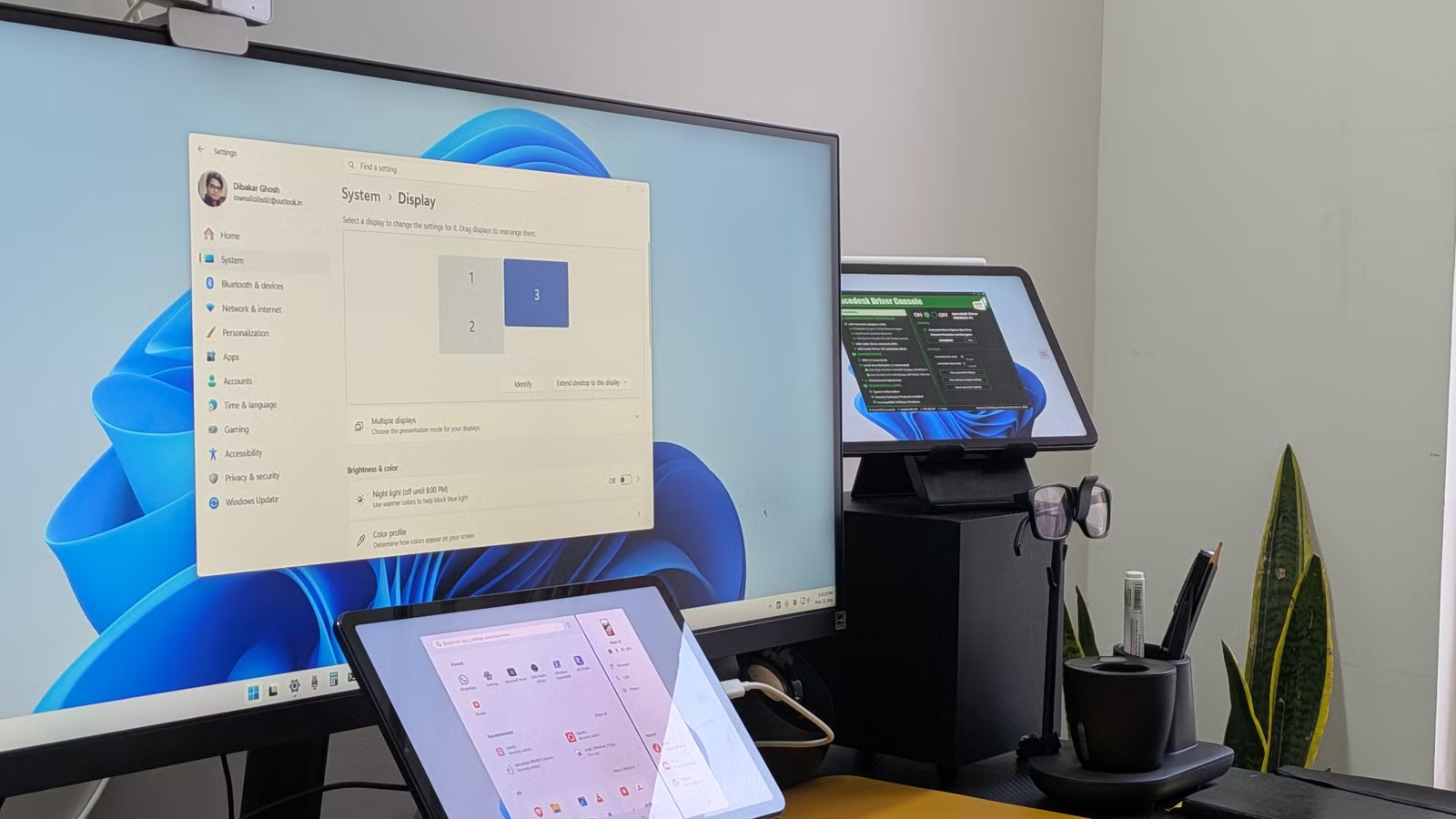
A decent portable monitor costs anywhere from $100 to $200—more if you want touchscreen support. So if you already have an old tablet lying around, why not turn it into a portable monitor instead? A free app called Spacedesk can turn almost any iPad or Android tablet into a true second display for your Windows PC—not just a mirrored screen, but a fully extended monitor you can drag windows onto. Here’s a detailed guide on how it works.
I tested this with a Xiaomi Mi Pad 5 running Android 13 paired with my Windows 11 PC. That said, the same steps and features should work on other Android tablets and iPads as well.
What is Spacedesk, and how does it work?
An app to turn your tablet into a wireless, touchscreen monitor
Credit: Dibakar Ghosh | How-To Geek
Spacedesk is a display extension app for Windows PCs. It lets you take your Windows PC’s display and extend it to another device—which can be another Windows PC, an Android tablet or phone, or an iOS device like an iPad. It even works through a web app, so technically anything with a browser can become an extended monitor.
It has two components: a driver and a viewer. The driver goes on the Windows PC you want to use as the main machine. The viewer app goes on whatever device you want to turn into the secondary display. Once both are running on the same network, the viewer finds the driver automatically and connects. You don’t have to worry about creating any accounts or using pairing codes—the app just finds the PC when you open it.
After that, Windows treats the second device as a real extended monitor. You can drag windows onto it, adjust resolution and orientation in display settings, set it as primary or secondary—it behaves like any other display Windows knows about. And yes, your tablet’s touchscreen will work as an input device. This means you can potentially open, close, or drag windows on your tablet using touch.
Now, by default, Spacedesk works over Wi-Fi, and in my experience, there’s negligible latency issues. However, if you notice lag, the app also works over USB, which can help improve latency and provide a more stable connection.
Related
If your mouse gets ‘stuck’ between monitors, your Windows setup is wrong
I’ve used dual monitors for years: How I finally fixed the ‘invisible wall’
How to set up Spacedesk
It takes less than 2 minutes
On your Windows PC, download the Spacedesk driver from their official website and install it. Once installed, it runs automatically in the background. Next, download the Spacedesk app on your Android tablet from the Play Store. Open it, and as long as both devices are connected to the same Wi-Fi network, your PC should appear automatically. Tap it, and your tablet instantly becomes a second monitor.
On the Windows side, Spacedesk includes a driver console where you can configure a few basic settings. The default settings work well, so I wouldn’t recommend changing much. The main feature worth enabling is Password Protection and Encryption, which requires the viewer device to enter a password before connecting.
The viewer app also includes a handful of settings to fine-tune the experience. You can set a custom resolution, enable or disable auto-rotation, and adjust display quality settings like image quality, encoding type, frame rate, and color depth. Personally, I use the highest image quality setting with 24-bit color, 120 FPS, and Software Encoding, and I haven’t noticed any meaningful lag or stuttering.
How I use Spacedesk
Two monitors are better than one
The main reason you should use Spacedesk is simple—getting more screen real estate. Previously, my monitor felt cluttered because I had both my research material and writing app open side by side. Now, thanks to Spacedesk, my main monitor is dedicated to browser tabs and research, while my tablet handles the actual writing. It’s a clean way to separate what I’m reading from what I’m actively working on.
Another advantage is portability. Since the display is wireless, I can leave my desk without interrupting my workflow. If I’m in the middle of something, I can grab the tablet, move to the couch, and keep working from there.
Credit: Dibakar Ghosh | How-To Geek
All I need to do is switch from display extension to display mirroring. The tablet’s touchscreen becomes the primary input method, and I can enable the on-screen keyboard through Settings > Accessibility > Keyboard. Of course, it’s not truly portable in the “work from a café” sense, since both devices need to stay on the same local network and the main PC has to remain powered on. But for moving around the house, it works surprisingly well.
Every tablet owner should try Spacedesk
If you have a spare iPad or Android tablet that doesn’t get much use, there’s little reason not to give Spacedesk a try. It’s especially useful if you want a dedicated screen for something specific, like a browser window, notes app, music controls, Slack, or a calculator, without cluttering your main display. And if it ends up fitting your workflow, you may have just saved yourself the cost of buying a portable monitor.
Related: I flipped my second monitor vertically, and I’m never going back
Related
Why Two Monitors Are Better Than One Ultrawide
Two heads are better than one, right?
