

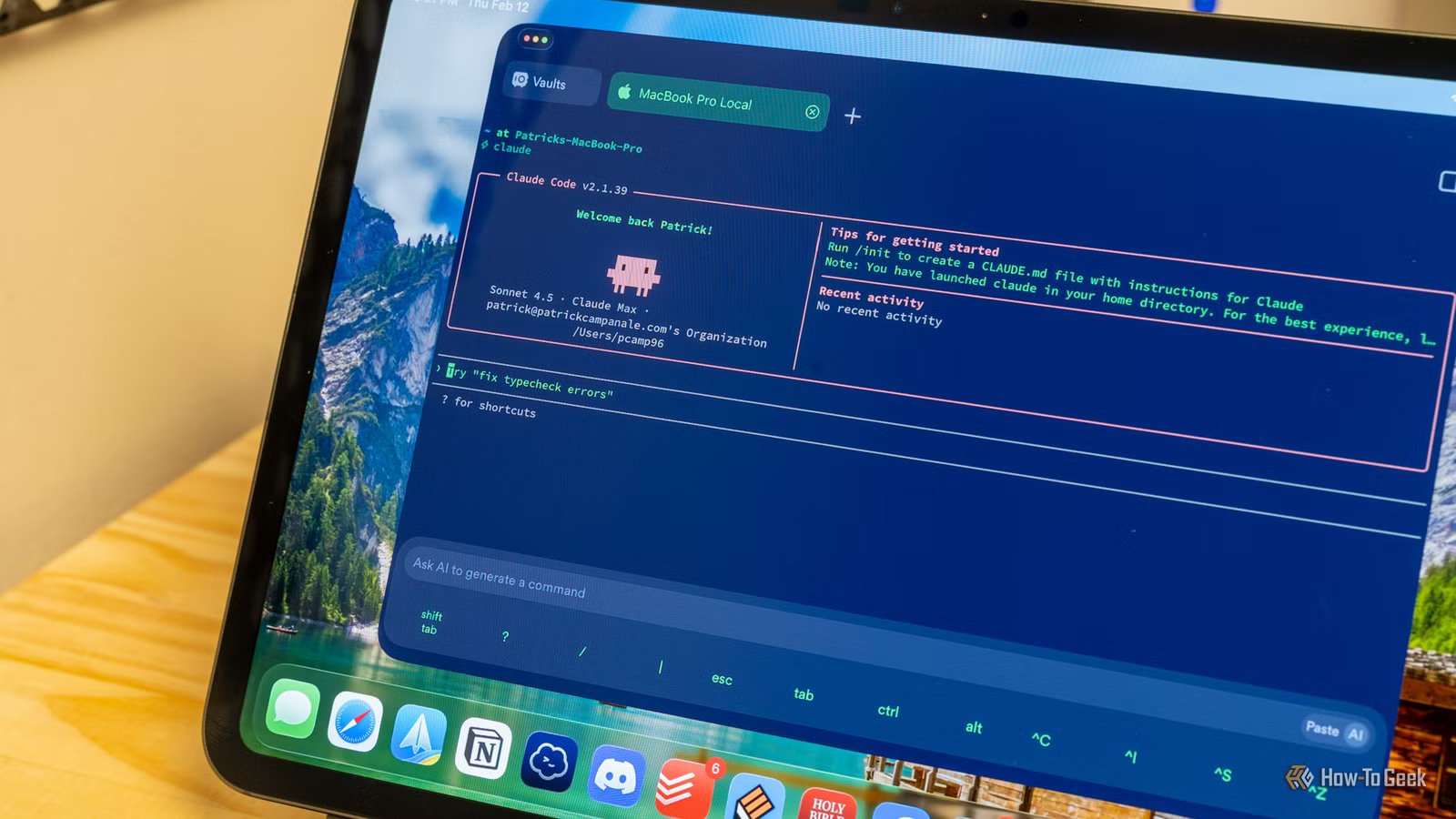
You probably already use Claude for the occasional question or writing your emails, but that’s barely scratching the surface of what it can do. There’s a big difference between using Claude as a chatbot and using it as an automation tool that quietly handles the parts of your digital life you’ve been avoiding for years. If you’ve been curious about what agentic AI actually looks like in everyday life, here are five boring tasks I automated with Claude.
Organizing my messy Desktop
Because a messy desktop is a messy mind
If you’re anything like me, you probably download everything straight to your desktop. Or maybe you’re slightly more organized and use your Downloads folder instead. Either way, most people don’t carefully sort every new file into the right project folder the moment they download or create it.
And if you’ve been putting off cleanup for a while, you probably have a giant pile of screenshots, PDFs, text files, installers, and random files you don’t even recognize anymore. Figuring out what to delete, what to keep, and where everything should go quickly starts to feel like a massive chore—just annoying enough that you never actually deal with it.
I’d been doing exactly that for years, mostly dumping everything into a giant “Review” folder to deal with later. At the start of this year alone, I had around 12 different review folders still waiting to be sorted properly.
But that changed once I started using Claude.
The Claude desktop app includes a feature called Cowork mode, which lets you give Claude access to folders like your Desktop or Downloads directory. From there, you can ask Claude to scan through everything and sort files into appropriate folders automatically.
It works best if you already have some folder structure in place. If you’re starting with 400 completely random files in a single folder, you’ll probably need to give Claude some guidance on how things should be categorized. I already use Claude to help manage my projects, so it had enough context to sort most of my files into the correct folders surprisingly well.
Renaming files with unintelligible names
Because I’m sick of files named ‘important_1a2b3c.pdf’
Sometimes you download a file and it comes with a completely useless name filled with numbers, timestamps, or worse—an autogenerated string of random characters. And if you don’t rename it immediately, coming back a week later usually means opening every single file one by one just to figure out what’s inside.
For me, screenshots are the biggest offender. As you can probably tell from this article, I take a lot of screenshots for work. But every image ends up with a generic name like “screenshot_2026_5_15.png,” which tells me absolutely nothing about what’s actually in the image.
Technically, I could manually rename each screenshot as I take it, but that completely breaks my workflow. Stopping to come up with a descriptive filename every few seconds interrupts the rhythm of capturing screenshots while navigating through menus and interfaces.
So now I let Claude handle it instead.
I simply give Claude access to my screenshots folder and ask it to rename the files descriptively. It scans each image, identifies what’s happening in the screenshot, and renames the file accordingly. That alone saves me roughly 15 to 20 minutes of tedious manual work per article.
Finding junk on my system
Context-aware cleanup hits different compared to a storage scan
Traditional system cleaning tools follow a fixed set of rules to identify junk files on your computer. They’re great at finding technically unnecessary files like caches, temporary files, and leftover installation data. What they can’t do is make judgment calls about normal files that are no longer relevant to you personally.
For example, they’re not going to flag a game you haven’t touched in two years or a movie sitting in your media folder that you already watched and disliked. From the system’s perspective, those files are perfectly valid.
However, Claude approaches the problem differently.
Because Claude has context about my workflow, interests, and current setup, it can identify files that are technically “fine” but realistically no longer useful to me. Instead of just looking for redundant system data, it can surface things that have become irrelevant over time.
Recently, I used Claude to free up around 50GB of storage on my Windows PC. It found nearly 40GB of duplicate LLM models sitting inside an LM Studio folder—files that no longer mattered because I had already switched from LM Studio to Ollama. Claude understood that context because we’d already discussed my workflow previously.
It also pointed out roughly 10GB worth of games I’d installed and barely touched—games I had previously complained to Claude were distracting me from work. That context made the cleanup feel surprisingly personalized instead of just another storage scan.
Related
Claude found 50 GB of junk on my PC in 5 minutes—junk that BleachBit had missed
Claude found 50 GB of junk my disk cleaner missed—and it only took it 5 minutes.
Capturing and organizing my Obsidian notes
Building a second brain has never been simpler
Obsidian is basically my second brain. It’s where I keep everything—research, notes, article ideas, journal entries, and random thoughts I want to revisit later. What I love most about it is how it helps me connect ideas together. Using Graph View, you can literally see the relationships between different notes, which makes it much easier to spot unexpected connections or gaps in your knowledge base.
The problem is that the system only works if your notes are properly organized in the first place. Each note needs meaningful links to related notes, proper tags, and a structure that keeps the whole vault usable over time. Maintaining that system takes real effort, and after doing it manually for five years, I can confidently say it never becomes less tedious.
And then came Claude.
Now I can dump a completely messy stream of thoughts into Claude, and it turns that chaos into properly structured Zettelkasten-style atomic notes complete with tags, internal links, and clean formatting. Claude can then help organize everything inside my Obsidian vault automatically.
That means I get to focus on the fun part—thinking, researching, and generating ideas—while Claude handles the repetitive organizational work in the background.
Related
How Claude fixed my messy Obsidian vault in 5 minutes (prompts included)
Your second brain has become a second junk drawer. Claude can fix that.
Changing my wallpaper to contextually relevant images
Make your wallpaper show your to-do list and set the mood for the day
This is probably the weirdest automation I’ve ever set up, but it’s also been surprisingly effective.
Basically, I have Claude review all my active tasks and determine the overall “mood” of the day. If too many deadlines are overdue, the mood becomes more urgent and stressful. If everything is on track, the mood shifts toward something calmer or more motivating.
Claude then goes through my wallpaper folder, selects an image that matches that mood, and automatically sets it as my desktop wallpaper.
I also have it edit the wallpaper itself by overlaying my most important tasks directly onto the image. That means every time I minimize a window or return to my desktop, I instantly see what’s due and orient myself accordingly.
It might sound ridiculous, but it works surprisingly well. My tasks stay visible in the background all day without requiring me to constantly open a to-do app or dashboard just to check what I should be focusing on.
If you find this workflow interesting, I’ve already written about the full setup process (prompt included) so you can recreate it on your own system.
Related
I let Claude change my desktop wallpaper—and now I never miss a deadline (Prompt included)
I outsourced my productivity anxiety to my wallpaper, and honestly, it’s going great.
Claude is glad to be of service
These are just the five automations that currently work best for me. Your setup, workflow, and growing pile of annoying digital chores will probably lead you toward completely different use cases.
But that’s entirely the point. It’s not about any one specific automation—it’s about realizing you now have an assistant capable of handling the repetitive, tedious work in the background while you stay focused on the parts you actually enjoy.
