

You know that feeling when your laptop starts wheezing under the weight of too many browser tabs? The fans start sounding like jet engines, everything becomes sluggish, and opening a new tab feels like you’re waiting for dial-up to connect. If you’re using Google Chrome, the most popular browser on the internet, you already know this all too well.
There are several Chrome tricks that can save you hours of busywork, but the browser’s insatiable need for memory remains a problem. But there’s a solution in the form of a simple browser extension that can speed up Chrome, especially if you’re on a laptop.
Chrome’s silent resource drain
Why unused tabs quietly eat into your RAM and battery
Yadullah Abidi / MakeUseOfCredit: Yadullah Abidi / MakeUseOf
Chrome’s memory issues aren’t a secret—they’re basically the browser’s defining personality trait at this point. As the number of open tabs goes up, the browser can consume gigabytes of memory depending on the sites you’re visiting. On top of that, inactive tabs in the background still end up running scripts, processing data, and consuming memory even when you’re not looking at them.
The browser’s multi-process architecture is brilliant for performance and security, but it’s also why your laptop sounds like it’s trying to achieve flight. Each tab gets its own process, plus processes for extensions, GPU rendering, internal services, and the list goes on. Open 20 tabs, and you could have well over 50 processes running in the background. There are settings that prevent Chrome from gobbling RAM, but they don’t solve the problem.
The obvious solution is to close tabs, but that creates a new problem. Tabs are a form of cognitive externalization. I don’t want to close those browser tabs because I’m using them for different tasks. Some are a to-read list, some a research repository, and some are just holding information I’ll use later. Closing them means remembering to do the same task, looking up the same information, or finding a link later, which I may or may not remember.
How Auto Tab Discard keeps Chrome in check
What really happens when tabs go to sleep
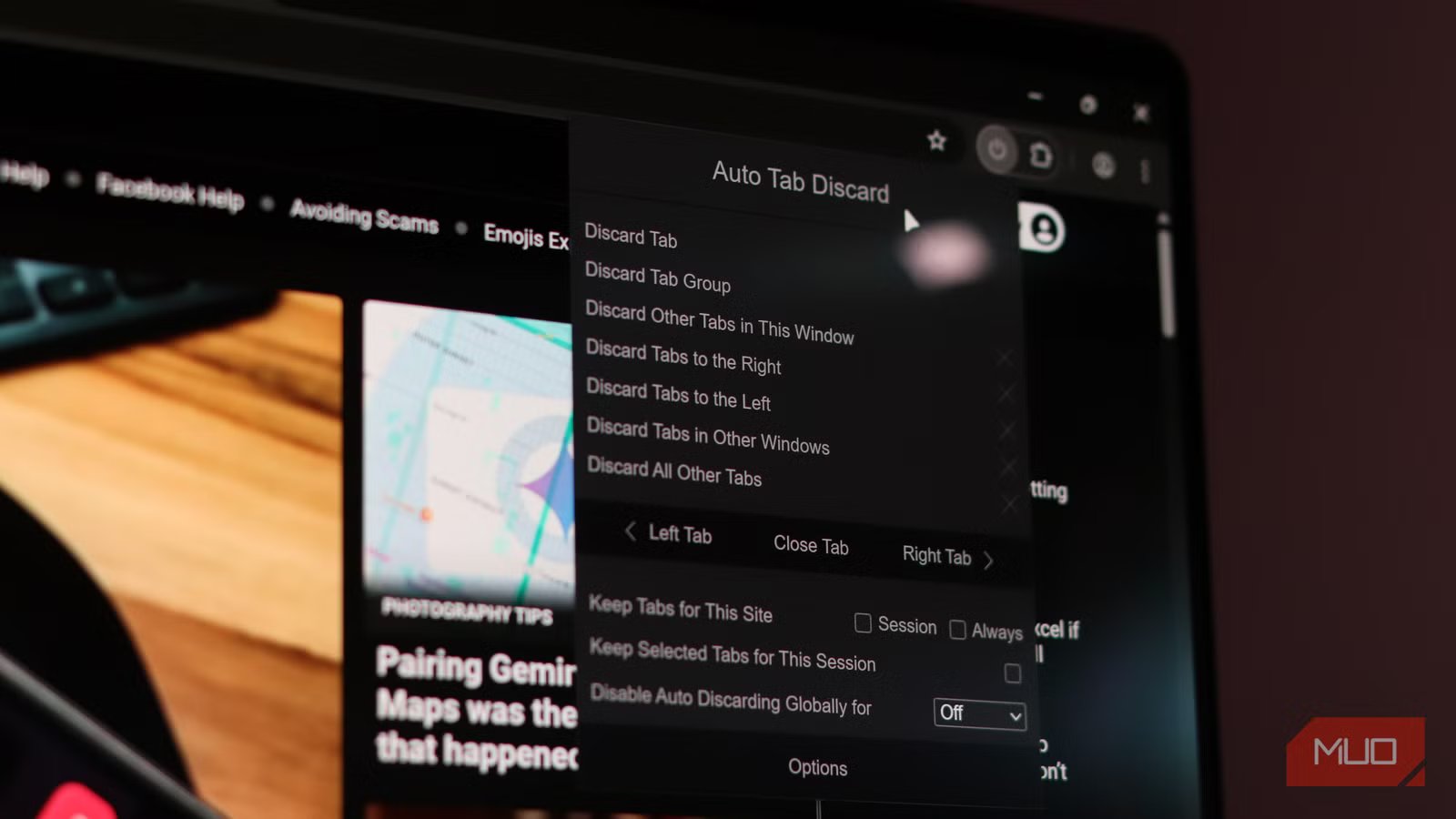
Auto Tab Discard sidesteps Chrome’s memory problems. It monitors browser activity and automatically suspends tabs you haven’t looked at in a while. These tabs don’t disappear—they’re still visible in your tab bar, just in a dormant state, consuming virtually no resources.
When you click a suspended tab, it wakes up and reloads. Your scroll position, form data, and page state are preserved thanks to Chrome’s built-in suspension API. The reload takes a few seconds, depending on your internet connection, but it’s a small price to pay for having dozens of tabs open without your system melting.
The result is the ability to run Chrome with as many tabs open without your laptop becoming the office white noise machine. During regular use, most of my tabs are suspended except for a couple that I’m actively using. Chrome’s memory usage dropped by nearly a full gigabyte, my laptop stopped running hot, and the fan sound finally went quiet.
Another major advantage was that I could finally use other programs without completely shutting down Chrome. I could use Lightroom, Photoshop, and even play games with Chrome running in the background.
Some caveats worth mentioning
When discarded tabs can be mildly annoying
The main trade-off of using Auto Tab Discard is the delay you face when reloading suspended tabs. If you’re constantly jumping between suspended tabs, you’ll notice up to two or three seconds of reload lag. It’s genuinely noticeable if you’re someone switching tabs every few seconds. Thankfully, you can pin tabs you use frequently. These tabs never get suspended, so your active workspace stays intact.
Credit: Gavin Phillips / MakeUseOf
The extension also appears somewhat abandoned, with no major updates in over two years at the time of writing. Though it still works reliably for me, reports of inconsistent behavior or occasional tabs waking up randomly aren’t unheard of. Additionally, discarded tabs automatically reload when clicked, which you might find annoying if you misclick a tab—an extremely common occurrence for me, given Chrome’s horizontal tab bar design.
Last but not least, Chrome also has its own Memory Saver mode built in. It does tab discarding automatically, but it’s only a slider you can toggle. Auto Tab Discard offers more granular control, which can make a difference if you want to keep specific tabs alive or have precise timing preferences for when tabs should suspend.
Related
This built-in but underrated Chrome feature fixed my tab chaos
Separating your personal and work life with a built-in Chrome feature.
Regardless, it’s one more extension you need to get Chrome to run the way you want. In my quest to find the perfect Windows browser, Chrome was not even close to the top simply because of the amount of work it takes to get the browser to run as modern browsers should.
Making Chrome usable again on older laptops
Less memory waste, fewer slowdowns
When working with tech, more powerful hardware isn’t always the solution. Sometimes, it’s using the tools available to you more intelligently. My laptop with 16 GB LPDDR5x RAM isn’t underpowered by any means; I was just letting Chrome run unchecked.
If you’re a writer, researcher, developer, or anyone else who lives in their browser and refuses to switch from Chrome, I genuinely recommend installing Auto Tab Discard. It costs nothing, uses minimal resources, and will likely resurrect whatever laptop is quietly suffering under your tab hoarding.
