

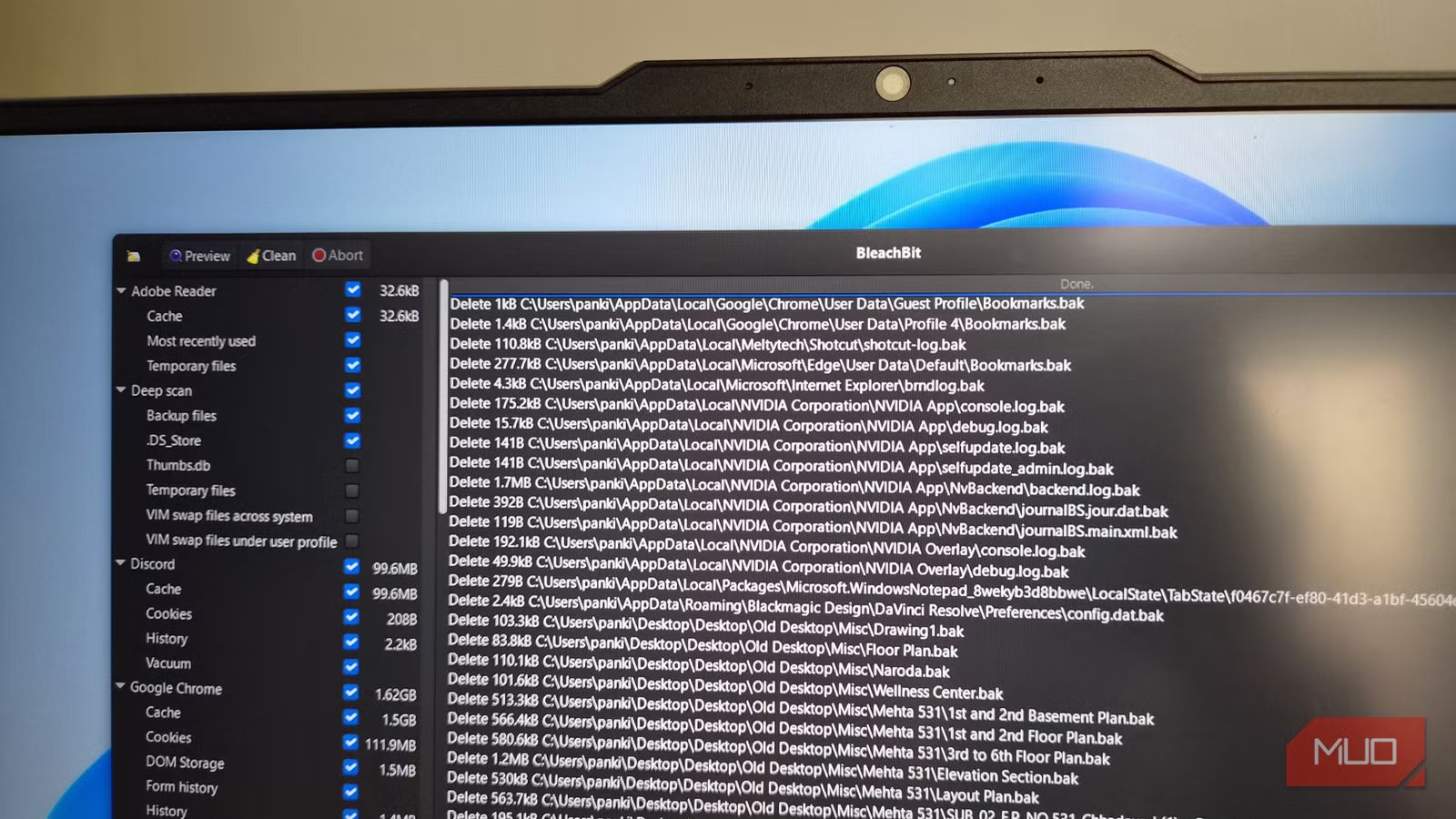
Using a laptop with only 512GB storage isn’t really a problem for me, since I keep most of my personal data in the cloud. But somehow, Windows and apps I use have a strange way of filling it up over time. Most of it comes from temporary files, cached data, update leftovers, and system junk that keeps piling up in the background.
BleachBit is a free, open-source app that helps clear these useless files with minimal effort. On my PC, it helped me find close to 150GB of junk I had no idea was there and clear it all in just a few clicks.
It’s as thorough as it gets
Pankil Shah / MakeUseOfCredit: Pankil Shah / MakeUseOf
To be fair, Windows isn’t completely helpless when it comes to cleaning up after itself. Tools like Disk Cleanup and Storage Sense are quite capable of cleaning temporary files. So like most people, I also thought Windows doesn’t need a third-party cleaning tool. But once I actually tried BleachBit, that perception changed.
What makes BleachBit so useful is that it goes far beyond the usual suspects like old Windows update files, temporary internet files, and the Recycle Bin. It also targets system logs, prefetch files, obscure temp directories you didn’t even know existed. More importantly, it clears app caches which Windows tends to ignore. BleachBit knows exactly where apps like Adobe Acrobat, Discord, VLC, and even browsers like Chrome, Edge, and Firefox save their cache and leftover data.
BleachBit is also cautious. It doesn’t mess with any of the registry files or Windows system folders. This means you don’t have to worry about breaking anything while running BleachBit.
Using BleachBit is as easy as it gets
Simple, fast, and effective
One of the things I like about BleachBit is that it’s powerful without feeling intimidating. The user interface is clean and simple. When you open it, you see a list of apps on the left and three buttons at the top: Preview, Clean, and Abort. That’s it.
By default, BleachBit automatically selects some commonly cleaned items. You can then use the checkboxes to select more items or untick anything you want to keep. And as you do that, it also gives you clear warnings if something might affect your personal data. For instance, when I selected Microsoft Edge, BleachBit warned me it’d also delete the saved passwords. From there, I had the option to cancel and keep those intact or continue if I was sure. And this happens for all the important things, like Thunderbird configuration files, File Explorer’s recent documents list, and even Zoom recordings.
Once you’re done with the selection, click the Preview button in the top left corner. BleachBit will then tell you what files will be deleted and, more importantly, how much space you’ll recover. After you’ve checked everything, all that’s left to do is hit the Clean button and wait. If everything feels slow after the cleanup, make sure to reboot your PC once, and it’ll all run fine.
Set up BleachBit your way
Clean exactly what you want
Screenshot by Pankil Shah — No attribution required
BleachBit may be all about simplicity, but that doesn’t mean it’s not flexible. If you dive into its Preferences menu, you’ll find options to fine-tune the app’s behavior. For instance, it includes the Exit after cleaning option, so you can launch the app, hit clean, and walk away without worrying about closing it manually.
Another useful option is the ability to exclude file paths. If you don’t want BleachBit to mess with a specific folder, you can add it here and BleachBit won’t touch it. This can be useful for important app files, backups, or something sensitive.
There’s also a more advanced option called Overwrite contents of files to prevent recovery. It basically forces BleachBit to go beyond simply deleting files. It makes sure the files can’t be recovered even with data recovery tools. Of course, this isn’t necessary for clearing the cache, but it’s there if you need it. Just keep in mind that using this option does slow down the cleanup process slightly.
Handle sensitive data the right way
Screenshot by Pankil Shah — No attribution required
Beyond routine cleanup, BleachBit also includes built-in file shredding tools. Typically, when you delete a file, it’s not actually erased. Your system just marks that space as available, and that data remains until something else overwrites it. BleachBit’s shredding feature overwrites the data before removing it. You can shred individual files or entire folders, depending on what you need.
The Wipe Free Space option takes things further. Even after you delete files normally, tiny traces can still linger in unused disk space. This feature scans that free space and overwrites any remnants it finds. Of course, these are not tools you’d need every day, but if you want complete privacy or peace of mind, they can be handy.
BleachBit isn’t something you need to run every week. But I’d highly recommend running it every few months, especially if you use apps that tend to collect too much cache. And you don’t even have to keep it installed. There’s a portable version of the tool that works just as well.
OS
Windows, Linux, macOS, Portable
Developer
Andrew Ziem
