

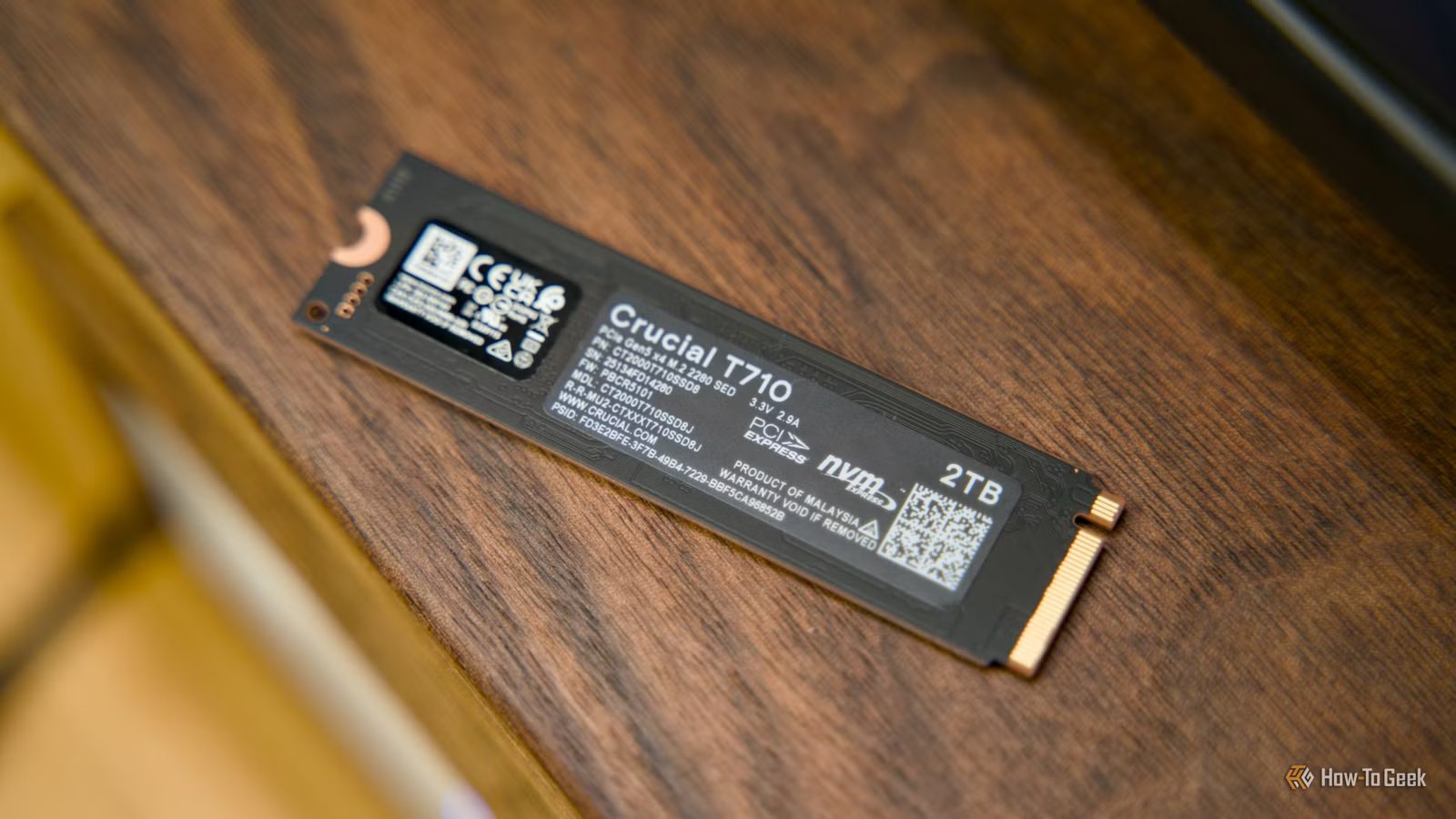
If you want your SSD to stay in peak condition without leaving even a smidge of performance on the table, I’d like to acquaint you with the TRIM command. TRIM not only keeps your SSD running at its best, but also reduces unnecessary operations that can, over time, negatively impact its lifespan.
TRIM is a very simple concept
Hey SSD, that data is marked for deletion
Data is constantly being written and deleted on a regular SSD. Windows creates and deletes temp files, various programs do the same, and you also manually delete downloaded files, games you had installed, and files you created, such as Word documents. In a nutshell, every PC is a proper file-creating-and-deleting factory.
That data may be deleted at the software level, but the physical blocks on the SSD can still contain it. The thing is, you can’t simply overwrite data on an SSD like you can on a hard drive. Instead, the SSD has to read a “block” of data (made up of smaller “pages”), move any valid data elsewhere—or delete it—and then write new data to a clean block.
Quiz
8 Questions · Test Your Knowledge
Storage Through the Ages
From ancient clay tablets to modern SSDs — how much do you really know about the wild history and quirky facts of data storage?
HistoryHardwareCapacityOdditiesModern Tech
Begin
What was the storage capacity of the very first commercially sold hard disk drive, IBM’s 350 RAMAC introduced in 1956?
A1 megabyteB5 megabytesC10 megabytesD50 megabytes
Correct! The IBM 350 RAMAC stored a whopping 5 megabytes — and weighed over a ton. It was the size of two refrigerators and leased for around $3,200 per month, which is roughly $35,000 in today’s money.
Not quite. The IBM 350 RAMAC, launched in 1956, stored just 5 megabytes of data. Despite that tiny capacity by modern standards, it was a revolutionary machine that filled an entire room and cost thousands per month to lease.
Continue
Which of these has genuinely been used as a data storage medium by researchers and engineers?
AFrozen ice crystalsBDNA moleculesCSoap bubblesDTree rings
Correct! DNA storage is a real and rapidly advancing field. Researchers have successfully encoded entire books, images, and even operating systems into synthetic DNA strands, which can theoretically store 215 petabytes per gram of material.
Not quite. The answer is DNA molecules. Scientists have encoded movies, books, and even malware into synthetic DNA strands. DNA storage is extraordinarily dense — theoretically capable of holding 215 petabytes per gram — making it one of the most promising future storage technologies.
Continue
What does the ‘SSD’ in SSD storage stand for?
AStatic State DriveBSolid State DriveCSequential Storage DeviceDSolid Silicon Disk
Correct! SSD stands for Solid State Drive. The ‘solid state’ refers to the fact that it uses solid-state electronics — NAND flash memory chips — with no moving mechanical parts, unlike traditional spinning hard disk drives.
Not quite. SSD stands for Solid State Drive. The term ‘solid state’ comes from electronics jargon meaning the device uses semiconductor components rather than moving mechanical parts, which is why SSDs are faster, quieter, and more durable than HDDs.
Continue
Approximately how many standard 1.44 MB floppy disks would you need to match the storage of a single modern 1 terabyte hard drive?
AAround 70,000BAround 350,000CAround 700,000DAround 1,400,000
Correct! One terabyte equals roughly 1,048,576 megabytes, and dividing by 1.44 MB per floppy gives you about 728,000 disks. Stacked, that pile would be taller than most skyscrapers — a humbling reminder of how far storage has come.
Not quite. You’d need approximately 700,000 floppy disks to match a single 1 TB drive. That stack of disks would reach over a mile high if laid flat, which is a staggering way to visualize the enormous leap in storage density over just a few decades.
Continue
What storage medium did NASA use to store data from the original Apollo moon missions in the 1960s and 1970s?
AEarly magnetic hard disksBMagnetic tape reelsCPunched paper cardsDOptical laser discs
Correct! NASA relied heavily on magnetic tape reels during the Apollo era. In fact, thousands of original Apollo-era data tapes were eventually lost or accidentally erased and reused, leading to a massive archival effort years later to recover what footage remained.
Not quite. NASA used magnetic tape reels to store Apollo mission data. Tragically, many of these original tapes were later lost or even deliberately erased and reused due to tape shortages, which is why some original high-quality Apollo footage is gone forever.
Continue
What is the name of the technique used in modern NAND flash storage that stores multiple bits per cell to increase density?
AQLC (Quad-Level Cell)BMRC (Multi-Read Cell)CDBC (Dual-Bit Compression)DTPC (Triple-Pack Cell)
Correct! QLC, or Quad-Level Cell, stores 4 bits per cell and is used in high-capacity, budget-friendly SSDs. While it offers great density and lower cost, QLC NAND typically has lower endurance and slower write speeds compared to TLC (3-bit) or MLC (2-bit) designs.
Not quite. QLC stands for Quad-Level Cell, and it’s a real NAND flash technology that stores four bits per cell. It allows for very high storage densities at lower cost, but trades off endurance and write performance compared to older, less dense cell types like MLC or SLC.
Continue
The Svalbard Global Seed Vault in Norway stores seeds for agricultural preservation — but what famous tech company also operates a nearby ‘Arctic Code Vault’ to preserve software?
AGoogleBMicrosoftCGitHubDIBM
Correct! GitHub operates the Arctic Code Vault in Svalbard, Norway, where they stored a snapshot of all active public repositories on film designed to last 1,000 years. The project is part of GitHub’s Arctic Vault Program to preserve open-source software for future generations.
Not quite. It’s GitHub — owned by Microsoft — that runs the Arctic Code Vault. In February 2020, they photographed every active public repository onto special archival film and stored it deep within a decommissioned coal mine in Svalbard, designed to last a thousand years.
Continue
What was the primary reason early floppy disks were called ‘floppy’?
AThey failed frequently and were considered unreliableBTheir magnetic coating was applied in a loose, uneven layerCThe plastic disk inside was thin and physically flexibleDThey could be folded and stored flat in a wallet
Correct! Early floppy disks — especially the original 8-inch variety from IBM in 1971 — used a thin, genuinely flexible magnetic disk inside a soft protective sleeve. You could literally flop the thing around. Later 3.5-inch versions came in rigid plastic cases, but kept the ‘floppy’ name.
Not quite. The name ‘floppy’ came from the physical flexibility of the magnetic disk inside the sleeve. The original 8-inch IBM floppy disks introduced in 1971 had a noticeably limp, floppy disk that you could bend. Even the rigid-cased 3.5-inch disks that followed kept the iconic nickname.
See My Score
Challenge Complete
Your Score
/ 8
Thanks for playing!
Try Again
Ideally, the SSD could just erase the unnecessary data and write new data in its place, avoiding all that extra movement. But the catch is that, without additional instructions, the SSD controller doesn’t know which data is no longer needed, so it treats it as valid and moves it around anyway.
This becomes a problem when the SSD is nearly full. Moving data around takes time, and all those extra read and write operations can noticeably slow things down. Not only that, but unnecessary operations on data that’s no longer needed can also reduce the drive’s endurance.
This is where the TRIM command comes in. It lets the operating system inform the SSD which blocks of data are no longer in use, so the memory controller can properly clean them up during a process called garbage collection. Instead of moving around stale data, which leads to unnecessary read and write operations, the SSD can mark it as invalid in advance and erase it during garbage collection.
In short, TRIM has multiple benefits. It helps the SSD manage space more efficiently, reduces unnecessary read and write operations, lowers write amplification (extra work caused by moving data that should’ve already been deleted), improves performance, and extends the drive’s lifespan. It’s a super useful command that works in the background to keep your SSD healthy and performant.
How to check whether TRIM is enabled on your PC
And how to tweak your PC’s TRIM schedule
Credit: mapo_japan / Shutterstock.com
Windows PCs should have TRIM enabled by default on all SSDs, a feature Windows has supported since Windows 7. However, TRIM can be disabled under specific circumstances.
For instance, if you had purchased a new SSD and cloned your old one to it, the OS could get confused and fail to enable TRIM on the new drive. Similarly, upgrading from an older version of Windows while keeping your files and settings can lead to the same issue, as can restoring your OS from an old system image. In other words, there’s a slim chance that TRIM is disabled on your machine.
Since we want TRIM to be enabled on every SSD, you should check whether it’s enabled on your drives. To do this, open the Windows Command Prompt by opening the Start menu, typing “command,” right-clicking it, and selecting Run as administrator.
Once you open it, type the following command and press Enter:
fsutil behavior query DisableDeleteNotify The resulting value should be 0, indicating that TRIM is enabled on your PC. If you see 1, it means TRIM is disabled for some reason.
To enable it, type the following in the Command Prompt and press Enter:
fsutil behavior set DisableDeleteNotify 0 Aside from enabling or disabling TRIM, you can also adjust the schedule for when your OS optimizes your SSDs using the TRIM command. By default, the OS sends the TRIM command to the SSD controller once a week, but you can change this in just a few clicks.
Either open the Start menu or simply type “defragment” in the Windows search box. Next, open the “Defragment and Optimize Drives” utility once it appears.
Once you’re in the app, click on the “Change settings” button. From there, you can adjust the TRIM frequency to weekly, daily, or monthly. It’s recommended to keep it on a weekly schedule, but you can switch to daily if you have a drive that’s always chock-full, and you constantly write and delete data on it. You can also manually run the TRIM command by selecting a drive and clicking the “Optimize” button.
The important thing is having TRIM enabled in the first place
Whatever you end up doing, just make sure that TRIM is enabled in the first place. While you shouldn’t notice its impact if everything is working as it should, it’s a very important command that does the heavy lifting behind the scenes, improving your SSD’s longevity and keeping it performing at its best, especially as the drive fills up.
Related
3 bad habits that are silently killing your SSD (and the easy fixes to save it)
Break the habit, not your SSD.
