

When I switch from Windows Remote Desktop to Linux, it always comes as a bit of a shock. That’s because the Remote Desktop Protocol (RDP) is native to Microsoft, but with Linux, it feels more improvised. Remoting into my Linux boxes often meant crashed sessions, poor resizing, and laggy performance. It also meant keeping an SSH session open just to restart the Xrdp service when it inevitably crashed.
I decided to give the open-source remote access gateway Apache Guacamole a try, but more specifically, a standalone installation on a new server where I could add and access my existing Linux boxes. I chose Guacamole because it allowed me to control an RDP session through a browser over HTTPS. It also solved most of my RDP performance and stability issues that all remote Linux users have faced at least a few times.
Related
DeskIn makes remote access easier for work and personal use
This article is sponsored by DeskIn
I wanted one browser gateway for all my Linux boxes
Guacamole gave my remote desktops and terminals a single place to live
My homelab contains quite a few Linux boxes with a functional desktop. They all have their individual uses, but managing them all remotely poses a significant security risk given the many exposed remote access service ports. Of course, I could just throw them behind a mesh VPN like Tailscale, but that doesn’t solve the laggy performance and constant Xrdp service crashes. It’s also not as challenging or fun.
What I really wanted was to centrally access all my Linux desktops and resolve the Xrdp lag all in one place. Apache Guacamole lets me do exactly that. It lets me add my remote connections and launch them from a browser tab, and it takes care of the window sizing and performance settings behind the scenes. And the best part about Guacamole is that it means no more exposing remote desktop services to the public internet.
My new Guacamole setup looked like this:
Browser → HTTPS on port 443 → Guacamole server → private RDP → Linux machines
The browser is the only client I need on any laptop or desktop. HTTPS on port 443 is a port forwarded rule in my network, allowing access to the gateway, with all other remote access ports being closed.
The Guacamole server acts as the gateway, storing connection profiles and granting access to my private Linux machines running RDP (remote desktop protocol).
I installed Apache Guacamole on a new server first
The gateway itself was easy, but getting Docker to work had one big gotcha
Guacamole is installed in a small stack of three services. The Guacamole web app, guacd, and PostgreSQL. The web app provides the browser interface, guacd handles all the remote connections, and the PostgreSQL database handles user credentials and connection settings.
I installed Guacamole on a new virtual machine and assigned it an IP address of 192.168.100.10. A Guacamole gateway alone doesn’t require much in the way of resources, but I settled on these specs for the server:
- Ubuntu 24.04 LTS
- 4GB of Memory
- 20GB Storage with a 1.5GB SWAP
- 2 vCPU
Next was the Docker install, and this is where I ran into some trouble. The simple Ubuntu package routes didn’t give me the compose plugin I needed, so I used Docker’s official repo instead. After installing ca-certificates and curl, I created the key store and downloaded Docker’s official GPG signing key:
sudo install -m 0755 -d /etc/apt/keyrings
sudo curl -fsSL https://download.docker.com/linux/ubuntu/gpg -o /etc/apt/keyrings/docker.asc
Then I added Docker’s repo:
echo “deb [arch=$(dpkg –print-architecture) signed-by=/etc/apt/keyrings/docker.asc] \
https://download.docker.com/linux/ubuntu \
$(. /etc/os-release && echo “${UBUNTU_CODENAME:-$VERSION_CODENAME}”) stable” | \
sudo tee /etc/apt/sources.list.d/docker.list > /dev/null
Finally, I installed these Docker components:
- docker-ce
- docker-ce-cli
- containerd.io
- docker-buildx-plugin
- docker-compose-plugin
Using the command:
sudo apt-get install -y docker-ce docker-ce-cli containerd.io docker-buildx-plugin docker-compose-plugin
My ideal setup was one where Guacamole was kept private on the server, with Nginx handling the public HTTPS:
I didn’t deviate much from the default Docker compose file. I mainly defined these three containers:
- PostgreSQL, which stores Guacamole users, credentials, and connection settings.
- guacd, handling the RDP, SSH, and VNC connections for the app.
- Guacamole, which provides the web interface for the browser-based portion of the app.
I also bound Guacamole to localhost only:
127.0.0.1:8080:8080
Before starting it, I generated the PostgreSQL init script:
docker run –rm guacamole/guacamole /opt/guacamole/bin/initdb.sh –postgresql > initdb.sql
After that, I started the Guacamole stack with:
docker compose up -d
The standalone docker-compose (v1) is deprecated; Docker now recommends using the integrated docker compose plugin (Compose V2).
Once the containers were up and running, I deployed Nginx as a reverse proxy in front of Guacamole. Since Guacamole was only listening locally on 127.0.0.1:8080, Nginx became the gateway for accessing the web application.
Then I enabled the Nginx site and checked to make sure it was working:
sudo ln -s /etc/nginx/sites-available/guacamole /etc/nginx/sites-enabled/guacamole
sudo nginx -t
sudo systemctl reload nginx
Finally, I made it all legit with a TLS certificate for HTTPS:
sudo certbot –nginx -d remote.ggcontentlabs.com
That kept the Docker ports private and gave me a public URL to access the Guacamole login page at https://remote.ggcontentlabs.com/guacamole.
Next, I needed to make some changes to my home network
Installing Guacamole means HTTPS is exposed, and not every Linux service behind it
The goal of this project was to centralize remote access while also preventing my Linux desktops from being exposed to the internet. Basically, Guacamole became the front door, and everything else was hidden behind it.
The public side of my Apache Guacamole server was simple enough. Nginx was used as the reverse proxy and handled HTTPS on port 443. Let’s Encrypt and Certbot were used to create the free TLS certificate, and Guacamole sat behind all that. The Linux machines behind Guacamole could still be accessed locally on my LAN, but access to each machine was stopped by closing the remote access ports on my router.
The public-facing part of the Guacamole server firewall rules looked like this:
Exposed Port on Guacamole
Role
22
SSH for admin access
80
Let’s Encrypt needs HTTP for validation
443
Guacamole over HTTPS
My Guacamole server runs in Docker, so I also needed to add its local subnet to my firewall rules. First, I checked for the Docker subnet:
docker network inspect guacamole_default | grep Subnet
Then I allowed that subnet through the UFW firewall:
sudo ufw allow from 172.18.0.0/16 to any port 3389 proto tcp
For each of my Linux desktops, I also added these incoming rules to allow the Guacamole server to access their respective remote services:
sudo ufw allow from 192.168.100.10 to any port 22 proto tcp
sudo ufw allow from 192.168.100.10 to any port 3389 proto tcp
sudo ufw allow from 192.168.100.10 to any port 5900 proto tcp
The next step and the final step was to start adding the Linux machines to Guacamole.
Adding my Linux machines made it all come together
Connection settings are where Guacamole starts feeling like a proper remote hub
Once I created the new firewall rules, adding machines to Guacamole was really easy. The first step was to reset the default guacadmin password and create some new connections. In the admin panel, I went to Settings -> Connections -> New Connection. I gave each machine a friendly name, entered the hostname/IP address, selected the required protocol, and assigned a set of credentials for access.
The useful part is just how much control Guacamole gives you per connection. For an Xrdp desktop, I could set color depth, make it read-only, set a custom resolution, turn wallpaper on and off, enable and disable clipboard, file uploads, and remote printing, and set drive redirection, just to name a few.
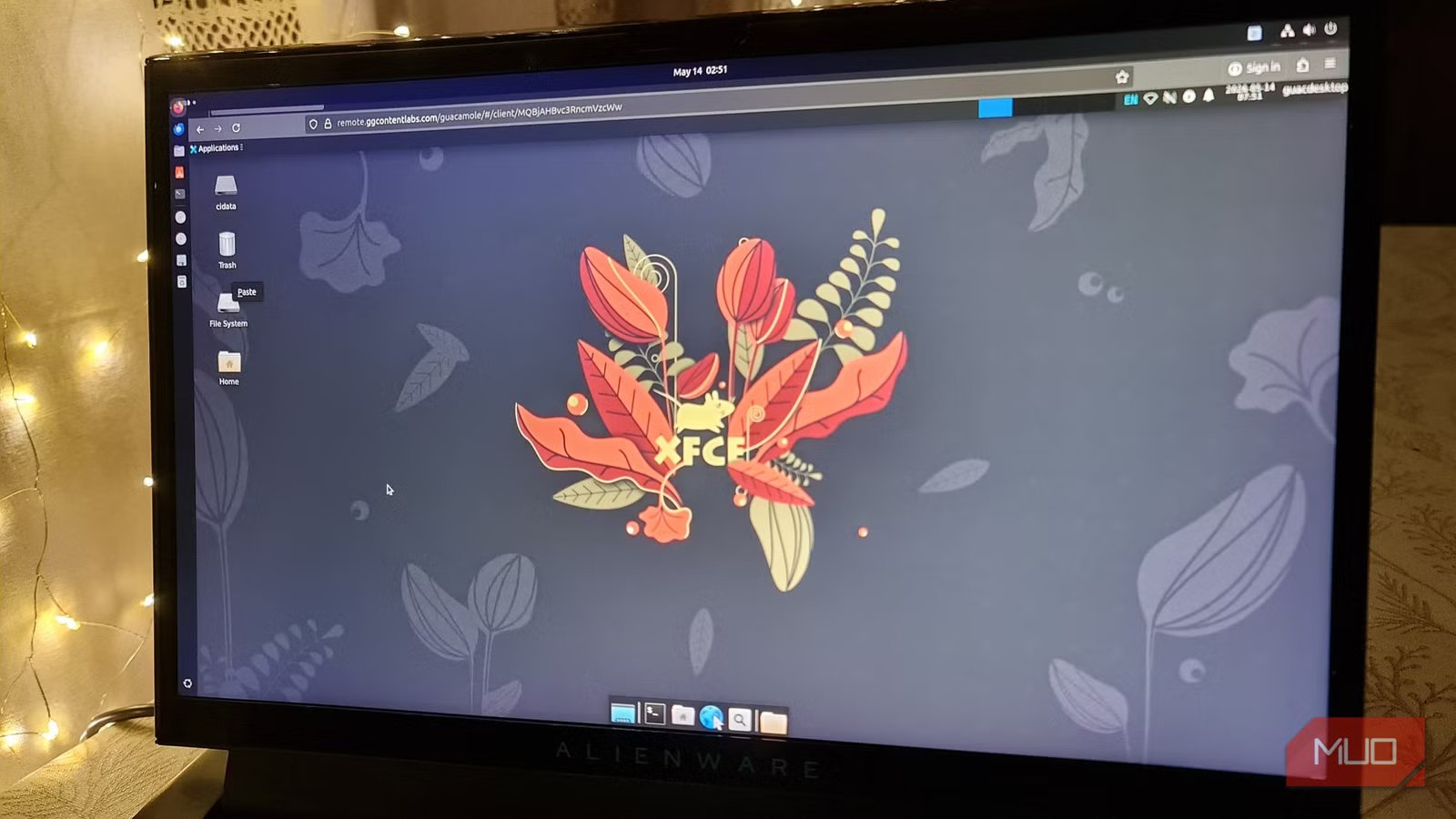
The connection settings let me control settings I previously set in the RDP client itself, which usually resulted in terrible scaling, laggy performance, and the inevitable Xrdp service crash. For my first test machine, running the lightweight XFCE desktop, I used these settings:
- Auto-adjust for the resolution
- Active Display mode for desktop resizing
- Disabling desktop composition, menu animations, and font-smoothing
- Enable theming, clipboard, file upload/download, and bitmap caching and theming
With these settings now controlled by Guacamole, I could just connect, full-screen my browser, and experience a lag-free, issue-free remote desktop experience. If I need to remote into a new machine and keep working, it’s just a matter of opening a fresh tab. That gave me what I needed: a Linux desktop that resized with my browser window, a clean way to disconnect without orphaning a session, and no more babysitting the Xrdp-sesman service through SSH.
It’s yet another server, but now the complicated stuff is behind a clean login
The setup pain was worth it for the browser-based access
Yes, Guacamole adds another server to my collection, and I had to deal with Docker gotchas, TLS, and a few extra firewall rules along the way. It all means there are a few more moving parts just to get a remote desktop open on the run.
The payoff, though, is that Guacamole becomes my central remote access hub. Instead of exposing every SSH, VNC, and RDP port to the internet, I can keep those services private and let Guacamole handle access via a single HTTPS login.
That’s what made the setup pain worth it, because it was all up front and saved me from inadvertently exposing servers I care about to needless security risks later. Guacamole didn’t exactly solve the remote access mess, but it moved everything behind a single point that I could control.
For a home lab, small server fleet, or anyone who is frustrated by the lackluster Xrdp performance, the trade-off is completely worth it.
