

Recently, my laptop was running out of storage space. So, I checked the usual suspects like big downloads, too many videos, and forgotten apps. However, none of them explained the storage issue. I couldn’t find out the real culprit. Out of curiosity, I decided to dig a little deeper into system folders that I never really looked at before. I found out that Microsoft Outlook was actually taking up a lot of space on my laptop.
The surprising part was that Outlook itself didn’t look bloated. The app was working normally, and I wasn’t getting any storage warning there. Also, I hadn’t downloaded anything unusual. Actually, the problem was buried in the Outlook cache. And that’s why it took me so long to notice.
Related
I ran one Disk Cleanup command and recovered 20GB of Windows Update files I didn’t know were there
Quickest 20GB I’ve recovered on my PC.
What is Outlook Cache
And why does it get so big
Screenshot by Kanika Gogia
When we use Microsoft Outlook, it not only shows our emails from the cloud. It also stores a local copy of our mailbox data, so we can access our emails faster and even work offline. Basically, this makes things faster as Outlook doesn’t always have to fetch all the data from the cloud every time you open it. This local data is stored in an OST (Offline Storage Table) file, and includes your emails, attachments, contacts, calendar data, and more.
Of course, this stored data is useful, but the problem is that it grows very quickly. By default, Outlook often downloads all your emails. This includes everything from messages and attachments to calendars and contacts. If you have multiple accounts or deal with large files regularly, the Outlook cache can balloon into tens of gigabytes over time.
In my case, it was the combination of years of email syncing, cached folders I didn’t know about, and temporary data that I never deleted. I never noticed any issue until Outlook had already taken a big chunk of my storage space.
Where Outlook hides its cache
Taking up gigabytes out of your sight
The major reason why I didn’t notice this issue sooner is that Outlook doesn’t display its cache in the app. Rather, it stores the cache inside a hidden system folder. It’s not your Program Files or Documents folder. You might never stumble on it while casually browsing your device.
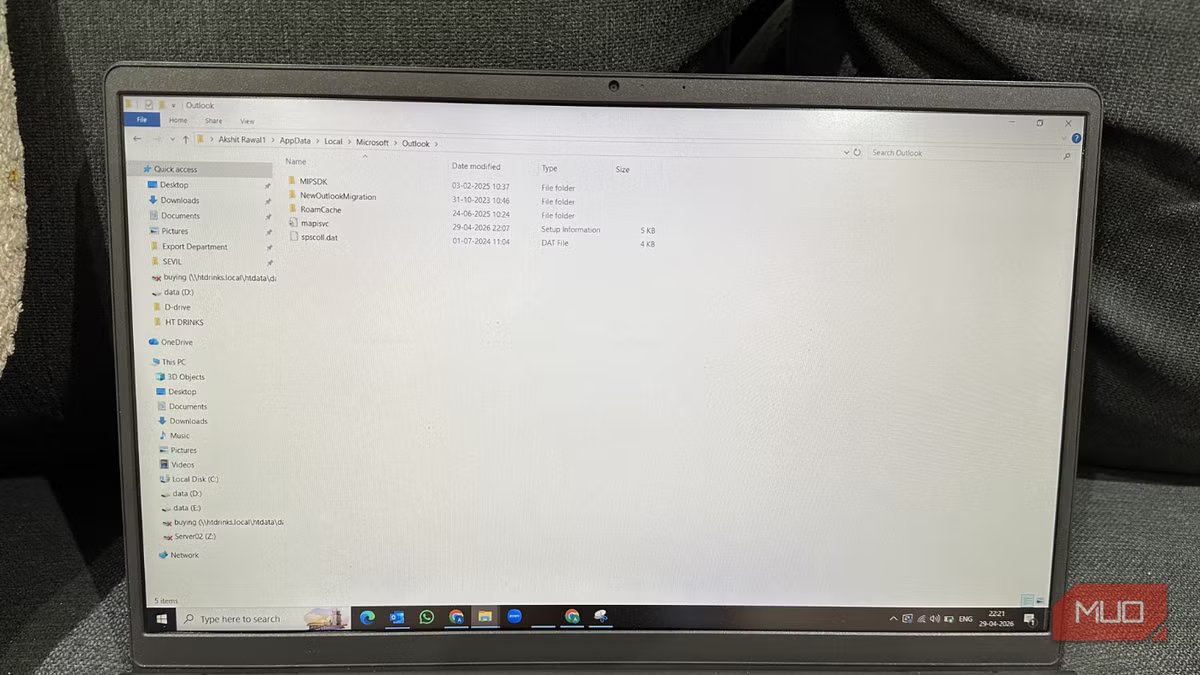
On Windows, it’s under C:\Users\[YourName]\AppData\Local\Microsoft\Outlook.
Here’s how you can find it:
- Press Windows + R keys to use the Windows Run box.
- Type: %localappdata%\Microsoft\Outlook and press Enter.
Once I opened this folder, the problem was obvious. I saw OST files, and one of them was massive — taking up the bulk of that missing 15GB. If you want to check the size, right-click the file, select Properties, and check the size under the General tab.
Besides this, there’s a RoamCache folder that stores temporary data, and it can also add up over time. You can find it in %localappdata%\Microsoft\Outlook\RoamCache.
Why deleting files isn’t the right fix
Manage the cache instead
Yadullah Abidi / MakeUseOfCredit: Yadullah Abidi / MakeUseOf
My first instinct was to delete that big file and get my space back. Obviously, many of us will feel the same, but it isn’t the right way to deal with the issue. If you delete the entire OST file, it will also wipe out some critical data from your device. As a result, you might lose your important offline files. Also, it might trigger slow performance and syncing issues. And, even if you do, Outlook will rebuild everything from scratch.
Therefore, you don’t have to wipe out the files blindly. Instead, you have to manage the cache. This will help you control how much data Outlook stores in the first place.
How to manage Outlook Cache
Here’s what actually worked for me
Screenshot by Kanika Gogia
Once I figured out what was happening, I decided to make a few targeted changes. These helped me free up space, and also made Outlook faster.
Limit how much mail is downloaded
Thankfully, Outlook gives you control over how much of your mailbox is stored locally. So, instead of syncing everything, I decided to limit it to recent emails. Here’s how to do it:
- Open Outlook and go to File > Account Settings > Account Settings
- Double-click your email account and find the Mail to keep offline slider.
- You can now change it from All to something like 6 months.
- Make sure to restart Outlook.
Your older emails won’t disappear, so you can still access them online. But they won’t be stored on your device now.
Clear the temporary RoamCache files
Outlook also creates temporary cache data in folders like RoamCache. This includes things like autocomplete data and calendar data. You can safely delete these files to clear clutter and fix performance issues on your device.
- Close Outlook and press Windows + R
- Type: %localappdata%\Microsoft\Outlook\RoamCache
- Inside the folder, select all files and delete them. Just make sure you don’t delete the folder itself.
- Reopen Outlook.
This will clear unwanted temporary data without affecting your emails.
Manage large attachments
In my case, attachments were one of the biggest contributors to the cache. This included PDFs, presentations, and forwarded documents. Rather than allowing the attachments to pile up, I started deleting them manually.
I searched for emails that were more than 20MB in size. This instantly pulled up messages with bulky attachments. I archived important emails and saved essential attachments to my laptop before removing them from Outlook. Yes, it took a bit of time. But it also reduced the total space Outlook was using.
Turn off unnecessary syncing
While doing all of this, I also discovered that Outlook was syncing more than I actually needed. Over time, I’ve added multiple accounts and folders. Outlook was keeping local copies of all of them, even for the ones I rarely used. To fix this, I removed old/unused email accounts and limited which folders were synced.
The results after fixing Outlook’s cache
Outlook cache is useful, but it can also become one of the biggest storage hogs if you never check it. Once I started managing Outlook cache, the difference was immediate. I claimed a large chunk of precious storage, and Outlook also felt more responsive. No, that 15GB cache didn’t disappear instantly. But over time, it shrank significantly as Outlook adjusted to the new settings. More importantly, the cache stopped growing uncontrollably.
