

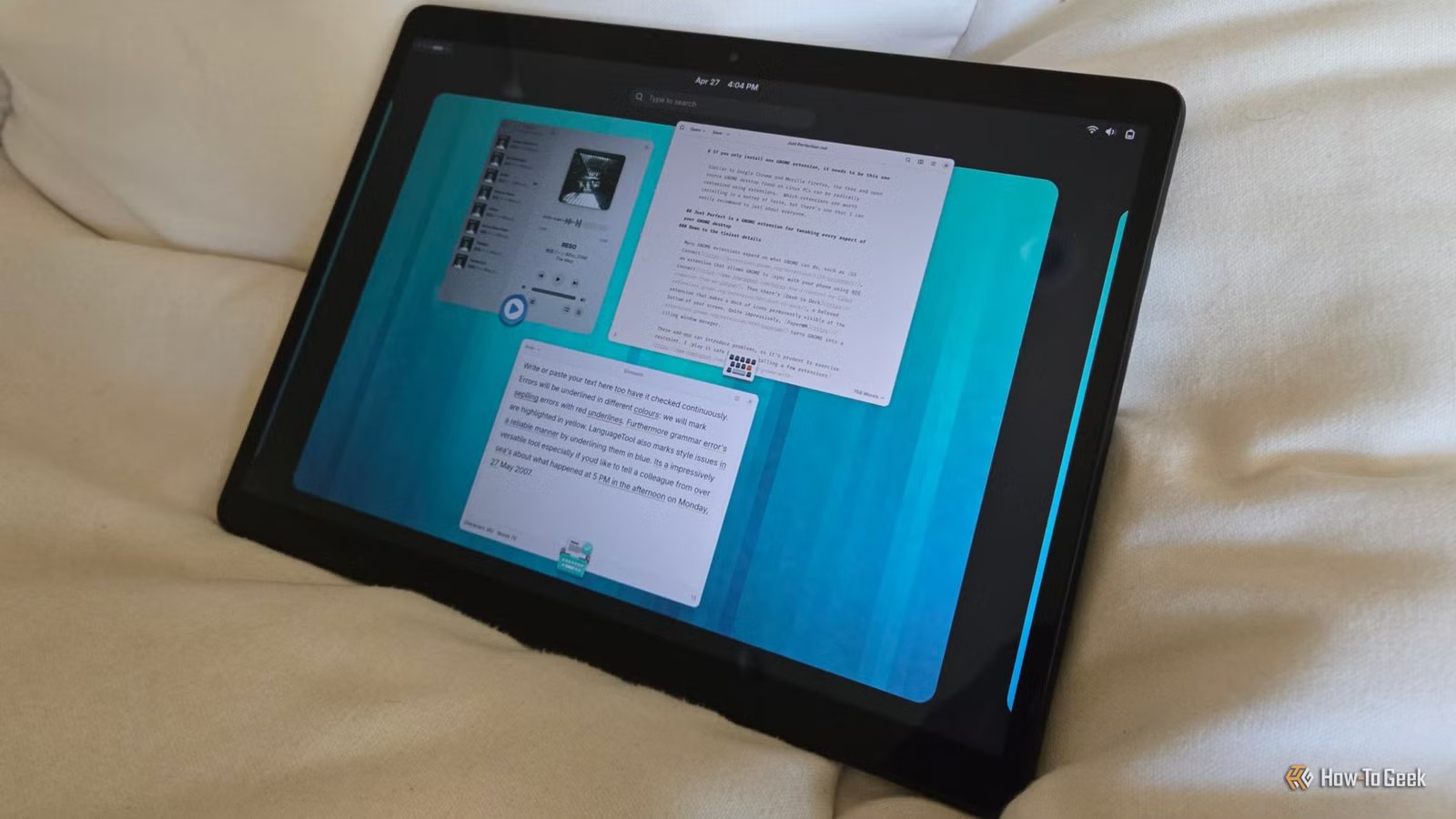
Similar to Google Chrome and Mozilla Firefox, the free and open source GNOME desktop found on Linux PCs can be radically customized using extensions. Which extensions are worth installing is a matter of taste, but there’s one that I can easily recommend to just about everyone.
Just Perfection is a GNOME extension for tweaking every aspect of your desktop
Down to the tiniest details
Many GNOME extensions expand on what GNOME can do, such as GSConnect, an extension that allows GNOME to sync with your phone using KDE Connect. Then there’s Dash to Dock, a beloved extension that makes a dock of icons permanently visible at the bottom of your screen. Quite impressively, PaperWM turns GNOME into a tiling window manager.
These add-ons can introduce problems, so it’s prudent to exercise restraint. I play it safe by only installing a few extensions, and they tend to be of the sort that aren’t obvious.
Just Perfection is one such extension. It doesn’t extend what your GNOME desktop can do. Rather, it empowers you to tweak all the aspects of the GNOME interface that you might wish were a little bit different.
Do you want to hide the panel at the top while you’re working, so that it’s only visible when you activate the Activities Overview? Do you want to remove the ripple animation that appears when you move your mouse to the top-left corner? Do you want to remove the clock from the center of the screen? In the early days of GNOME, you could have installed a specific extension that only did any one of these things. Now you can download one extension that allows you to do them all.
These kinds of tweaks are nice to have on a desktop, but they’re especially useful on a Linux tablet like my Star Labs StarLite, whose smaller screen and unconventional aspect ratio make this degree of configurability feel like a godsend.
Brand
Star Labs
Storage
512GB, 1TB, 2TB
The StarLite is a tablet from Star Labs that ships with one of several available Linux distributions, Windows, or no operating system at all. An optional keyboard case is available, and the tablet works with MPP active pens.
Just Perfection doesn’t merely change how your desktop looks
This one extension can alter the way you work
There are two simple ways to download a GNOME extension. One is to open GNOME Extensions in a browser, search for Just Perfection, and click the toggle to enable the extension. If you’ve never used the site before, it may prompt you to download a browser extension beforehand.
My preferred method is to download Extension Manager from Flathub. You can then search for Just Perfection inside this app. Once installed, you can then use the same app to configure Just Perfection’s settings.
Just Perfection divides your options into multiple categories:
- Profile: Pre-configured profiles that tweak many aspects of the desktop all at once. The “minimal” profile hides the panel at the top of the screen.
- Visibility: This is for determining which aspects of your desktop interface you’re able to see. Here you can get surprisingly granular, such as removing the app icons and names that appear when you hover over a window in the Activities Overview. Or you can remove the divider from the Dash (GNOME’s name for the dock containing your favorite and running apps). You can even hide the Dash entirely.
- Behavior: Here you’ll find settings that change how your desktop behaves. For example, you can set workspaces to wrap around, so that moving right from your right-most workspace will send you back to your left-most. You can set windows to maximize by default or require that you click on the Search field in the Activities Overview before searching for apps and files.
- Customize: This section allows you to move aspects of the interface around. You can shift the panel from the top to the bottom. You can even adjust the size of the panel, the icons on the panel, and the spacing between them.
This one extension can make GNOME feel utterly new. GNOME is a different experience when the panel is at the bottom and the Dash is nowhere to be found. Just Perfection may not be an official part of the project, but it single-handedly shows just how customizable the GNOME desktop can be. If you’re not a fan of GNOME design, this extension can be a vital tool in transforming the interface into something you prefer.
I use Just Perfection to remove the on-screen elements I don’t need
The Activities Overview feels a little cluttered to me out of the box. I like to remove Search field and a Workplace Switcher above my open apps. I also do away with the caption that appears under app windows, turn off the window menu that appears when you right-click the top of an app, and axe the divider between favorite and running apps in the Dash.
I don’t think my preferences should be the default. It makes complete sense for these features to be surfaced the way they are to GNOME newcomers. I’m just glad Just Perfection provides a single place to make the desktop feel just right for me.
