

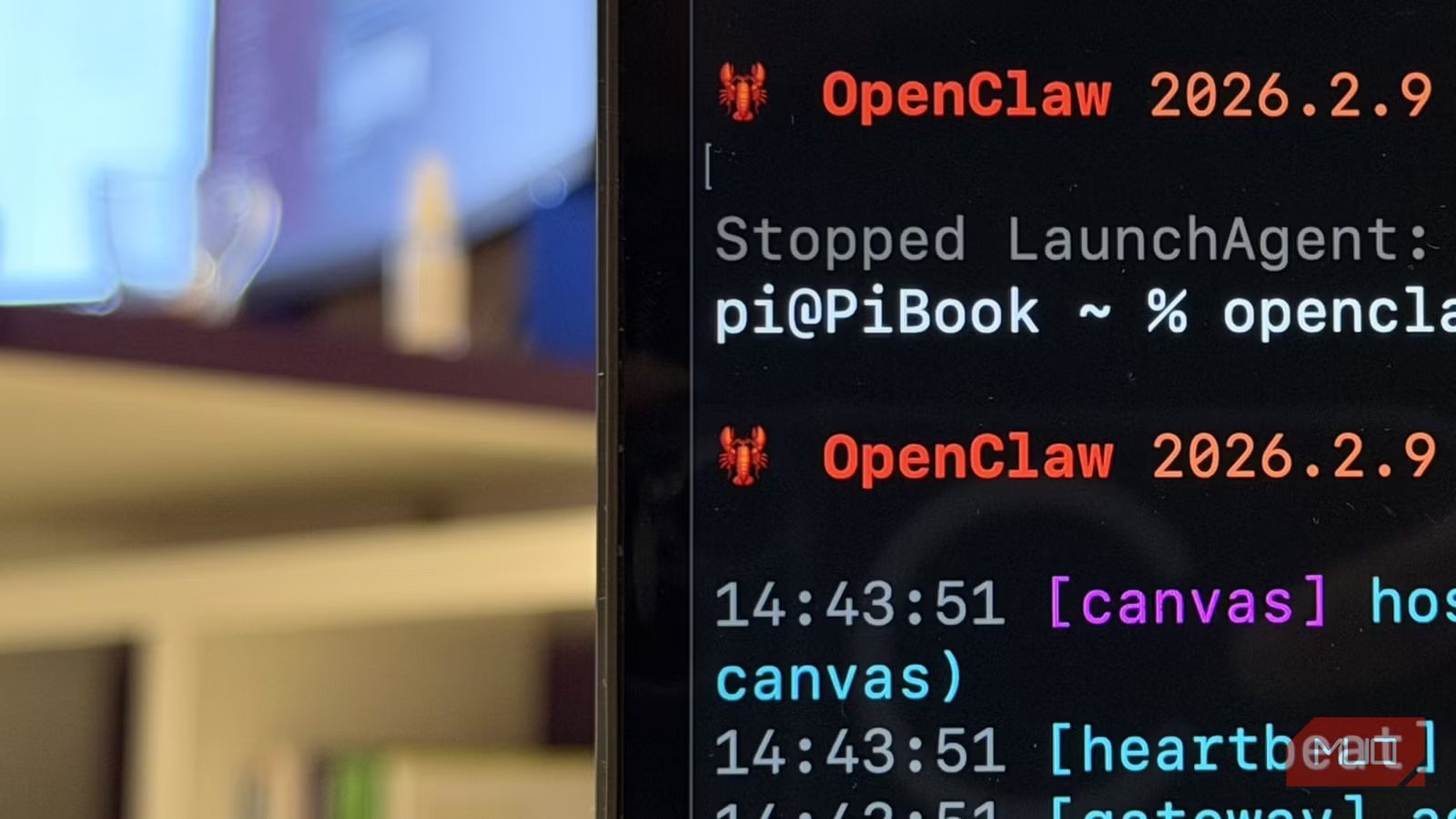
AI slop comes and goes, but from the dozens upon dozens of projects that show up, very few actually stick. OpenClaw is turning out to be one of them. It’s an open-source project from a retired developer who came back to build OpenClaw. It was an instant hit, and OpenAI even ended up hiring that developer.
OpenClaw is not a chatbot, nor is it an AI productivity tool. In fact, it doesn’t pack any AI into it by default. You have to bring the AI to it. What OpenClaw does give you, though, is a gateway for building and controlling agents. That was interesting to me, and given that my experience with agents was mostly limited to ChatGPT’s Agent Mode, I decided to give it a try. I came away very impressed.
Clawdbot, Moltbot, and OpenClaw
What’s an “agent” anyway?
Amir Bohlooli / MUO
Let me finish the introduction I started above by first defining what an AI agent is (I myself was confused for a while). AI agents are agents that use AI to complete tasks. That might seem obvious, but the keyword is tasks. Unlike a standard chatbot that simply lives within a web UI and generates text, an AI agent can actually act. It can step outside the chat box and do things in the real world (or at least your digital version of it).
There’s confusion here, mostly because the term “AI” is so vague and so often misused. In truth, something like ChatGPT 5.2 is not an AI in the broad sci-fi sense people usually mean — it’s an LLM. But for the sake of conversation, let’s call it AI.
Think of it like this: when you use an AI like ChatGPT to diagnose a technical problem, it gives you a command to run. You copy that command, paste it into your terminal, run it, and then report the output back to ChatGPT so it can give you the next step. In that scenario, you are effectively acting as the AI agent. The AI (ChatGPT) handles the planning and logic but lacks the physical limbs to execute the actions itself. You’re doing the manual labor on its behalf. That’s essentially what an AI agent is: someone (or thing) that uses AI to carry out actions.
AI agents are usually scripts that can run shell commands and system actions. That gives them the power to actually carry out tasks. If the LLM decides it needs to see the contents of a folder before deciding what to do next, the agent can run cd and ls in the shell, then send the output to the LLM for further instructions.
Terminal commands are already a massive source of power, but this goes even further when you give the agent “tools.” For instance, it would be difficult for an agent to run a Google search and read the results cleanly through the terminal alone. It’s possible, but not ideal. With the right tools — say, a SearXNG instance/tool or a Brave Search API integration — it can do that much more smoothly.
So where does that put us with OpenClaw, formerly known as moltbot, formerly known as Clawdbot?
OpenClaw gives you the infrastructure for an AI agent, but with an interesting twist. Instead of relying solely on a self-hosted web UI, OpenClaw provides a gateway layer. You can hook it up to messaging apps and use it right inside those apps. I use Telegram for my personal communication, so I hooked it up to Telegram. That means I don’t need to open a separate app or go to a web app to talk to my agent. It’s right there in Telegram. It’s low-key brilliant. It also supports almost every major communication platform, including WhatsApp, iMessage, Slack, Discord, and more.
My point is that while the agentic part of OpenClaw is more or less the main product, that part is not unique to OpenClaw. There were many open-source agent libraries before it. What OpenClaw does differently, and what makes it click for normal people, is the gateway.
OpenClaw started as ClawdBot, but Anthropic’s Claude wasn’t happy with the name, so it changed to moltbot, and later to OpenClaw.
Setting up OpenClaw
And putting it to use
Setting up OpenClaw is a piece of cake, but it’s also easy to get wrong. I got it wrong the first two times because I was stubbornly trying to get it to work with my local LLM. My local LLM runs through LM Studio, and it has a much smaller context window than the massive cloud models, so it just wasn’t a great fit for an agent workflow. If you happen to have a supercomputer or a serious homelab, you’ll get better results.
curl -fsSL https://openclaw.ai/install.sh | bash
We live in the golden age of installer scripts, so all you really need to do to install OpenClaw is run the install command from the project docs. It automatically detects the operating system and environment, then proceeds with installing prerequisites. OpenClaw is available on Windows, macOS, and Linux. But it works best on macOS. I’ll talk more about why in a bit, but now at least you know why there was a surge in Mac mini purchases last month.
Once OpenClaw is downloaded, it automatically runs the onboarding script. You can always re-run onboarding later with openclaw onboard. You’ll first have to agree that you understand OpenClaw is inherently dangerous by nature, and then proceed with setup.
I recommend choosing QuickStart if it’s your first time. It’s much simpler. Next, you’ll have to pick your model provider. Here too, I recommend using OAuth instead of an API key. If you have a ChatGPT subscription, you still have to pay separately for API usage because the app subscription and API are separate services. With OAuth, you can use your existing subscription login flow. The same applies to Gemini. I don’t know about you, but lately I’ve grown to really dislike ChatGPT, so I opted for Gemini.
To use OAuth, you need an official program that already supports OAuth installed on your machine. For Google, that can be Google Antigravity or the Gemini CLI. If you have either installed and already authenticated, pick that and continue. A browser tab opens, you click through, and that’s it. For ChatGPT, it would be Codex CLI or the Codex app. The Codex app is only available on macOS.
Once you authenticate and pick a model, you get to the main part: setting up a communication “channel.” This is where you configure your Telegram bot (or whichever platform you want to use). You have lots of options, and you can set up multiple channels, but during onboarding you’ll pick one to start with.
The setup differs depending on the channel. For Telegram, for example, you create a bot and grab the API key. OpenClaw then uses that bot as the gateway.
We’re almost there. Select yes to configure skills, but don’t overthink it. You can always change this later based on how you actually use the agent. For now, I’d say keep it simple. In my case, I also skipped the optional API keys (Google Places, Nano Banan Pro, etc.) because I had no use for them.
Hooks are the final step. I recommend enabling them all (press Space) and then pressing Enter. You should now see the gateway spinning up. Then you’ll be asked where you want to “hatch” your first agent. Your choices are the CLI and the web UI. Pick whichever you prefer.
On Windows, you might get an error about not being able to run the gateway. It’s OK. Open a new elevated terminal (Run as Adminstrator) and then run openclaw gateway.
What you tell your bot, what you name it, and how you shape it are all your business, so let’s move on to Telegram (or your messaging app of choice). Message the bot you hooked up, and it’ll respond with a pairing code. Then, on the host machine, run:
openclaw pairing approve telegram
Now you’re all set. You can text your agent right inside Telegram. But how is that different from a chatbot, exactly?
What can OpenClaw do for you?
It’s so capable it’s almost scary
Amir Bohlooli / MUOCredit: MUO
I use Obsidian for almost everything. I’m writing this draft in Obsidian right now. So one of the first things I asked was: “Can you read my Obsidian?” To my amazement, it didn’t answer with a “no, but…” It just went ahead, installed the obsidian-cli tool it needed, and replied with “I have connected to your Obsidian.” It was fantastic.
I wanted the agent to have some context, so I asked it to read my entire journal from Obsidian. It did. Of course, it replied with the pleasantries you’d expect from an LLM (blame the model, not the agent), but it was still impressive. I asked it to explain the breadth of its autonomy, and it told me it could do a lot. One of the examples it gave was controlling my Spotify. I replied with: “Wait, what? You can play music on my Spotify? Let’s set it up.”
Amir Bohlooli / MUOCredit: MUO
In less than a minute, my agent had installed shpotify, connected to my Spotify, and told me I was listening to 10 Lovers by The Black Keys. My response was, “Resume the track,” and behold — the track resumed. I asked it to pause it, and behold — it paused the track. Then I told it to create a folder in my Obsidian vault and start its own journal. Every night, it would write one journal entry. It did that. Finally, I could understand what the whole AI agent fuss was about.
Then I asked whether it could send voice messages in Telegram. It installed the necessary libraries, turned its message into audio, and sent it over Telegram. The file was initially MP3, so Telegram recognized it as an audio file, not a voice message. It then fixed that by using ffmpeg to convert the MP3 to OGG. After that, it could send proper voice messages. It can also hear mine.
Amir Bohlooli / MUOCredit: MUO
The best part is that it’s hosted on your own machine.
Do you see the significance of this? You already had the brainpower of an LLM. Now you’ve given it limbs to act on its plans and instructions. The best part is that it’s hosted on your own machine. Yes, it will still ping home to the LLM provider — but if you do run a local LLM, you can remove even that and end up with a much more private service.
I had tried connecting my Obsidian vault to a local LLM before, but it was never this good. A local LLM on its own doesn’t have internet access, can’t fact-check, and can’t edit notes unless you manually build all that around it. This — this is much better.
Now’s a good time to explain why OpenClaw works best on macOS. Obsidian support is a skill that requires obsidian-cli. Many of OpenClaw’s default skills are set up to use Homebrew (brew), which isn’t available on Windows. So although it worked perfectly on my MacBook, I couldn’t get the same setup working on Windows at first. Of course, you can ditch the default skills and wire up your agent with different tools. There’s an obsidian-cli Rust package for Windows, and I used that for the Windows installation. It works just as well.
Skills, memories, and SOUL
Getting it all together
Amir Bohlooli / MUOCredit: MUO
Skills are essentially packages of tools plus instructions for how to use them. You don’t necessarily need skills for your agent to do something — you can always tell it to use tool X for task Y — but skills are the full package: tools, setup expectations, and usage instructions bundled in a way that makes a task much smoother.
One of the nice perks of OpenClaw is that it comes with ClawHub, which is a public registry for OpenClaw skills. You can browse skills other people have built and install them on your instance.
Your interactions with your agent will also feel different from talking directly to the model itself (for example, through the Gemini app), because your agent comes with a couple of interesting Markdown files attached to it. The most important one is SOUL.md. You can find it in:
/Users/[you]/.openclaw/workspace/SOUL.md
Its contents are written in natural language, which makes it a surprisingly interesting file to read. That file is what shapes how your agent behaves. And yes, you can edit it to your liking.
If you’re interested in learning more, check out the SOUL.md website.
There’s also a MEMORY.md file that stores key points about you. On top of that, it keeps a running log of conversations the agent can refer back to later, so the more you use it, the better it generally gets at being your agent rather than just an agent.
The drawbacks — and the risks
OpenClaw is inherently risky
One of the first problems I had with OpenClaw happened the same day I set it up, around 2AM. I was texting it in bed on my phone when I realized it wasn’t responding. Then I realized my MacBook had turned off, and therefore my agent had gone to sleep with it.
If you want your agent to run reliably, you need to host it on a machine that stays on. You can use a VPS for that, but the downside is obvious: the VPS can’t read your Obsidian vault or control your Spotify playback if those apps and files live on your personal machine.
The best way to run OpenClaw is a Mac mini.
The best way to run OpenClaw, honestly, is a Mac mini. Get a Mac mini, sign in, set up the apps and tools you want, install OpenClaw, and just leave it on. I wanted to try the VPS approach anyway, so I talked to OpenClaw about it. It gave me instructions, but I was sleepy and tired, so I had a bold idea: I asked if it could install a node of itself on the VPS by itself.
The answer was yes. And why not? This agent can use my terminal. If I were going to install it, I’d be using the terminal. The terminal is all it needs.
Amir Bohlooli / MUOCredit: MUO
In a moment of “am I seriously about to hand my server credentials to an LLM?” I dropped the server IP and credentials into our chat. The agent took them and installed itself on the VPS. It referred to this as “colonization,” which I found both amusing and mildly alarming.
Although I had a good experience, this should also make it very obvious how many ways this could have gone wrong. The VPS I gave it was blank, so there wasn’t much to break. But the agent still relies on LLMs, and LLMs are very much still prone to hallucinations and bad judgment.
Related
Why does this harmless emoji make ChatGPT lose its mind?
Ask about this emoji and watch ChatGPT unravel.
What if, for some twisted reason, it decided to run rm -rf in the wrong place? That is not some impossible sci-fi scenario. That is a real category of risk when you grant terminal access to a system driven by a model that can absolutely make mistakes.
And that paradox is always present. For the agent to be useful, you need to give it more power and more access. But with great power comes great responsibility — and in this case, that responsibility is entirely yours. The agent is useless if it can’t run commands. But if it can run commands, it becomes dangerous, even as it becomes useful.
LLMs also tend to be oddly oblivious to security flaws, and as good as they can be at writing code, they still occasionally make ridiculous mistakes. So whatever precautions and best practices you’ve read about for using LLMs, multiply them and actually follow them. Use isolated environments. Limit permissions. Don’t hand over credentials casually. Don’t connect it to things you can’t afford to lose.
You should give OpenClaw a shot
Still, even if you’re not sold on agents, or don’t see yourself relying on one, I recommend giving OpenClaw a try. It’s incredibly easy to set up, and the agent itself can fill in gaps and improve its own setup without you touching code every five minutes.
There are endless ways to use it, and even if you don’t end up using it, it’s worth experimenting to understand what agentic systems actually feel like in practice.
